

Vessel
The Vessel part of My Boat holds your boat's own details: its name and registration, its size and draft, the anchor gear, the call signs and the letterhead on printed documents. The anchoring tool, the chart and the radio list in the Tools panel use them.
Open Vessel
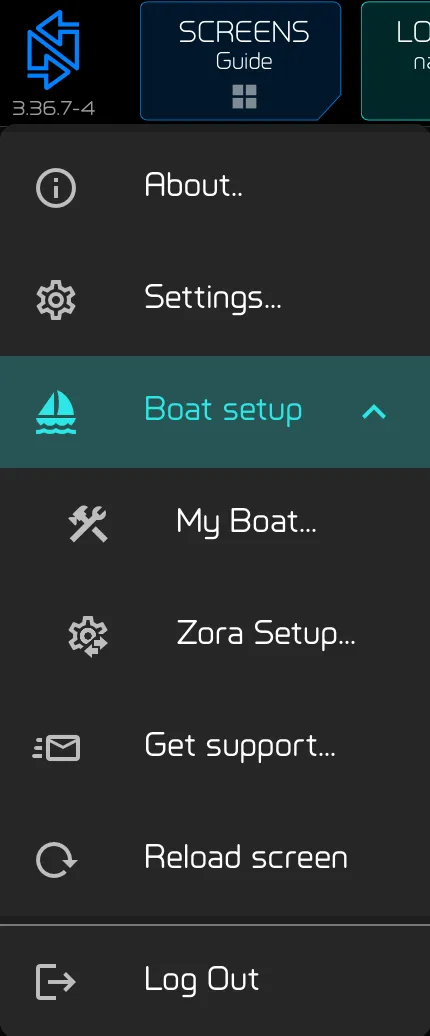
- Open My Boat: the Zora logo, Boat setup, then My Boat....
- On the hub, tap Vessel.
Vessel takes one page for each part of the boat, in this order: the vessel name, boat and hull type, About your boat, Registration, Hull, Size, Draft and keel, Anchoring, Radio and contact and Printed documents, then a review. Move between them with the arrows at the bottom. The back arrow at the top left, like the bottom arrow on the first page, returns to the hub without saving.
Name, boat type and builder
- The vessel name has its own page. It is required.
- Boat type is Sailboat or Power Boat. A powerboat is weather-routed under motor, and its weather-routing toggle shows Motor alone.
- Hull type is Monohull, Catamaran or Trimaran. It sets the shape of your boat on the chart.
- About your boat holds the Brand, the Model and the Year built. The year is four digits, from 1900 to next year.
These, and every field on the pages after them, may be left blank.


Registration
Flag, Registration number, Home port and Website.
Hull
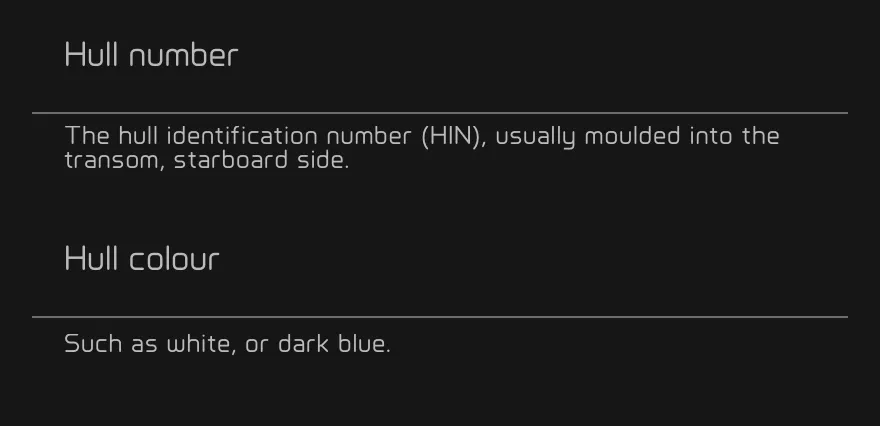
Hull number, the HIN, usually moulded into the transom, and Hull colour.
Size
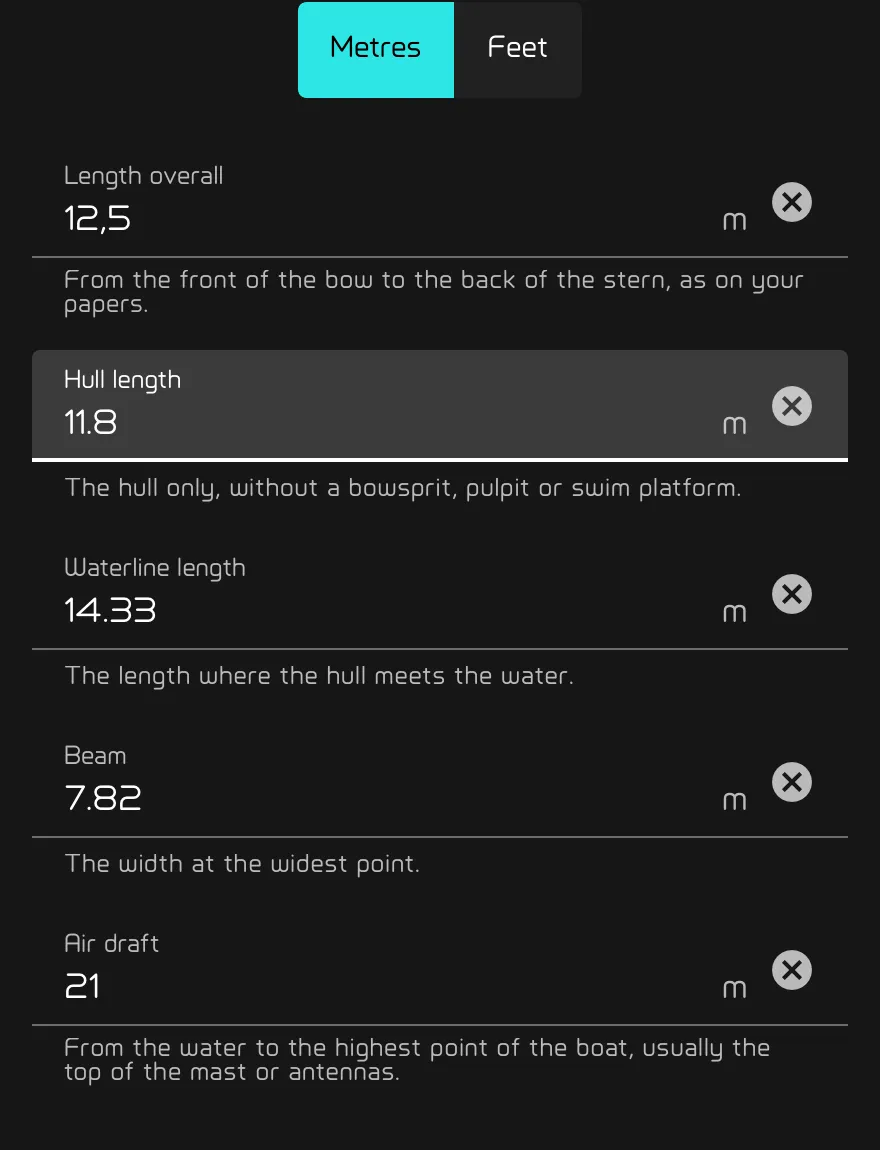
Length overall, Hull length, Waterline length, Beam and Air draft.
A page with lengths has a Metres / Feet switch at the top, and your choice carries to every page. It starts on feet when the screen's language is US English, metres otherwise. A length takes a comma or a dot as the decimal point.
Draft and keel
- Draft: from the water to the lowest point of the keel.
- Draft with the keel up: only for a lifting keel or centreboard.
- Depth sounder to keel: how far the bottom of the keel sits below the depth sounder. Zora uses it for the depth below the keel.

The anchoring tool adds the draft to the depth under the keel when it works out how much chain you need.
Underway, Zora checks the water ahead against the draft and the bridges and overhead cables ahead against the air draft; see Hazards ahead.
To check Depth sounder to keel, measure the water under the keel in a shallow spot, then adjust the distance until Zora shows the same depth below the keel.
Anchoring
The anchoring tool needs your ground tackle before it can work out scope. Until the chain length is set, it asks for it and offers anchor settings, which opens My Boat at this page.
- Chain length: all the chain you carry. The anchoring tool shows it as the chain available and works out the most scope it gives you.
- Bow roller height: from the water to the anchor roller. It is added to the anchor depth.
- Bridle length: from the anchor roller to where the bridle meets the chain when it pulls. Leave it blank without a bridle. With a bridle length set, the anchoring tool shows where to mount the bridle. Mount it there and the chain deployed is correct, which is what the anchor alarm circle is built on.

See Anchor.
Radio and contact
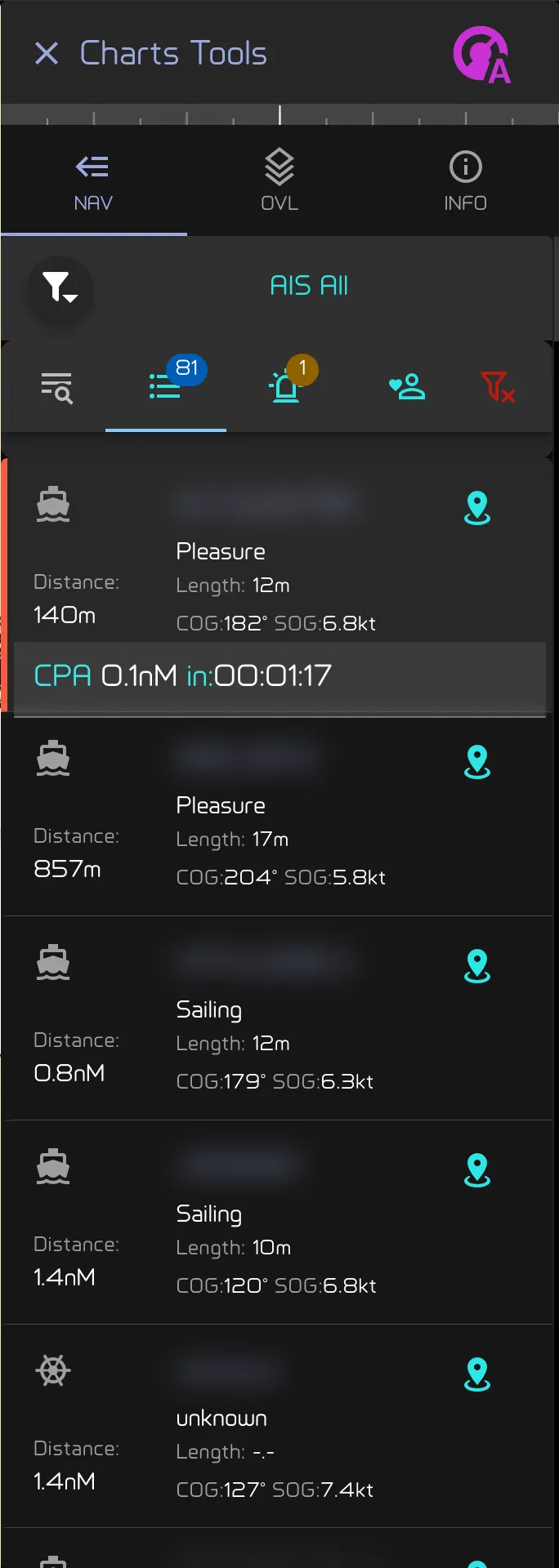
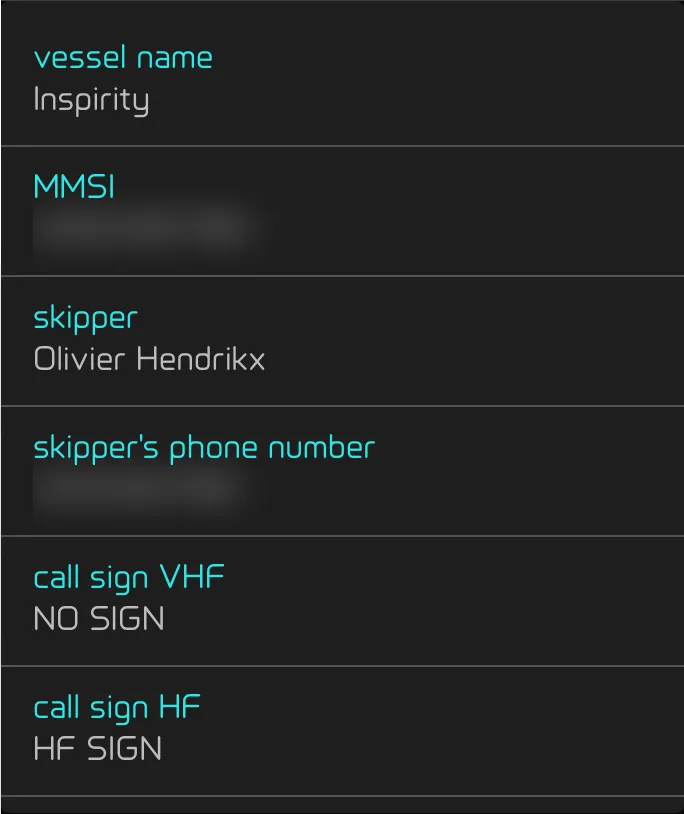
- MMSI: your boat's MMSI, nine digits. Zora uses it to leave your own boat out of the AIS targets.
- VHF call sign and HF call sign.
- Skipper's phone and Skipper's name.
The vessel name, MMSI, skipper, skipper's phone and the call signs then show in Communication on the Tools panel's more tab. See Communication.
Printed documents
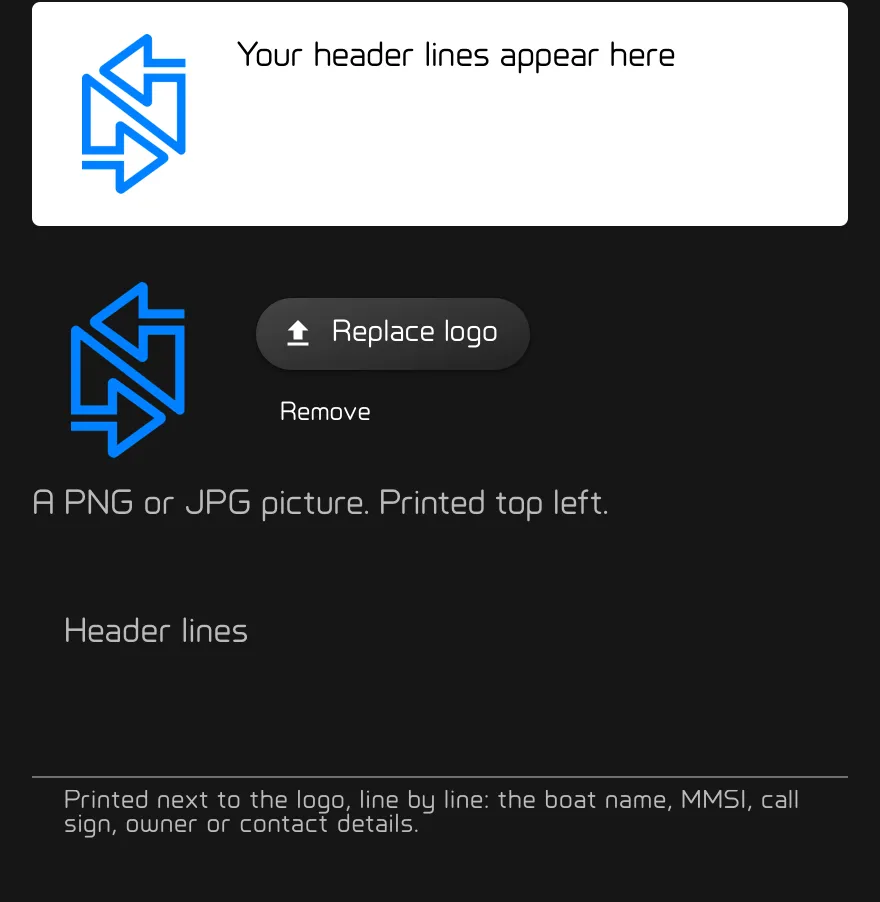
The letterhead is printed at the top of a voyage plan's documents, the printout of a weather-routed departure, the crew list, the logbook and the maintenance list. A rough preview of it sits above the fields.
Logo
Tap Add a logo and pick a PNG or JPG. Zora shrinks it to 1024 px on its longer side and uploads it at once. The button then reads Replace logo. If the upload fails, the error shows under the logo and the letterhead keeps the logo it had. Remove takes the logo off the letterhead.
Header lines
Type what should stand next to the logo, one item per line: the vessel name, MMSI, call sign, owner or contact details.
The foot of every printed page is filled in for you: the date and time it was printed and the crew member logged in on the left, "Created with Zora™ by iNav4U Inc." in the middle, and the page number on the right.
The letterhead has no save of its own: done on the review stores it with the rest. See Save your changes.
Save your changes
The review lists each part with what it holds. Tap one to go back to its page.
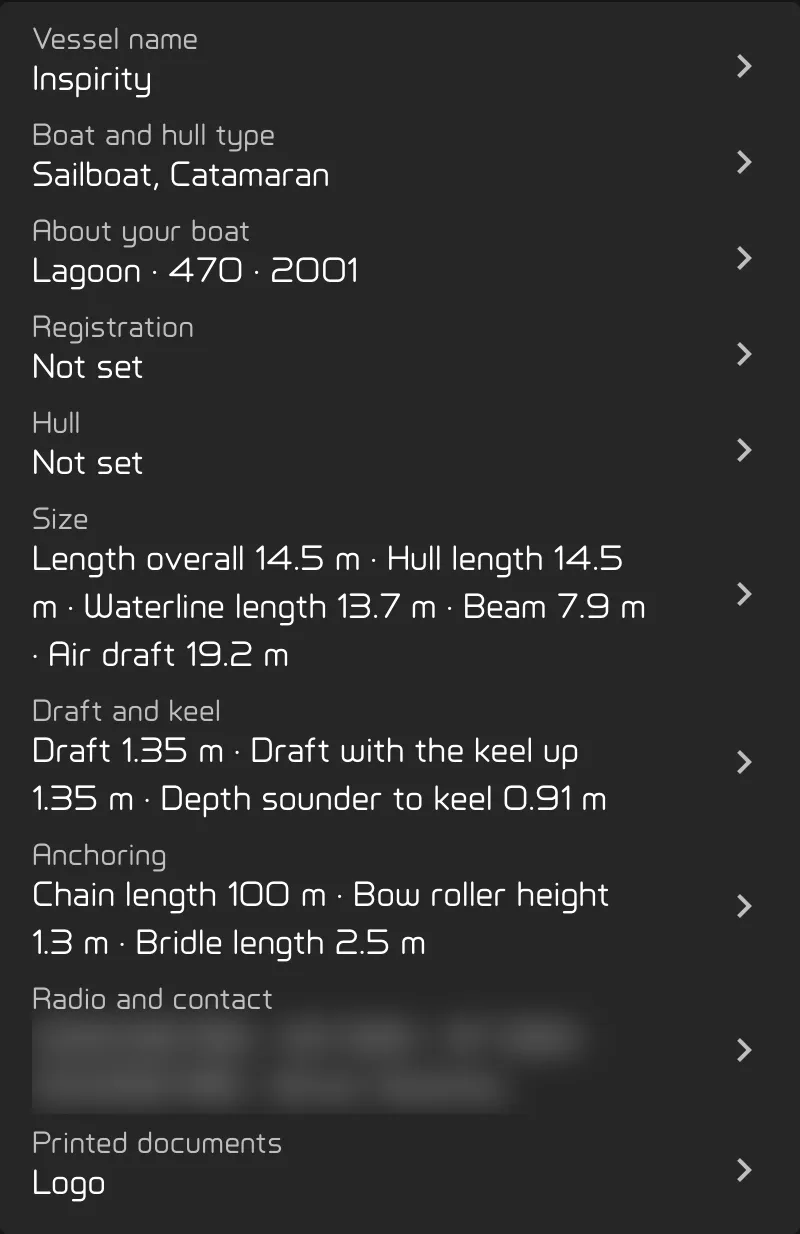
done saves what you changed and takes you back to the hub. An emptied field is cleared. Fields you did not touch keep their values, and Zora applies the new ones at once.
A field that breaks its rule shows what is wrong under it, and the review shows Check with the field's name. done stays off until it is fixed and the vessel has a name. It also stays off while a service the save needs is not answering; the review names the service.