My Boat
My Boat is the app where you describe the boat itself: its name and type, size and draft, anchor gear and radio, its engines, and the currency its books are kept in. How Zora connects to the boat's equipment is set up in a different app, the Setup app.
On a boat that has never been set up, My Boat opens on its own, before Zora, for the minimum setup. After that, open it from Zora whenever something about the boat changes.
Open My Boat
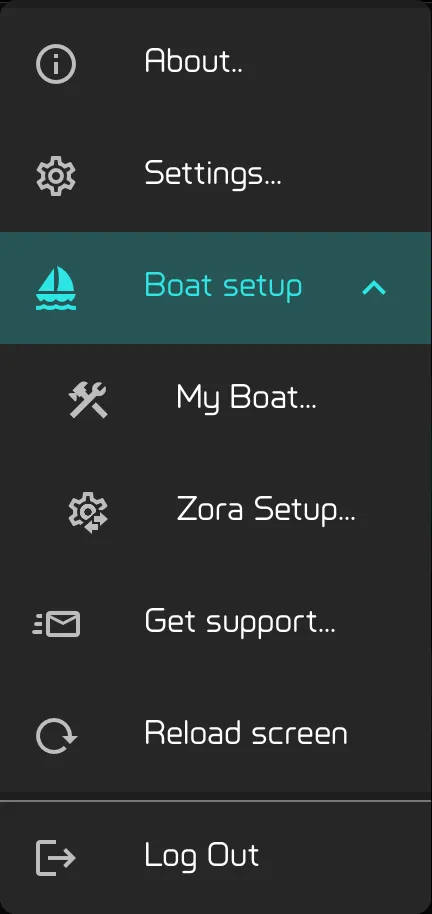
- Tap the Zora logo at the top left, then Boat setup.
- Tap My Boat.... If a Captain has set a code and you are not logged in as a Captain, enter it.
Zora closes and My Boat opens on its hub.
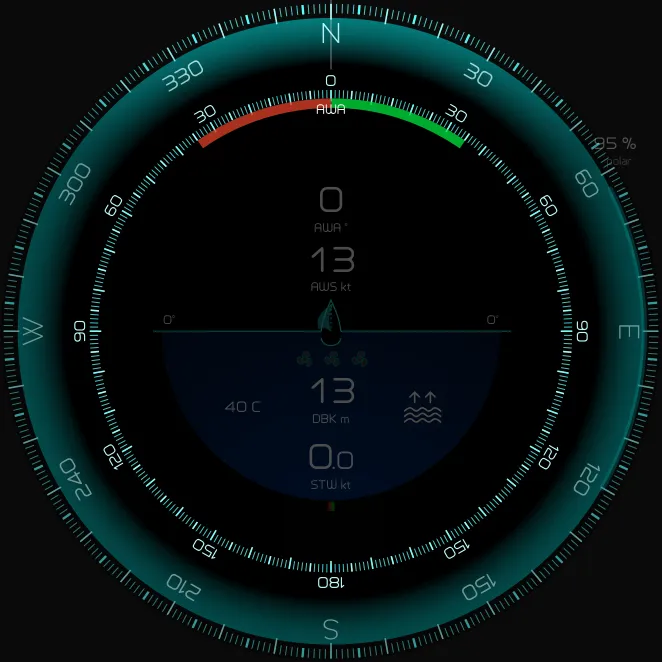
You can also press and hold the boat in the navigation widget to open My Boat on its hub.
The hub
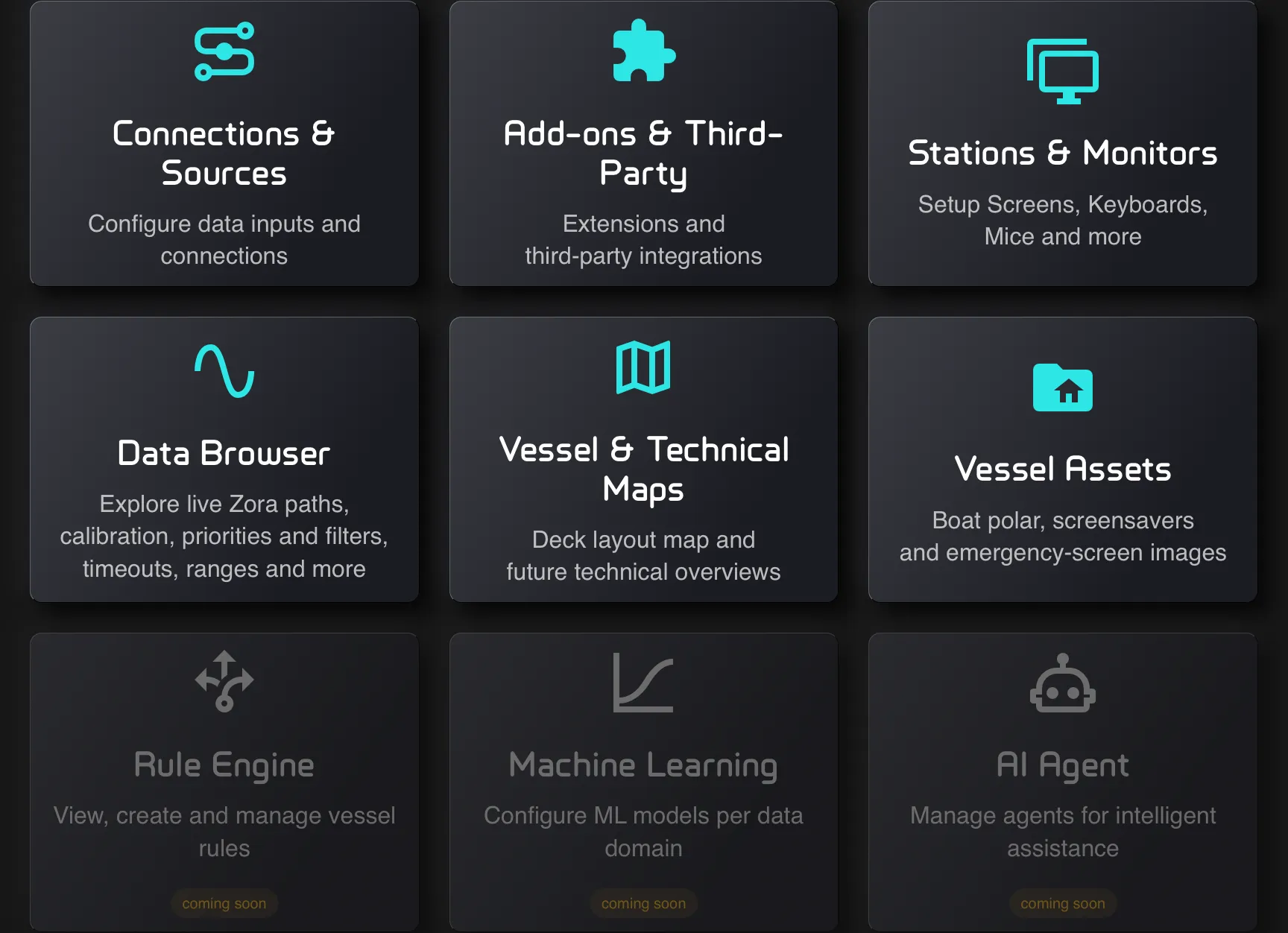
The hub has a tile for each part of the boat: Vessel, Engines and Finances. A sailboat also shows Sails, marked Coming soon. Each tile says what is set, and a tick shows when that part is done:
- Vessel, once the length overall and the draft are in. See Vessel.
- Engines, once the boat has an engine and each engine has a propeller position. See Engines.
- Finances, once the boat's currency is set. See Finances.
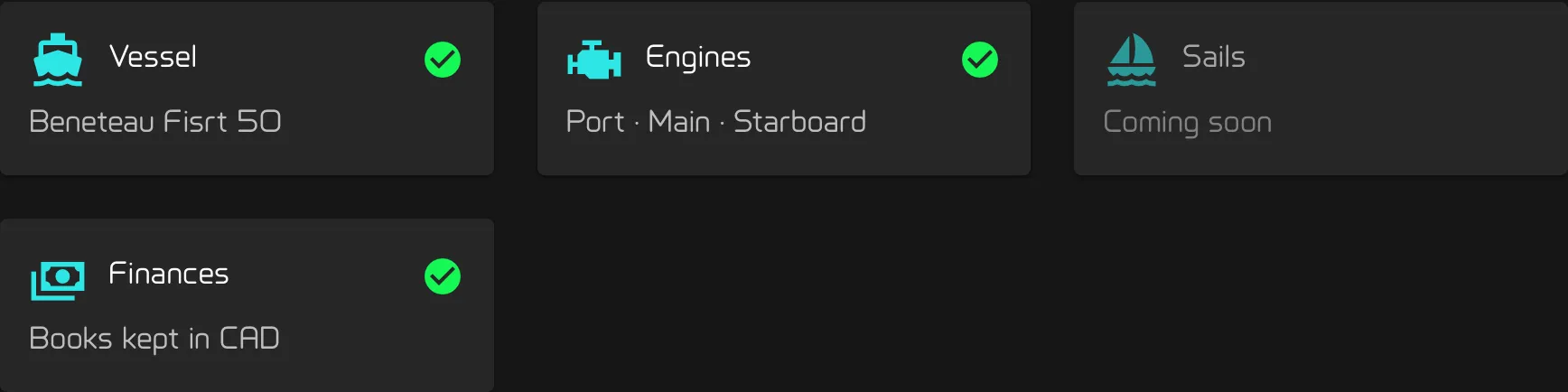
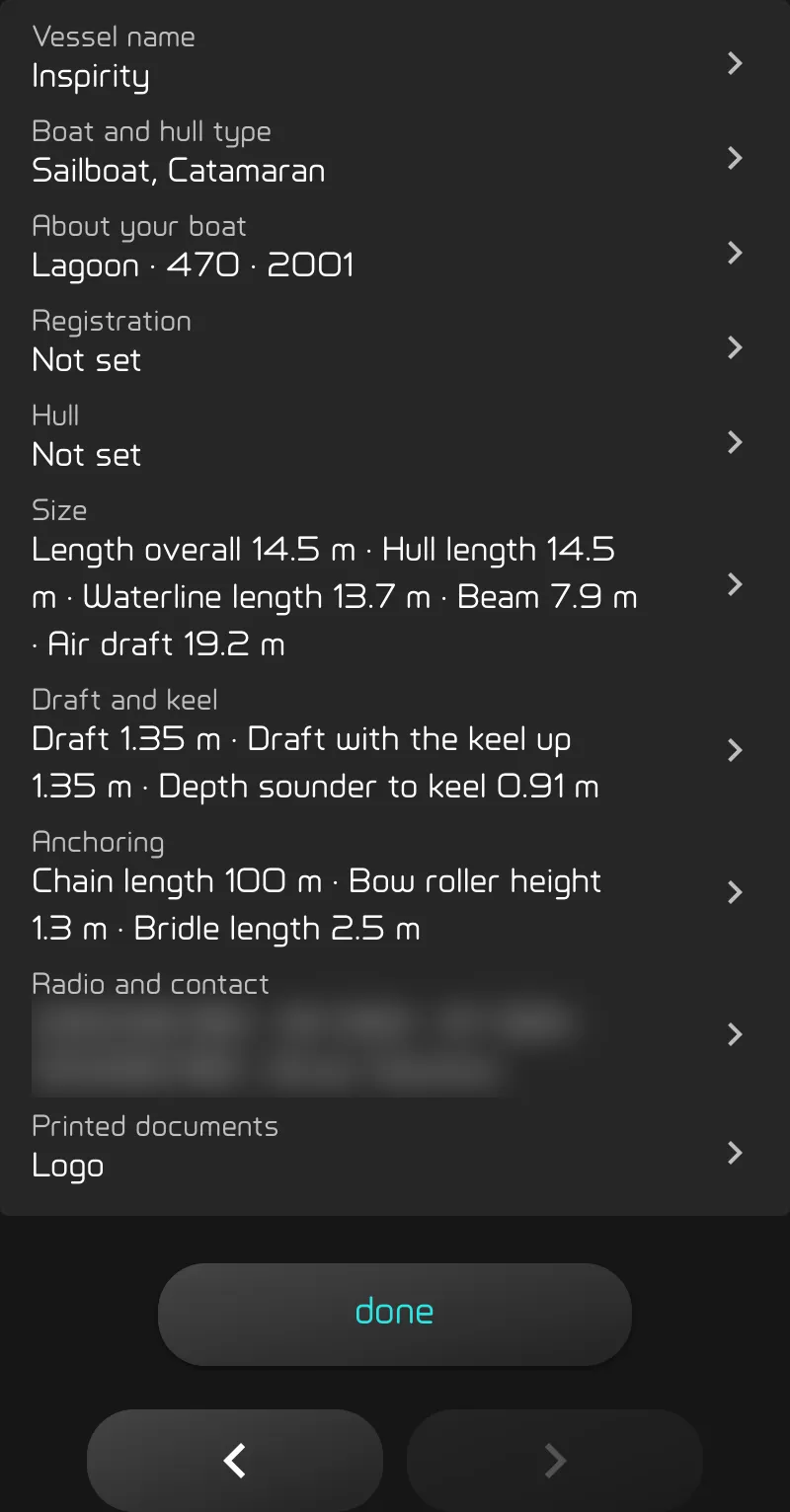
Tap a tile to open its pages. Move between them with the arrows at the bottom; paging saves nothing. Each part ends on a review, where done saves it and brings you back to the hub.
Back to Zora
On the hub, Back to Zora at the top left takes you to the Zora screen you came from, or to Zora's start after a first install.

On a part's pages, the back arrow at the top left returns to the hub without saving. So does the arrow at the bottom of a part's first page.
Help and theme
HELP at the top right opens the guide for the page you are on, in a panel over the page. While the panel is open the button reads CLOSE. Every page has it except the welcome page of the minimum setup.
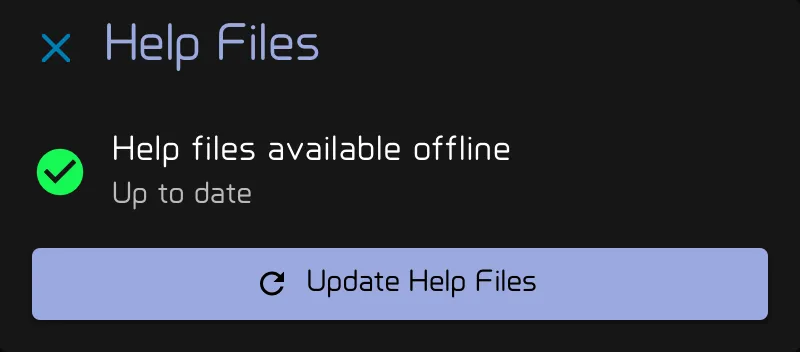
The guide pages come from the boat's own copy once it has one, and from the internet until then. To download or refresh the boat's copy, press and hold HELP and tap Download Help Files, or Update Help Files once a copy is there.
The button to the left of HELP switches between the dark and light theme.