The Setup app
Open the Setup app
From Zora, on any screen on board:
- Tap the Zora logo at the left of the app bar.
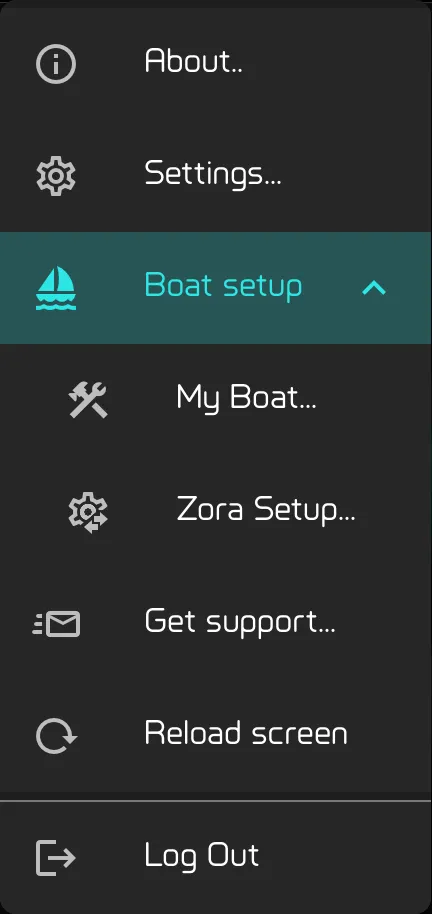
- Tap Boat setup, then Zora Setup....
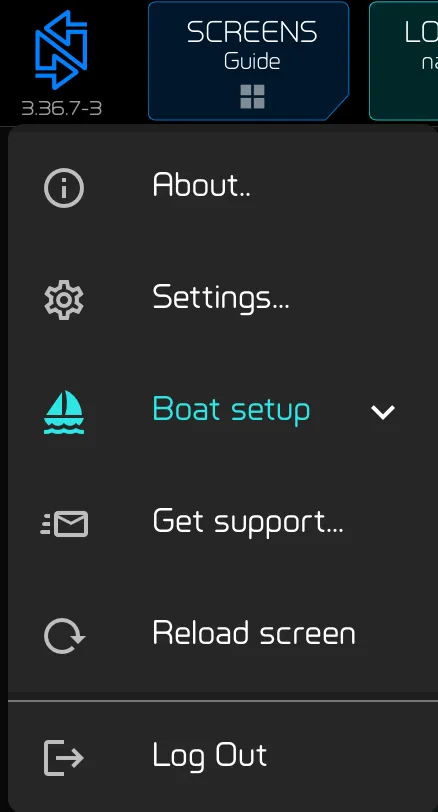
When a Captain has set a personal code, Boat setup reads Asks for a Captain's code, and Zora Setup... opens only after a Captain's code is entered. A Captain who is logged in already gave it at login and goes straight in. If your role is not allowed into Zora Setup, Zora Setup... is greyed out with a lock and the line "Zora Setup is locked for your role. Ask the captain."
Zora closes and the Setup app opens in its place. On any Setup screen, the arrow at the top left takes you back to the home screen. When you are done, tap Back to Zora at the top left of the home screen.

If a change you made needs Zora to restart, Setup asks first with Restart Required. Restart & Go Back restarts Zora and returns you to it after a five-second countdown. Stay in Setup keeps you where you are.
From a laptop or tablet on the boat's network, open http://<boat-ip>/config/setup/. The boat's address depends on how its network was set up during the install; on a network that hands out addresses, the router's list of connected devices shows it.
The home cards
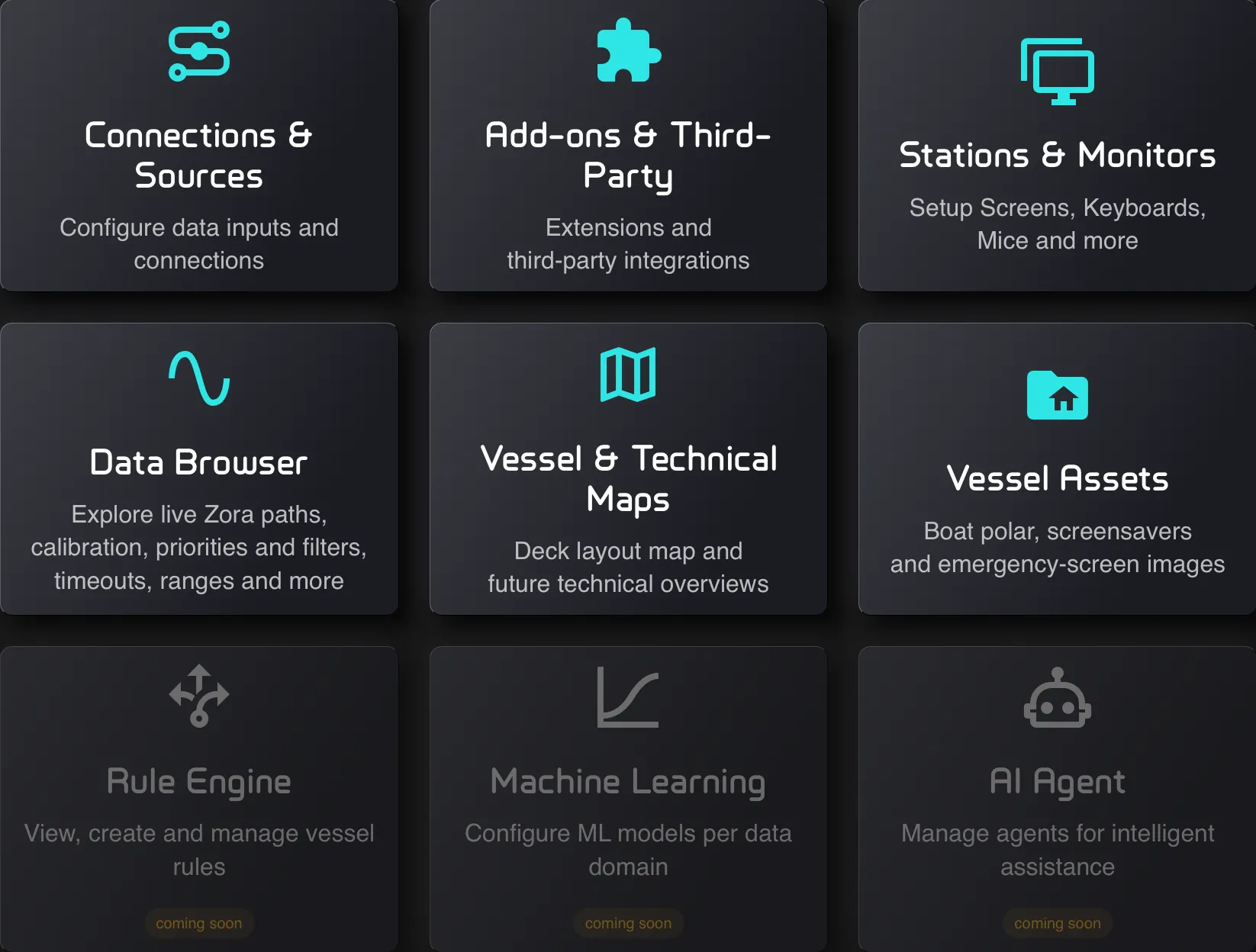
The Setup home screen is a grid of cards, one per part of the app. Tap a card to open it. The last column lists the tutorials for each card.
| Card | What it is for | Tutorials |
|---|---|---|
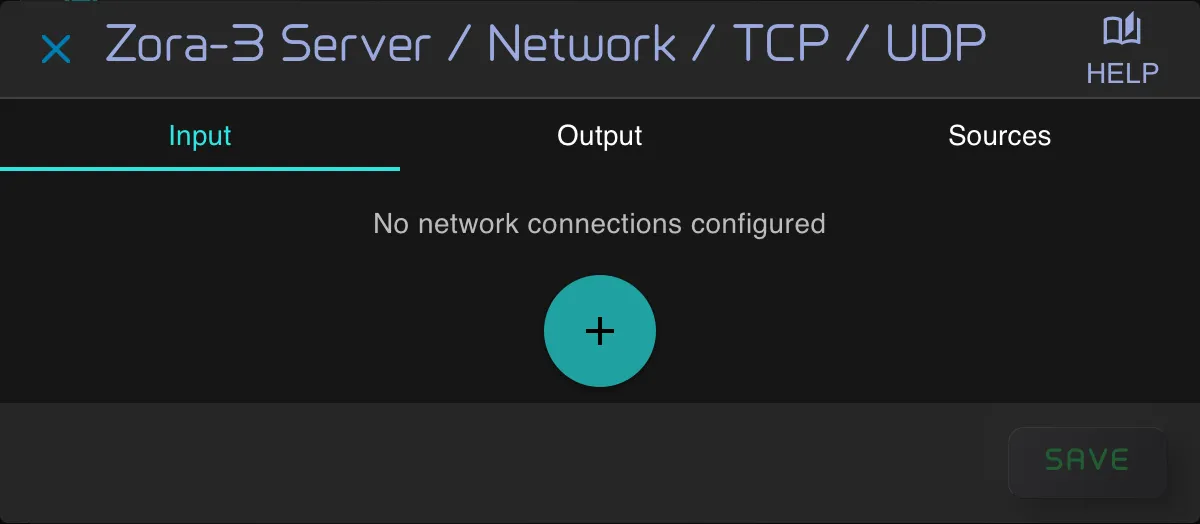
| Connections & Sources | The boat's data inputs: NMEA 2000, NMEA 0183, the network and more | Connections · NMEA 2000 / CAN Bus · NMEA 0183 · Network / TCP / UDP · RayNet radar · Digital I/O · Simulation · Source priorities |
| Add-ons & Third-Party | Extensions and third-party integrations | Add-ons · Cameras · MQTT · Data History · Third-Party Integrations · NoForeignLand · Victron Cerbo GX · USB Speaker · Switches |
| Stations & Monitors | Screens, keyboards, mice and other peripherals | Stations |
| Data Browser | Live Zora paths, calibration, priorities and filters, timeouts and ranges | Data Browser |
| Vessel & Technical Maps | The deck layout map | Vessel Map |
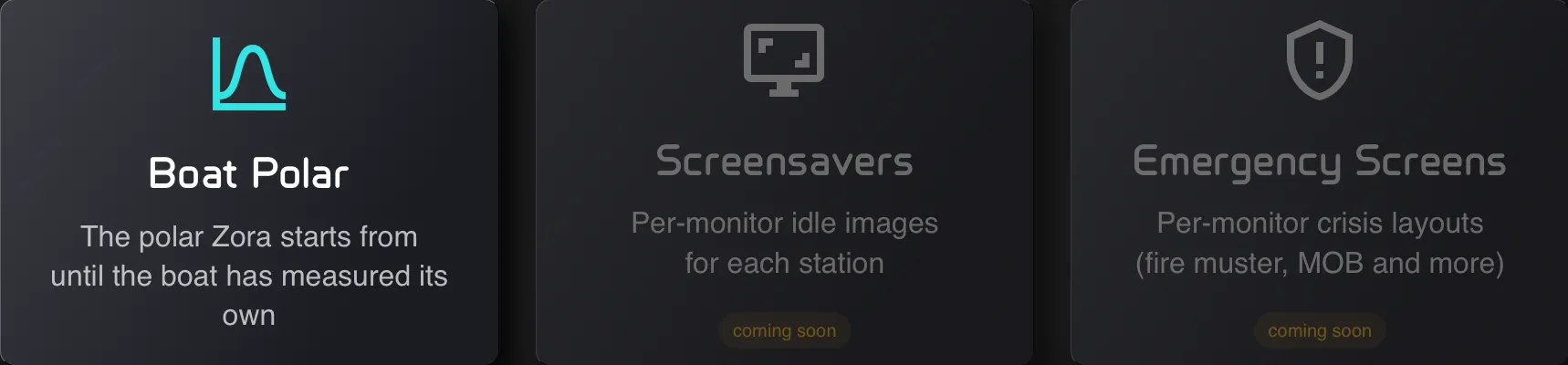
| Vessel Assets | The boat's polar, which Zora starts from until the boat has measured its own | Vessel Assets |
| Rule Engine | Coming soon | |
| Machine Learning | Coming soon | |
| AI Agent | Coming soon |
A card marked coming soon is greyed out and does not open. Inside Vessel Assets, Screensavers and Emergency Screens are coming soon too.
The jobs done outside the Setup app are listed on What Setup covers.
One device at a time
Make changes from one device at a time. Watching Setup on several devices is fine. Most Setup screens check before they save: if someone else saved the same settings after you opened them, your save is refused and Setup says the settings changed elsewhere. Reload the page, check what they changed, and make your change again.
Help and theme
The HELP button at the top right of every Setup screen opens the guide page for the screen you are on, in a panel over the screen. While the panel is open the button reads CLOSE, and the panel follows you as you move to another screen or dialog. Some parts, such as a single connection, have their own help button that opens the page for that one thing.
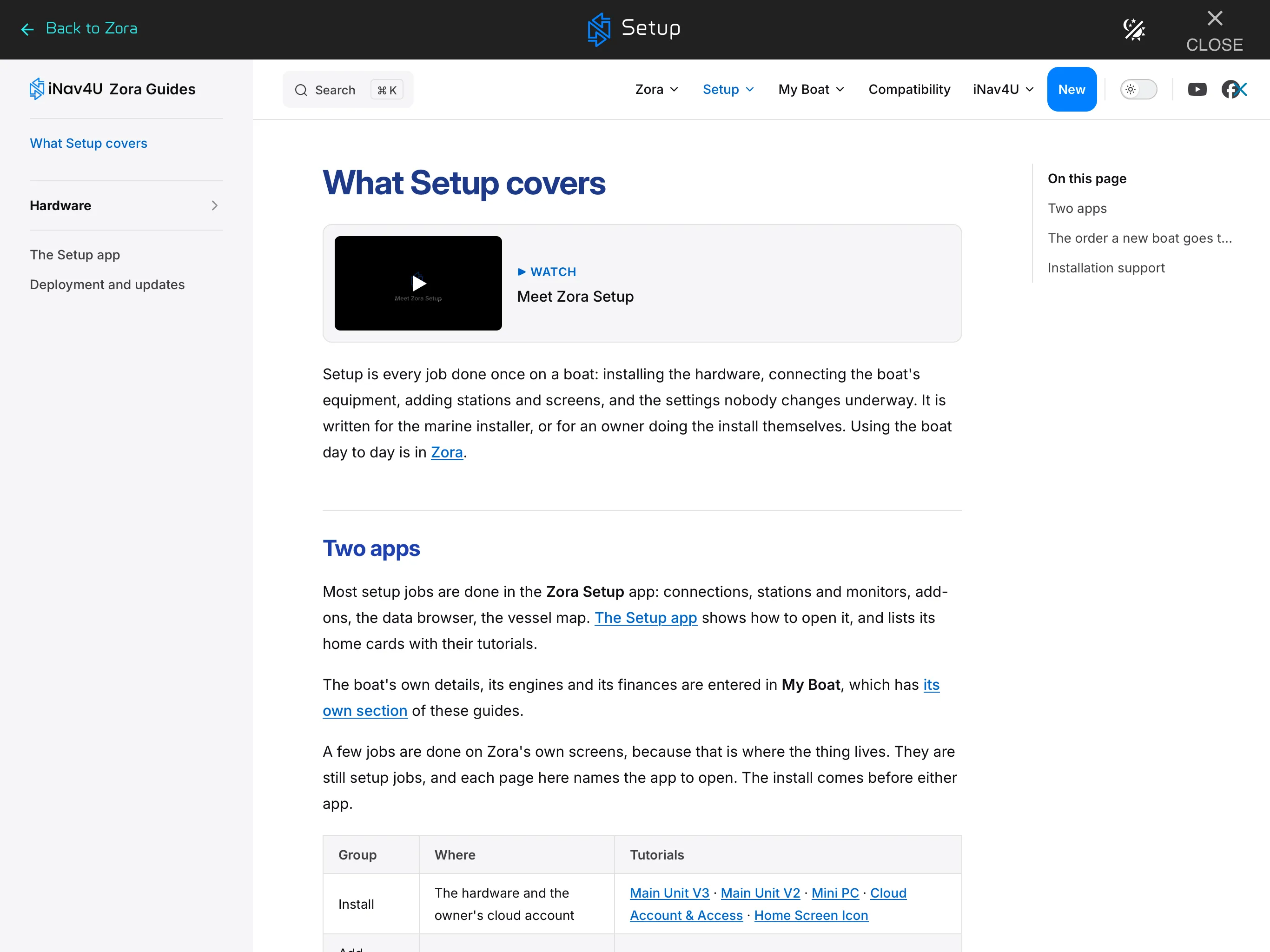
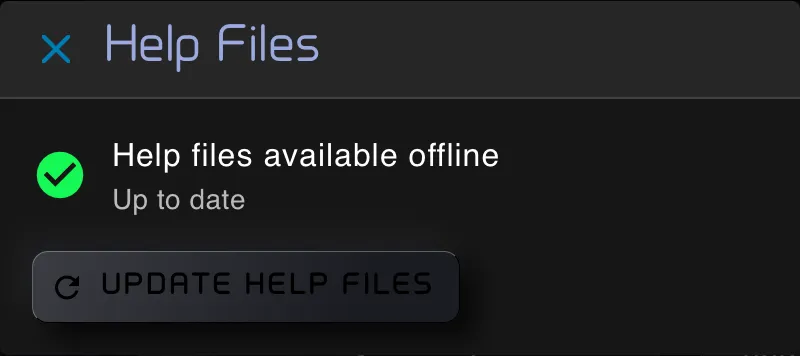
The guide pages come from the boat's own copy once it has one, so help works at sea. Without a copy they come from the internet. To download or refresh the boat's copy, press and hold HELP and tap Download Help Files, or Update Help Files once a copy is there. The dialog says whether the boat's copy is up to date and, if not, when the newer help files were published. When Zora cannot reach the published help files, it says so and the button is greyed out.
The button to the left of HELP switches between the dark and light theme. Setup opens in the dark theme.