
Data Browser
The Data Browser lists every value on the boat as it arrives, with where it came from. Use it to check that a device is sending what you expect, to correct a sensor that reads wrong, and to say how long a value may go quiet before Zora treats it as lost.
You do this in the Zora Setup app. See Open the Setup app.
Find a value

- On the Setup home screen, tap Data Browser. The list opens on the All tab.
- Type part of the value's name in Filter paths…, for example
depth. The line above the table counts the matches. - Tap the row to open the value.
Each row shows:
| Column | What it shows |
|---|---|
| Path | The value's name. The copy button beside it copies the name. |
| Value | The latest value with its unit, to four decimals. |
| Timestamp | The time of day the latest value arrived. |
| Source | The device that sent it: maker and model, then its type and number when known. |
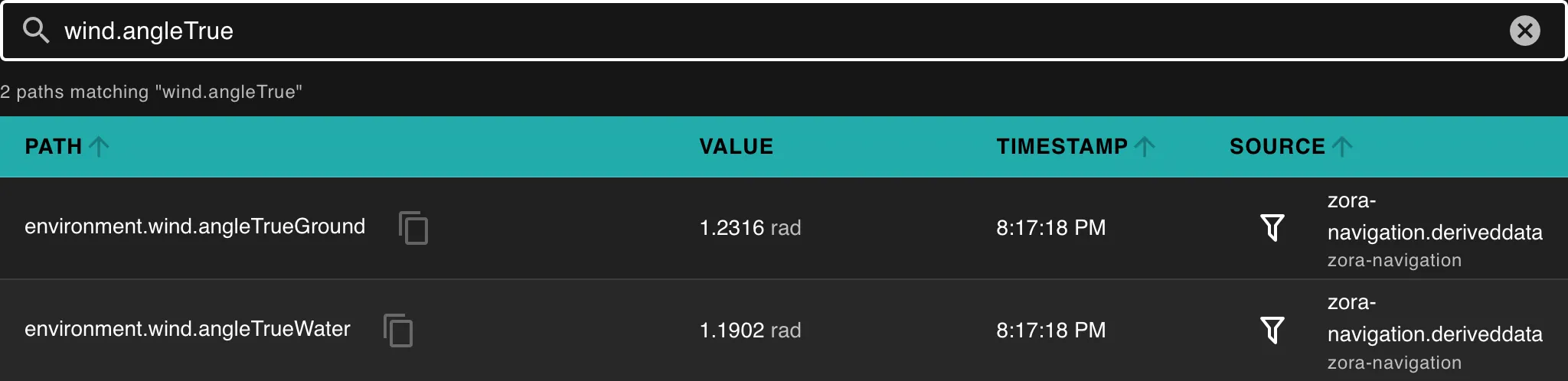
The list keeps itself up to date. A green bar flashes beside a name each time a value arrives, and a value that starts arriving while you watch is added to the list.
To see everything one device sends, tap the funnel in its Source cell. Tap it again to see every source.
The tabs narrow the list further:
- Network lists the values that come from the devices on the boat.
- Zora lists the values Zora itself works out and publishes.
- All lists everything.
- Defaults lists the values Zora starts from, including defaults that nothing is sending yet.
- Hidden lists the values you have hidden (see Hide a value). The tab is inactive while nothing is hidden.

Read a value
Opening a value shows a panel titled with its name. The green Live chip shows while values are arriving. The cross at the top left takes you back to the list.
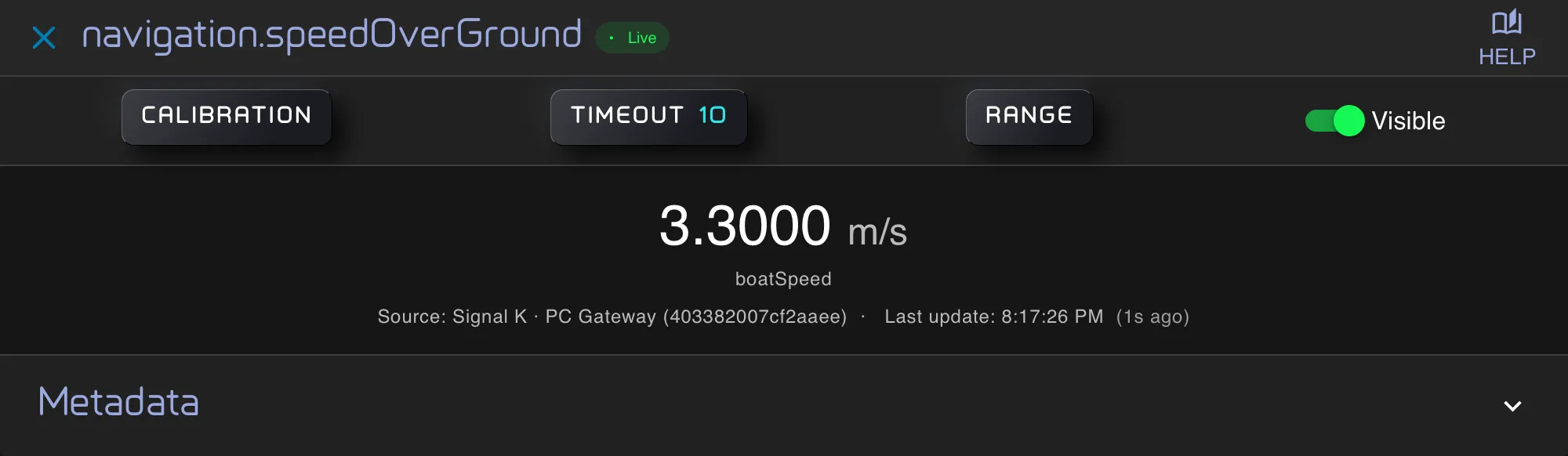
- The value itself in large type, with its unit.
- Source, the device the value in use comes from, and Last update, with how long ago, such as 12s ago.
- Sources, when more than one device sends this value. The source in use is in bold green. To choose which source Zora uses, see Source priorities.
- Metadata, at the bottom: the value's unit, description and other details. It reads No metadata available when there are none.
The row of buttons at the top sets the value up: Calibration, Timeout, Range, and a switch that reads Visible. A tick beside Calibration means a calibration is set. The number beside Timeout is its timeout in seconds, and the numbers beside Range are its bounds.
Correct a sensor
A calibration maps what a sensor reports onto what it should report.
- Open the value and tap Calibration.
- Under Mappings, enter pairs of numbers: what the sensor reports under In, and the correct value under Out. A new calibration starts with 0 → 0 and 1 → 1.
- Tap Add point for each further pair. Two pairs are the minimum; add more where the sensor is off by different amounts across its range. Each In must be higher than the one above it.
- Under Source, keep Any source, or pick the one device to correct.
- Tap Save. The correction applies at once.
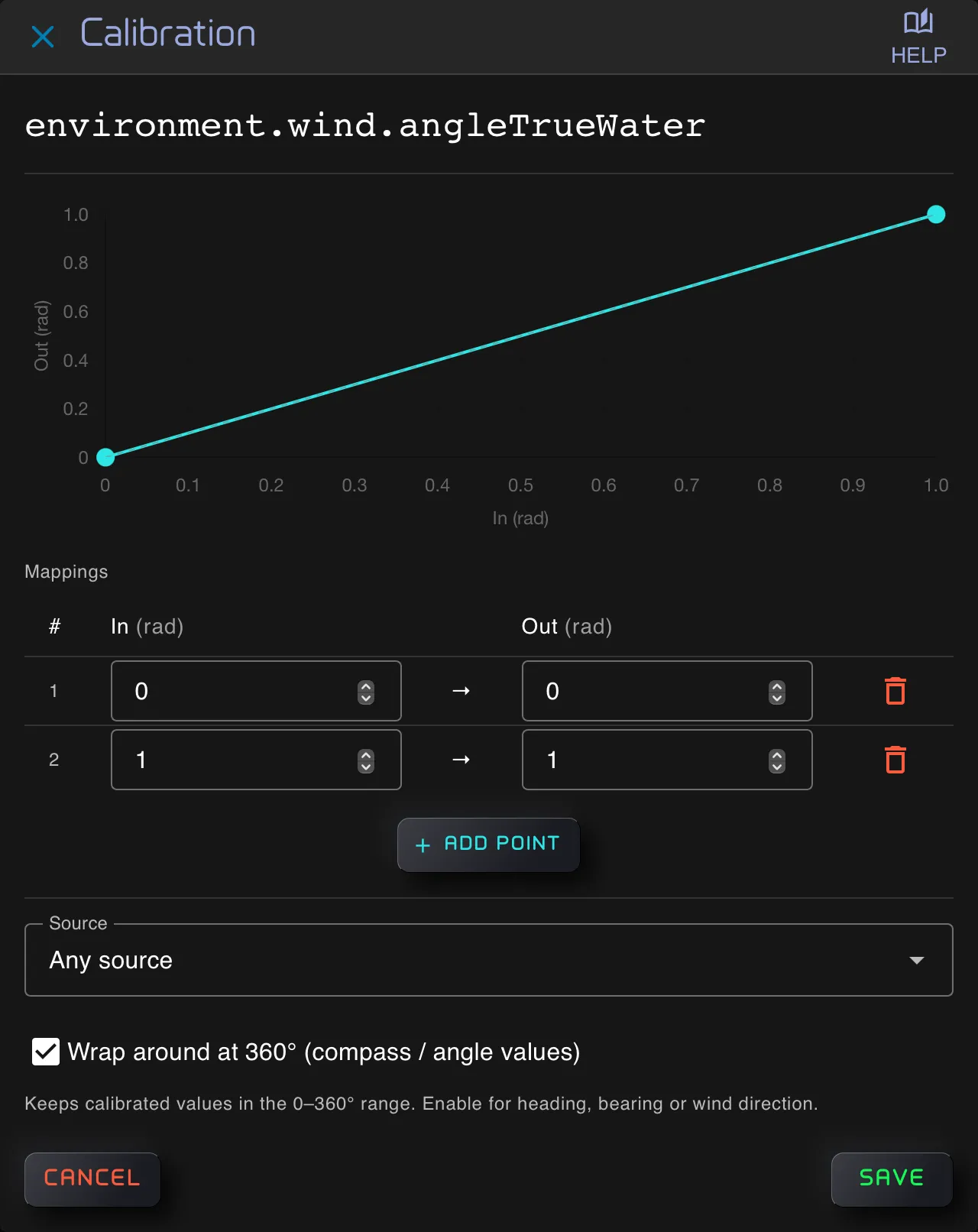
Enter the numbers in the unit shown in brackets beside In and Out. That is the unit Zora stores the value in, which is not always the unit on your screens: angles are in radians (rad), for example.
From two pairs on, a chart shows the correction as straight lines between your points. The dashed line is no correction at all.
For an angle, such as a heading or a wind direction, Wrap around at 360° (compass / angle values) keeps corrected values between 0 and 360°. It is ticked on a new calibration of an angle.
A value has one calibration. Saving replaces the one it had, whichever source that one was for. Remove deletes the calibration and the value goes back to what the sensor reports.
If someone changed a calibration on another device since you opened the dialog, Setup refuses your save and reloads the dialog. Check what changed and save again.
Set a timeout
A timeout is how long a value may go without an update before Zora treats it as lost.
- Open the value and tap Timeout.
- Enter the time in seconds.
- Tap Save.
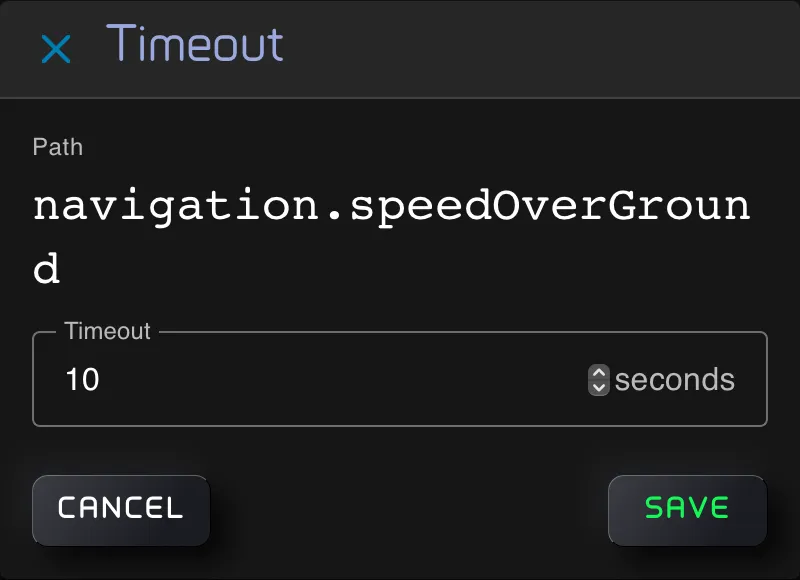
When nothing arrives for that long, Zora's screens show the value as timed out. The mark clears as soon as a value arrives again. A timeout of 0 means the value never times out.
Set a range
- Open the value and tap Range.
- Enter the Lower and Upper bounds, in the value's own unit. Save stays inactive until Lower is below Upper.
- Tap Save.
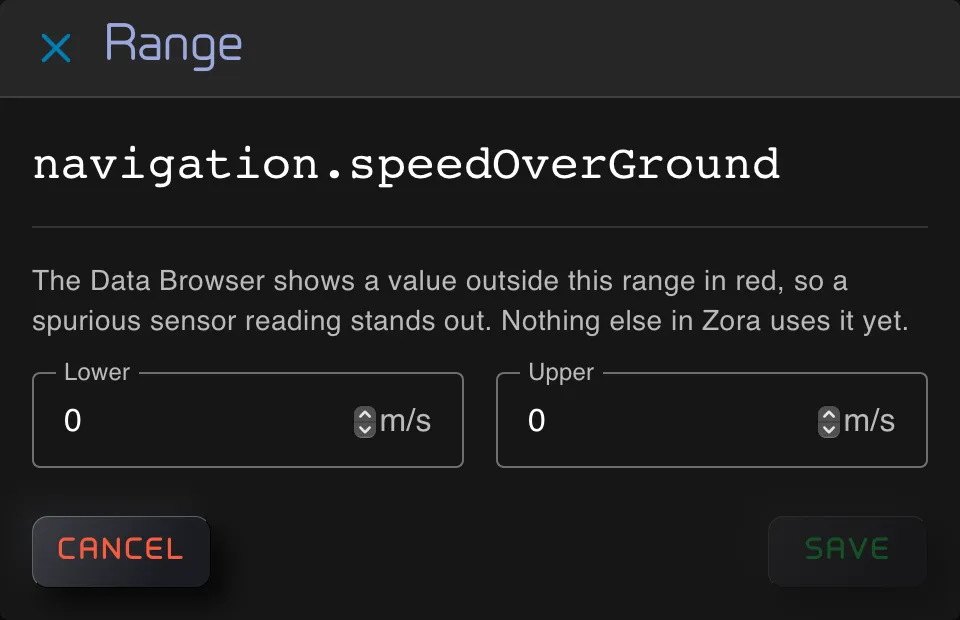
While the value is outside the range, this panel shows it in red with outside range and the bounds. Zora's other screens do not use the range yet.
Hide a value
Some values are of no interest on a given boat. Hiding one keeps the list short.
- Open the value and switch Visible off. It now reads Hidden, and the value leaves every tab but Hidden.
- To bring it back, open the Hidden tab and tap the eye button (Show path) in its row.
Hiding only tidies the Data Browser. The value still reaches Zora, and every device using Setup sees the same hidden list.