

NMEA 2000 / CAN Bus
Zora joins the NMEA 2000 backbone as one more device on a drop cable and reads what the other devices send. This page takes the port from the wire to data in Zora.
Before you start
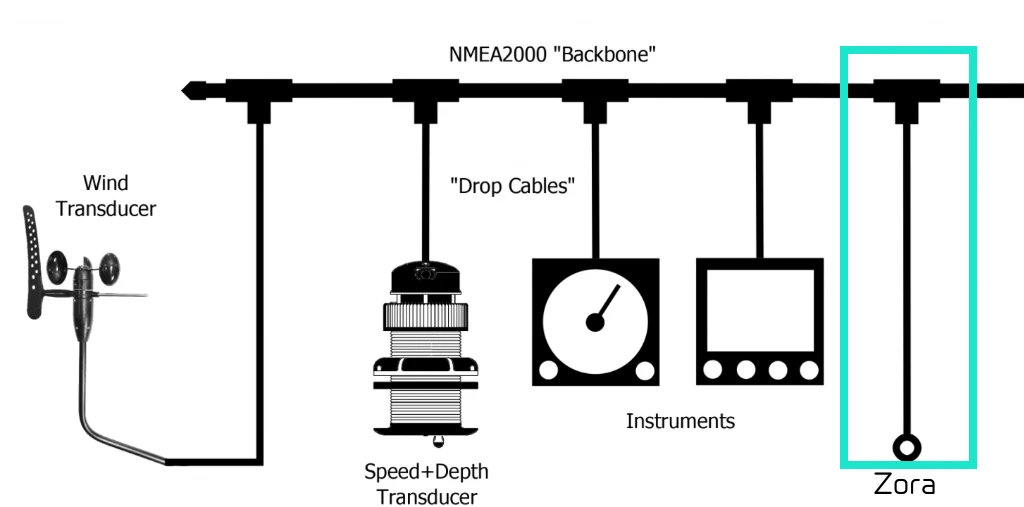
The backbone is a single cable with a 120 ohm terminator at each end. Every device hangs off it on a drop cable plugged into a T-connector.
- Put the terminators on the two ends of the backbone, never inside a device. A device you later unplug would take the termination with it.
- The built-in port on the Main Unit V3 has no terminator of its own.
- To check the termination, switch the backbone off and measure between CAN-H (white) and CAN-L (blue) anywhere on it. Two terminators read about 60 ohms.
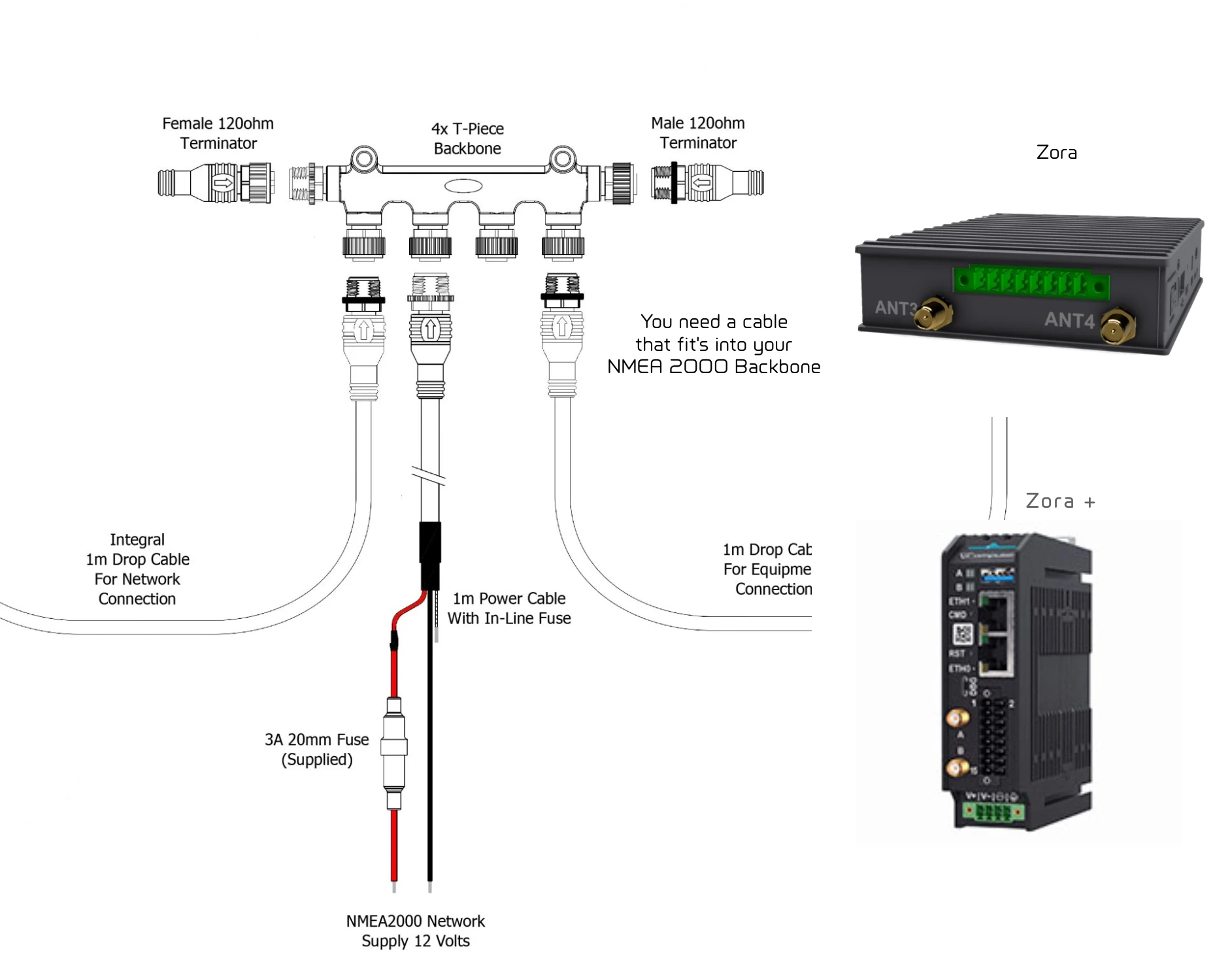
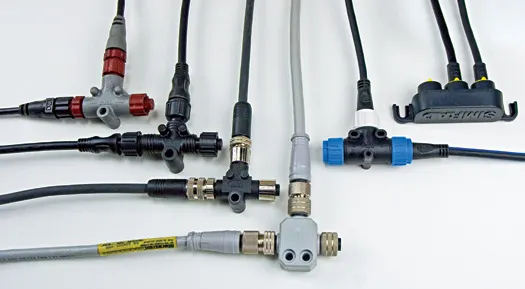
On the Main Unit V3 the CAN port is a terminal block, isolated from the rest of the server. Use a drop cable with a connector that fits your backbone at one end and bare wires at the other.
Which wire goes to which pin is on the hardware page for your server: Main Unit V3 or Main Unit V2.
Open the port
- Open the Setup app and tap Connections & Sources.
- On a Main Unit V3, tap the Connections tab. A Main Unit V2 opens on it.
- Tap the card NMEA 2000 / CAN Bus. On a server with an NMEA 2000 module, each port has its own card, numbered as in NMEA 2000 / CAN Bus (2).
The dialog opens on its Input tab.
If the dialog says No input configured on this connection., the port has nothing set up to read it, and there is no Enabled or Protocol to change.
Set the port
| Setting | What it does |
|---|---|
| Enabled | Runs the port. Off, the port is held down and nothing is received. |
| Protocol | NMEA 2000 or J1939. Shown while the port is on. |
| Bitrate | 250000, 500000 or 1000000, or type a value. Locked at 250000 under NMEA 2000. |
| Data Logging | Records this port's raw data to a log on the server. |
| Override Timestamps | Stamps incoming data with the server's clock instead of the time the sender put on it. |
For an NMEA 2000 backbone, leave Protocol on NMEA 2000. Bitrate then reads Fixed at 250 kbit/s by the NMEA 2000 standard, and choosing NMEA 2000 sets it back to 250000 if the port was on another rate.
Turning Enabled off and on again brings the port back on the protocol it last ran.
An engine bus on J1939
Choose J1939 for a port wired to an engine's J1939 bus. The port stays up, often at 500000, and Enabled reads Bus running J1939 — no NMEA 2000 data is read from this port. Finding the engines on a J1939 port is still in development, and the dialog says so.
What Zora announces
Under NMEA 2000 three panels show how Zora itself appears on this port. They are read-only.
| Panel | Shows |
|---|---|
| Device Identity | Zora's unique number, the address it asks for, and the port's interface |
| Address Claim (PGN 60928) | the identity Zora claims its address with |
| Product Info (PGN 126996) | the product details Zora sends to other devices |
Save
Tap Save. It stays inactive until you change something. If the save fails, the dialog stays open and says why.
The port itself, on or off and at which bitrate, changes as soon as you save. What Zora reads from it changes when Zora restarts. When you leave Setup with Back to Zora, Setup asks Restart Required: tap Restart & Go Back. Stay in Setup keeps you in Setup, for more changes first. See After you save.
Check the devices
Tap the Sources tab. It lists every device heard on this port, each with its maker, its model, its type, Device followed by its current bus address, and # followed by its unique number.
No sources discovered on this connection. means nothing has been heard on this port yet.
Each device has a switch reading Allowed or Blocked. Switch a device to Blocked and tap Save to keep its data out of Zora, for example a second GPS you do not want used. It takes effect when Zora restarts.
Zora keeps track of each device by the identity it announces, never by its bus address, so a device keeps its sources and priorities when its address changes. See How Zora names a device on the bus.
To choose which device Zora uses when two send the same data, see Source priorities.