

Vessel Settings
Vessel Settings holds your boat's own details: its name and registration, its size and draft, the anchor gear and the call signs. You enter them once, on any Zora display. The anchoring tool, the chart and the radio list in the Tools panel use them.
The Letterhead beside it sets the top of every document Zora prints.
Open Vessel Settings
- Tap the Zora logo at the top left, then Settings....
- Under My Boat, tap Vessel Settings. On a larger screen you can also type in Search settings... to find it.
- Tap the section you want to fill in: Identity, Registration, Hull Identification, Hull dimensions, Draft & Keel, Anchoring or Communication.
Each section is its own form with cancel and save at the bottom. See Save your changes.
Identity

- vessel name*: the boat's name. Required.
- brand and model: the builder or yard, and the model.
- Hull Type: Monohull, Catamaran or Trimaran. Required. It sets the shape of your boat on the chart.
- build year: the year the boat was built, as four digits, after 1900. Next year's is accepted; any later year is not. It can be left empty.
Registration
Flag, Registration Number, Port (the home port) and Website.
Hull Identification

hull number and hull color.
Hull dimensions
Length over all (LOA), Length of hull (without a bowsprit), Length at waterline, maximum beam (width) and air draft (from the water to the highest point of the boat).
Every measurement has a Unit picker beside it. It starts on your own unit; pick another and the number is converted.
Draft & Keel
- maximum draft: the fixed draft, or the deepest draft with a lifting keel or daggerboards.
- minimum draft: the shallowest.
The anchoring tool adds the maximum draft to the depth under the keel when it works out how much chain you need.
Anchoring
The anchoring tool needs your ground tackle before it can work out scope. Until the chain length is set, it asks for it and offers anchor settings, which opens this form.
- Total chain length: all the chain on board. The anchoring tool shows it as the chain available and works out the most scope it gives you.
- Anchor freeboard: the height from the water to the anchor roller. It is added to the anchor depth.
- Bridle length: from the anchor roller to the end of the bridle under tension. With a bridle length set, the anchoring tool shows where to mount the bridle.
See Anchor.
Communication
- MMSI Number: your boat's MMSI, nine digits. Zora uses it to leave your own boat out of the AIS targets.
- VHF call sign and HF call sign.
- skipper's phone and skipper's name.
The vessel name, MMSI, skipper, skipper's phone and the call signs then show in Communication on the Tools panel's more tab. See Communication.
Save your changes
- save stores what you changed and applies it straight away. Fields you did not touch keep their values. If nothing changed, Zora says No changes to save. If a field breaks its rule, nothing is saved and Zora names the field and what is wrong.
- cancel throws your changes away and shows the stored values again.
Letterhead
The letterhead is printed at the top of the voyage plan, the crew list, the logbook and the maintenance list.
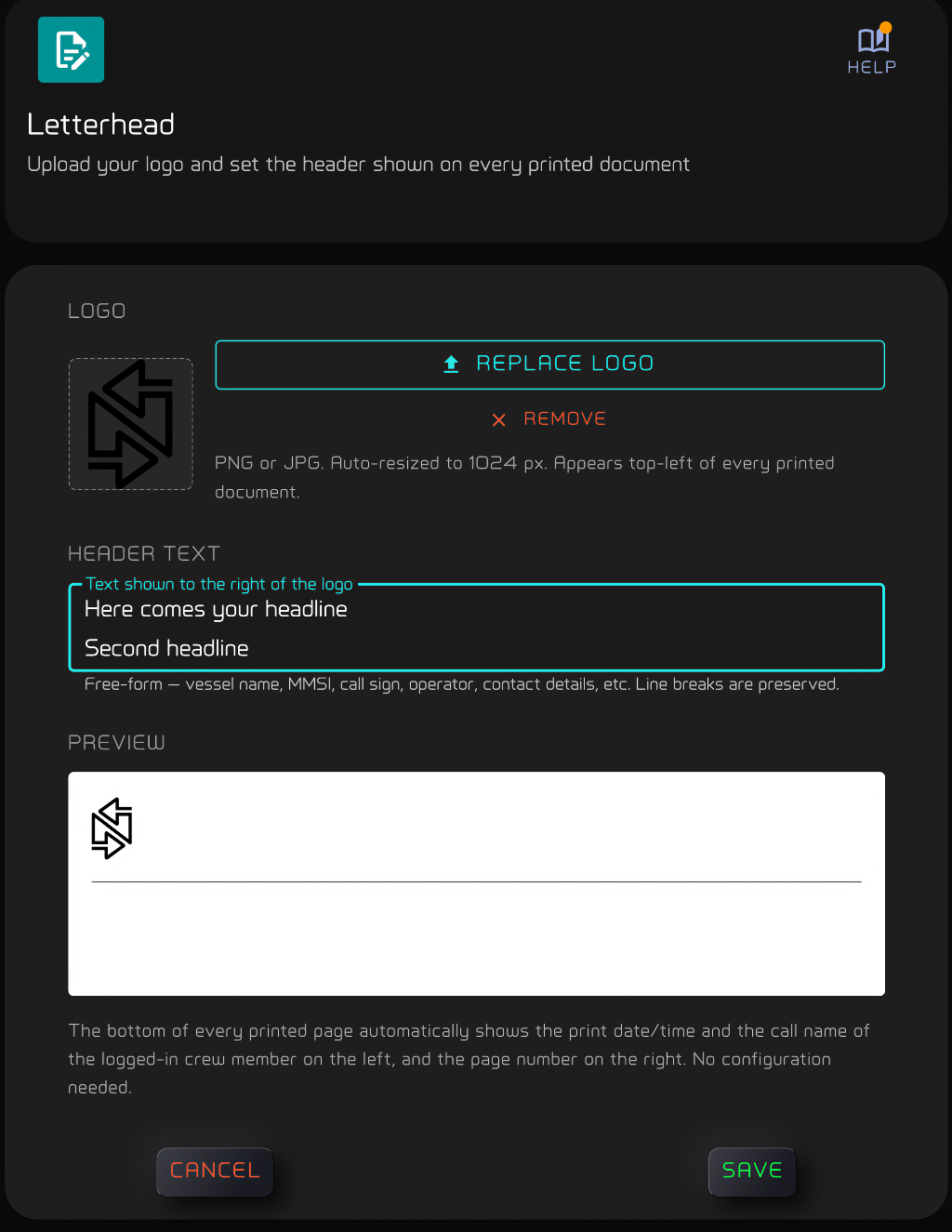
Tap the Zora logo, then Settings..., and under My Boat tap Letterhead.
Logo
Tap Upload logo and pick a PNG or JPG. Zora shrinks it to 1024 px and uploads it at once. The button then reads Replace logo. If the upload fails, Zora says so and the letterhead keeps the logo it had. Remove takes the logo off the letterhead.
Header text
Type what should stand to the right of the logo: the vessel name, MMSI, call sign, owner or contact details. Line breaks are kept.
Preview shows the letterhead as it will print.
The foot of every printed page is filled in for you: the date and time it was printed and the crew member logged in on the left, the page number on the right.
Save the letterhead
save stores it for the next print. cancel goes back to the stored letterhead.