

Finances
Before you record the boat's first expense, set up its money once: the boat's currency, the currencies you pay in, and the categories you file costs under. Recording transactions is in Zora Finances.
Both settings are in Zora's Settings..., under Finances. See Settings.
Before you start
Currencies needs the internet: Zora downloads the currency list and the exchange rates. It is greyed out while offline. Accounts Categories works without internet.
Set the boat's currency
- Open Currencies. The first time, Zora downloads the list of world currencies, without rates yet, and asks you to choose your boat currency.
- Pick it in Your boat base currency.
- Tap set base currency.
Zora marks it active and downloads the latest exchange rates against it. From then on, Zora converts every amount you record into this currency.
Choose it once. If you change it later, Zora warns first (DANGER! Change Base Currency) and you confirm with change & reset or keep the old one with Cancel. Each transaction keeps the rate it was entered with, so the ones entered before the change stay valued against the old currency.
Update the rates
Tap update rates for today's exchange rates. Last update below it says how long ago they were fetched. Rates can be updated once an hour; sooner, Zora shows an error. Changing the boat currency always fetches new rates against it.
Choose the currencies you pay in
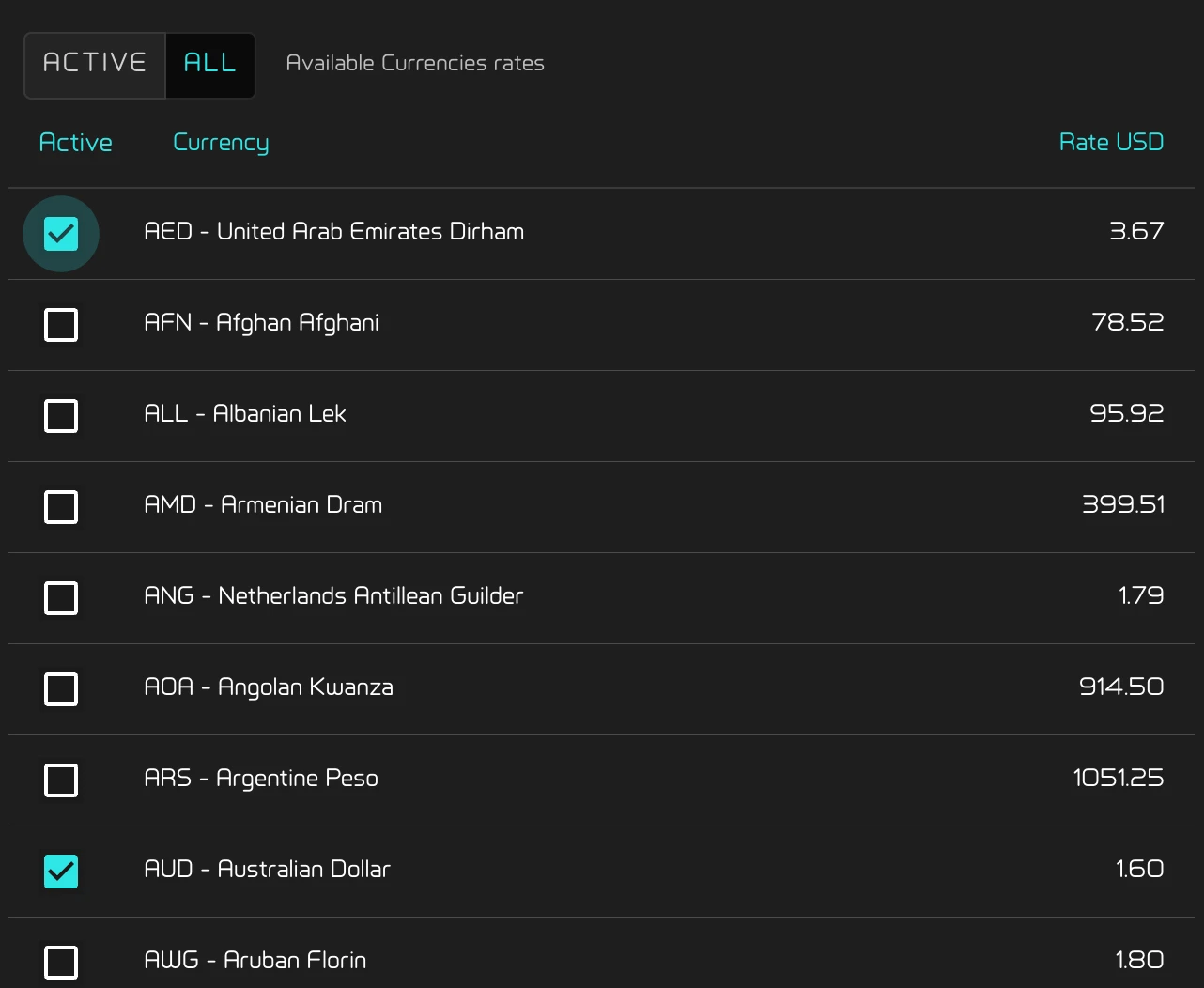
Tick each currency you expect to pay in over the coming months. The ticked ones are the currencies offered when you record a transaction. Change the ticks whenever your plans change.
- active shows only the ticked currencies.
- all shows every currency.
The Rate column is how much of that currency one unit of the boat's currency buys.
Set up your categories
A transaction is filed under a category, such as Maintenance or Insurance.
Open Accounts Categories. The first time, Zora adds Maintenance, Repairs, Equipment, Utilities, Supplies, Insurance and Other. The list is in alphabetical order.
- Add one: tap add new account..., type its Label and tap save. Two categories cannot share a name, whatever the capitals.
- Rename one: tap its pencil, change the Label and tap save.
- Delete one: tap its pencil, then delete and yes delete. delete is only there when no transaction uses the category. Otherwise the window shows how many transactions do.