

Finances
Record what the boat costs and earns, file each amount on the equipment it was for, and keep the receipt with it. Zora converts every amount into the boat's currency, so a season of spending in three countries adds up.
Before you start
Choose the boat's currency, the currencies you pay in, and your categories in My Boat, under Finances on its hub. See Finances in My Boat. Until the boat's currency is set, the transaction editor and the chart show Set your boat's currency first, with a button that opens it. In the list, the value column stays empty and there is no Total.
Open Finances
Tap SCREENS in the app bar, then Finances on the Equipment tab. On any Equipment screen you can also tap the screen's name at the top left and choose Finances.

What the list shows
The list holds the transactions of the asset or folder you are on, and of everything inside it. At All it holds every transaction on the boat. Choose the asset or folder with the button left of the period, as in Documents.
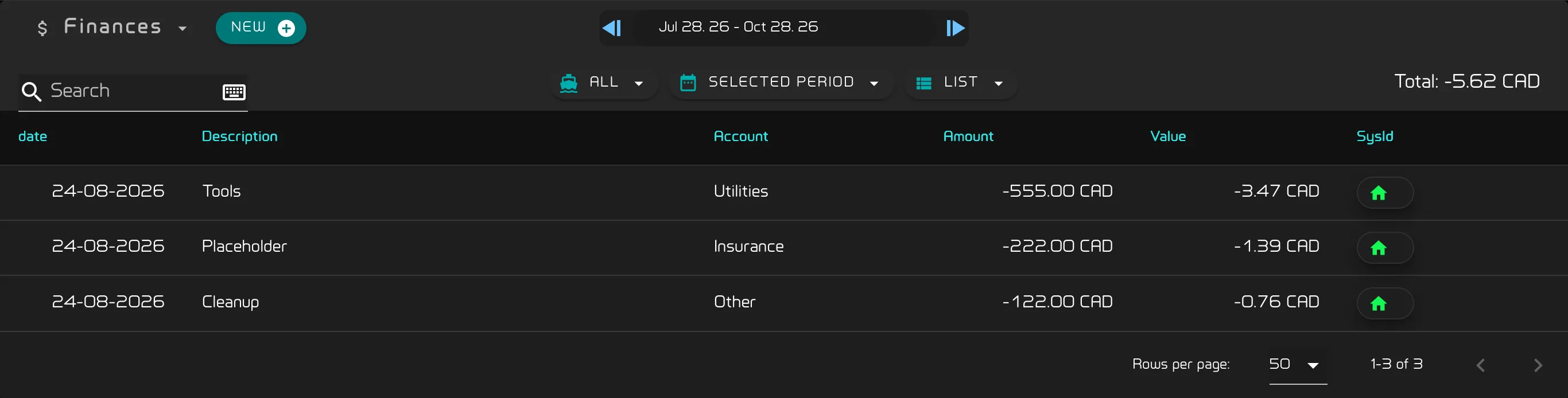
Each row shows the date, the description, the category, the amount in the currency you paid in, the value in the boat's currency, and the asset it is filed on. A transaction added to a task shows the task's name. On a phone each row is shorter: the description, date, category, amount and asset.
- Type in Search to find transactions by their description. On a tablet held upright, tap the magnifier first; it shows a dot while a search is set. A phone has no search.
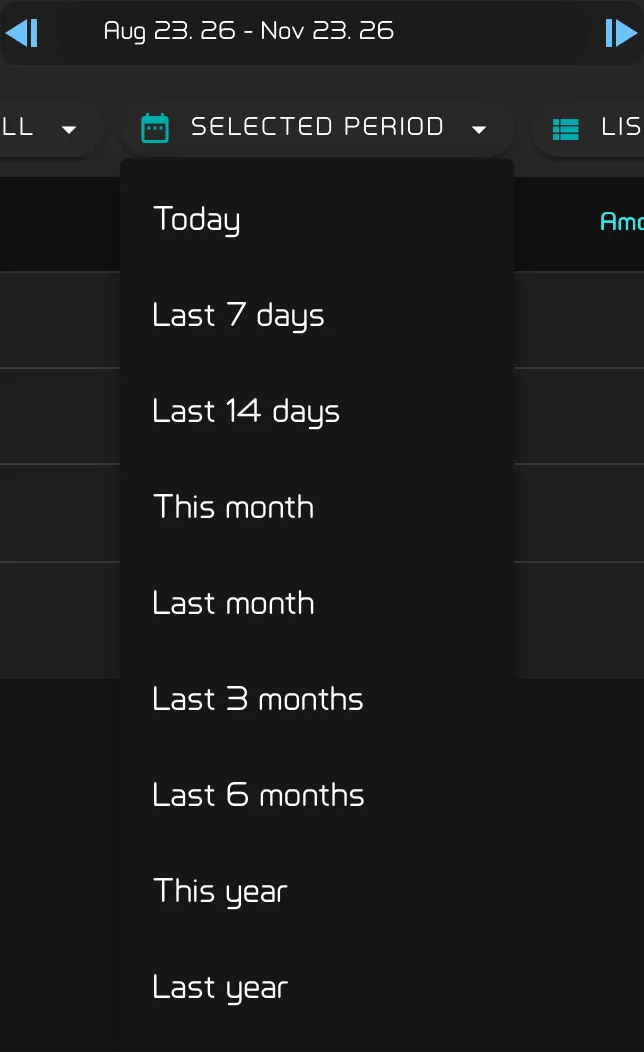
- The list shows the period in the bar at the top: the last 3 months at first, then the period you last chose. Tap the date to choose a period, or pick a preset such as Last month or This year from the period button. The arrows either side move the period a day back or forward.
- Total adds up every transaction for the asset and period in the boat's currency. A search does not change it.

Add a transaction
- Go to the asset or folder the transaction is for, for example the engine you bought oil for.
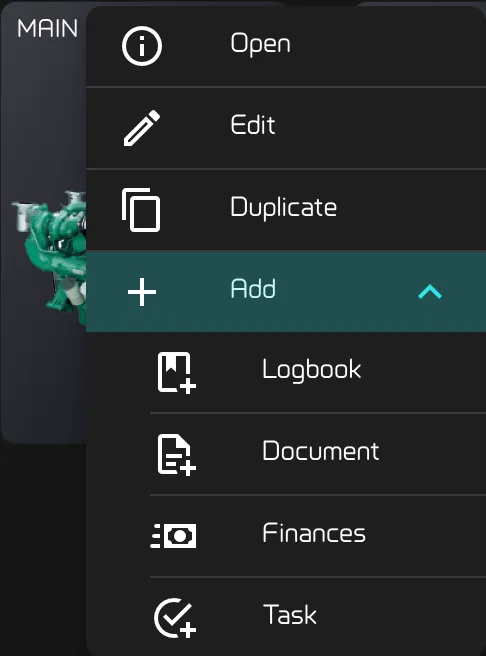
- Tap new. The Transaction window opens, filed on that asset. On the Assets screen, Add > Finances in an asset's menu does the same for that asset.
- Fill in:
- Date: tap it for a calendar, or tap today. It cannot be in the future.
- Description: what it was.
- Amount: a positive number, with at most two decimals.
- Currency: the currency you paid in.
- Category.
- Tap the expense button to switch it to income, or back.
- Tap Save.
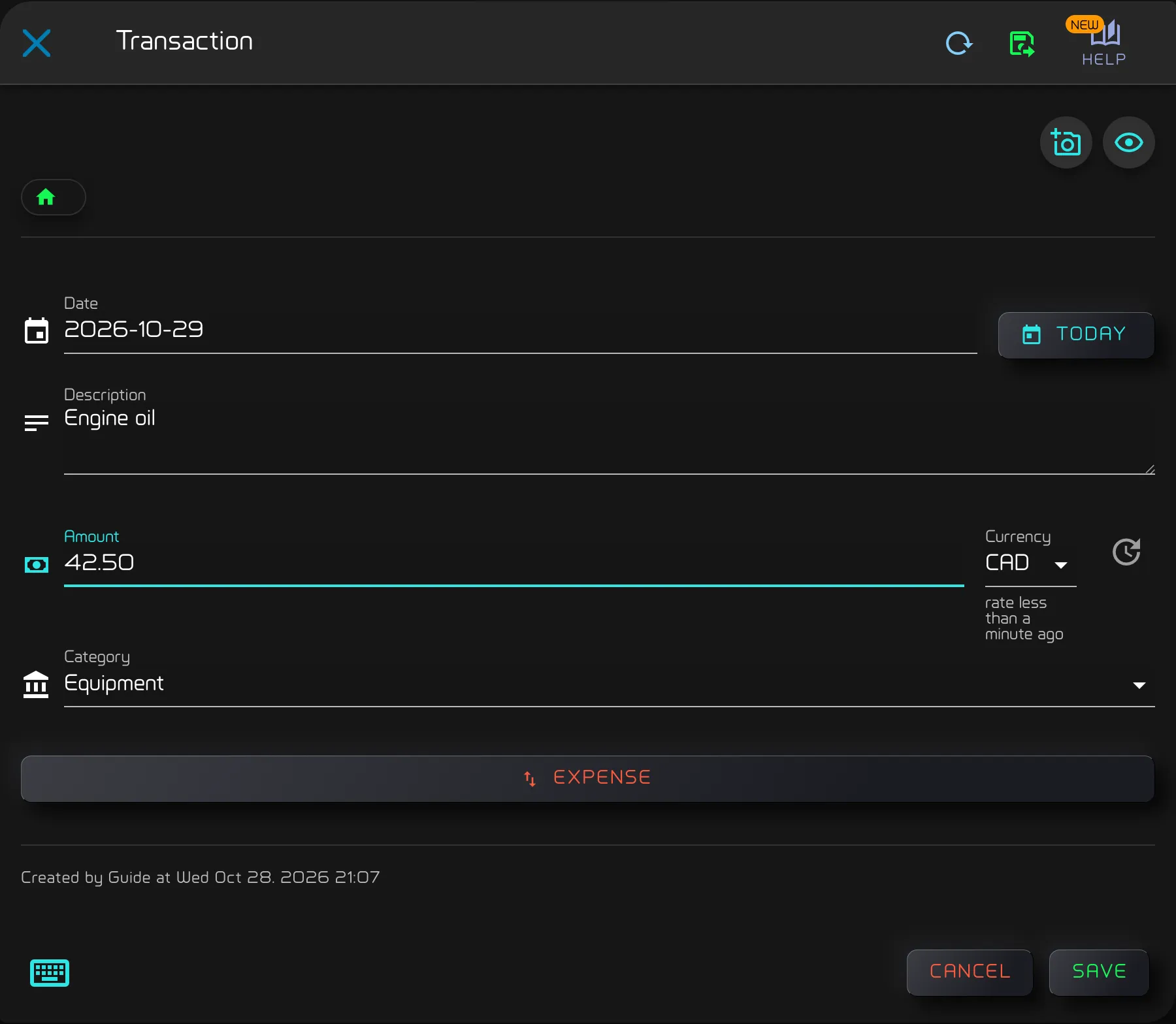
To enter several in a row, tap the save icon with the arrow at the top instead. Zora saves the transaction and gives you a new empty one.
A new transaction starts with the date, currency, category and type you last saved on this display.
To file the transaction on a different asset, long-press the asset button under the camera and pick another one.
Exchange rates
Zora converts with the rates it last fetched. The line under Currency says how old they are. Rates more than three days old are refreshed when you open a transaction, if the boat is online. To refresh them yourself, tap the Update rate button beside the currency. It needs an internet connection and works once an hour.
Add receipts
Tap the camera button in a new or an existing transaction and pick photos or PDFs. On a new transaction they are kept once you tap Save; close it without saving and they are removed.
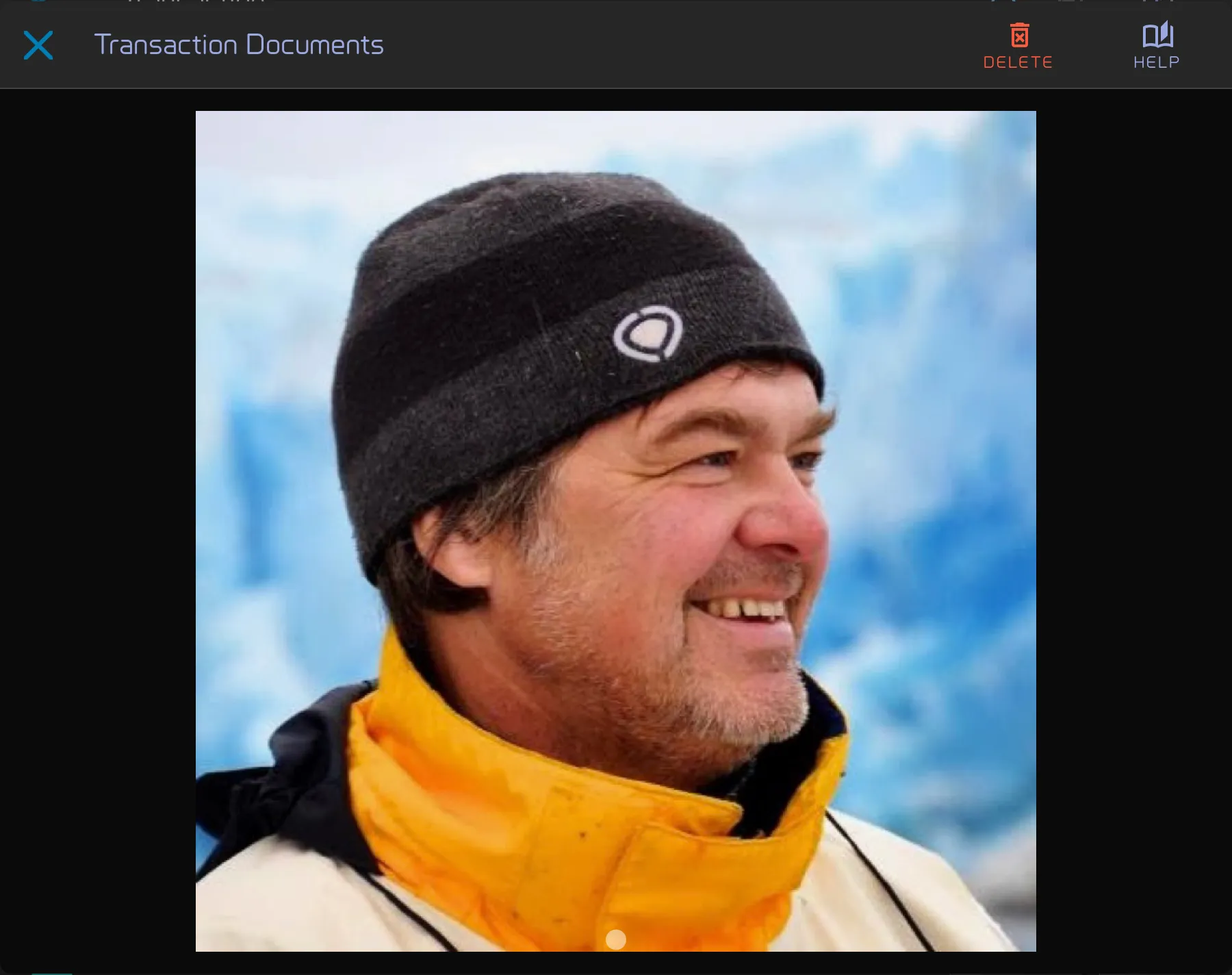
The eye button shows how many are attached. Tap it to open Transaction Documents, where you swipe through them. Tap a photo to zoom in; a PDF has a Download button. To remove one, show it and tap the bin.
Change or delete a transaction
Long-press a transaction in the list. Change what you need and tap Update.
To delete it, tap the bin at the top and confirm with yes delete. Its receipts are deleted with it.
See where the money goes
Choose Chart from the button right of the period. A ring shows the transactions in the list by category, each with its total in the boat's currency. Choose List to go back.