Vessel state
Zora always knows what the boat is doing: drifting, sailing, motoring, motor-sailing, or on the way to a stop and stopped at anchor, on a mooring or at the dock. That is the vessel state. The tools button in the app bar shows it, and the Tools panel behind it holds what you need in that state.
The state changes what Zora shows and watches for you. See What the vessel state changes.
The tools button
The button's title is the current state, such as SAILING or ANCHORED, with tools under it; motor-sailing reads MOTORSAIL. Icons at the bottom show the state: a sail, a propeller, or both for motor-sailing; an anchor, a mooring buoy or a pier on the way to a stop and once there. At a stop, a sail still up and an engine still running show beside it, as the Tools panel lists them, and blink once the boat is anchored, moored or docked. On the small app bar it shows the state alone. It blinks orange while the boat is drifting.
- Tap it to open the Tools panel. Tap it again to close the panel.
- Long-press it to open the Tools panel on its data tab.
How the state changes
You never pick sailing or motoring. Zora works them out from the sails and the engines:
- a sail is set: sailing
- an engine is turning: motoring
- both: motor-sailing
- neither: drifting
Set a sail or start an engine and the state follows. The stops are the part you declare: tap anchoring, mooring or docking in the Tools panel, and Zora takes you through it. Once you leave, the state goes back to what the sails and engines say.
The Tools panel
The panel's title is the current state, for example Motor-Sailing. Close it with the ✕ at the top left, or swipe it to the right. The icon at the top right opens the Autopilot. Under the title, a bar shows the rudder angle.
The panel has three tabs:
- tools: engines, sails and the stops. What it holds depends on the state.
- data: the numbers that matter in this state. See The data tab.
- more: brightness and communication. See The more tab.
While the boat is underway, the tools tab shows how long the boat has been in its state, then Engines and Sails when the boat has them, and the three stops: anchoring, mooring and docking. When the boat is on its way to a stop or stopped, the tab shows that stop's tools instead. If the panel is open when the state changes, it follows the new state.
Engines
Each engine shows whether it is running and, while it runs, its revolutions and hours. Zora reads real engines from the boat's network; tapping one does nothing. An engine Zora gets no data from is started and stopped by tapping it, so the state still knows when you are motoring.
At a stop, while an engine Zora started this way is still running, a blinking stop button shows beside Engines. Tap it to stop them all. Engines Zora reads from the network are not touched.
Sails
Sails shows the active sail area and every sail on board. Tap a sail to set it or change its reef. down, shown while a sail is up, takes every sail down. reef notification sets how quickly Zora tells you to reef when the wind rises, from very fast to very slow. See Sails.
Anchor
Tap anchoring in the tools tab. The state changes to anchoring straight away. If a route is running, Zora first asks whether to stop it.
Drop the anchor
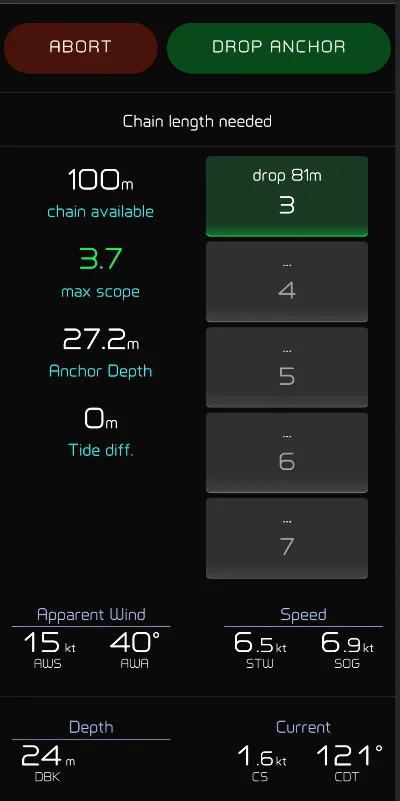
The first screen works out how much chain to put out:
- chain available: the chain on board.
- Anchor Depth: the depth under the keel, plus the boat's draft and the height of the bow roller. This is the depth the chain works against.
- max scope: the most scope your chain allows at this depth.
- Tide diff.: the range between the next high and low water.
On the right, one button for each scope from 3 to 7 shows the chain it needs. Tap one to drop that much chain. A scope that needs more chain than you carry shows .... When the tide range is more than half a metre, each button also shows the scope you will have at low and high water. If the chain cannot give you a scope of 2, Zora shows too deep instead.
Or tap drop anchor to start without a length and set it on the next screen. abort leaves anchoring.
If Zora does not know your ground tackle yet, it asks for it first: tap anchor settings and enter the chain length, the anchor freeboard and the bridle length. See Vessel Settings.
Set the chain
The second screen shows chain deployed and the scope it gives. Move the slider to the length you let out. With a bridle length entered, it also shows where to mount bridle at.
- anchor set: the chain is out. Go on to the holding test.
- pull up: the anchor comes back up, and you are back on the first screen.
- abort: leaves anchoring.
Check the anchor holds
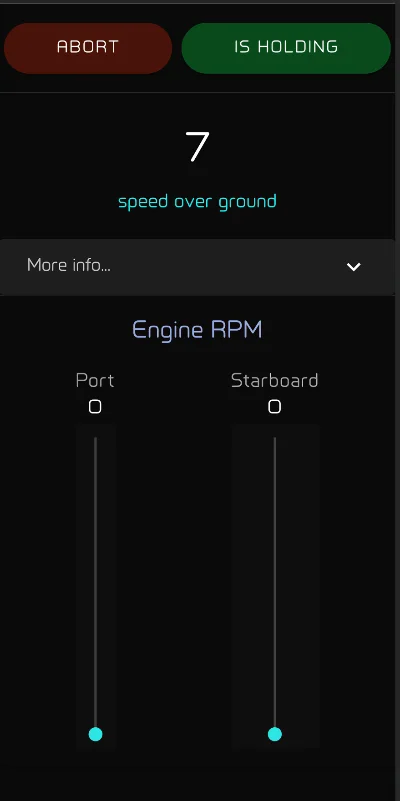
Back down on the anchor. The screen shows the speed over ground and each engine's revolutions. When the chain is under tension and the speed over ground stays at zero, the anchor is holding: tap is holding.
Zora then works out where the anchor lies, from the boat's position, its heading and the chain out, and starts the anchor watch. The state is now anchored.
At anchor
The tools tab now shows:
- margin added: a slider from 0 to 50 m that widens the watch circle, so the boat swinging on its chain does not raise the alarm. It starts at 5 m.
- when the anchor was set, and the tide then.
- the next high and low water, with the scope and depth at each. A scope under 3 blinks. Tap one to open the tide.
- Engines and Sails, as underway.
If the boat drags past the circle, Zora raises the anchor-dragging alarm. See Anchor Watch.
re-anchor takes you back to Set the chain with the chain you have out, to let out more or test again.
LEAVE opens a menu. GET UNDERWAY ends the anchor watch, and the state goes back to what the sails and engines say.
Mooring
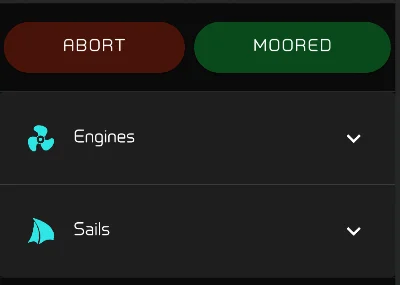
Tap mooring in the tools tab. When the boat is fast to the buoy, tap moored. Zora records the boat's position as the buoy and starts a watch circle. abort leaves mooring.
Once moored:
- radius is the watch circle around the buoy, from 0 to 100 m. Zora starts it from the depth under the keel; set it to the length of your mooring lines. If the boat moves out of it, Zora raises the mooring-dragging alarm.
- the panel shows when you moored, the tide then, and the next high and low water.
- re-moor takes you back to mooring.
- LEAVE, then GET UNDERWAY, clears the mooring.
Docking

Tap docking in the tools tab. When the lines are fast, tap docked. Zora records where the boat lies. abort leaves docking.
Once docked, the panel shows when you docked, the tide then, and the next high and low water. re-dock takes you back to docking. LEAVE, then GET UNDERWAY, clears the dock.
The data tab
The data tab lists the values that matter in the current state. Each state has its own list: wind, speed, depth and current while underway, the anchor chain and distance while anchoring, the mooring distance while moored. During a race it shows the regatta timer.
- Long-press the data tab to choose the values in the list and their order, for the current state. The lists belong to the display's station. A station that has not saved its own shows the default station's lists, and your first save there makes them its own.
- Tap a value to open its history; see History and alarms.
History and alarms
Tap a value to open its history, with its trend. There you can also set limits, so Zora tells you when the value goes past them, on board or by email and SMS. See History & Trend.
The more tab
Brightness
The slider sets this display's brightness. Tap the icon at its right to open Brightness Settings; see Brightness.
TIP
Screen too dark to find the slider? Swipe right on the Zora logo at the top left to bring the brightness back to 100%, or long-press the logo to bring it up to 60%.
Communication
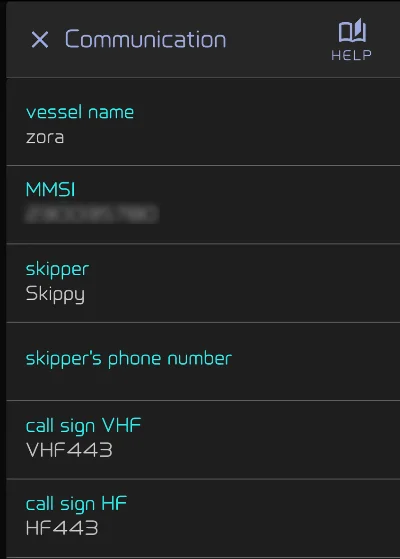
Communication lists what you are asked for on the radio: the vessel name, MMSI, skipper, skipper's phone number, and the VHF and HF call signs. Only the ones you have filled in show. Long-press an entry to change it in Vessel Settings.
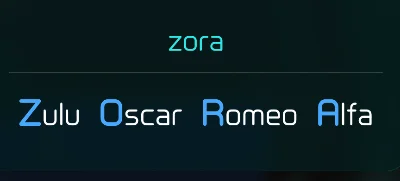
Tap the vessel name, the skipper or a call sign to show it large, spelled out in the phonetic alphabet, ready to read over the radio.