

AIS
The AIS screen shows the vessels around you that broadcast AIS, as seen from your own boat. It tells you which of them you are about to cross ahead of, and warns you when one will pass closer than the limits you set.
Open the AIS screen
Tap SCREENS in the app bar, then AIS in the Fullscreen group of the Navigation tab.
Read the screen
Your boat sits at the centre. While you are moving, the compass turns so your course over ground is at the top. When you stop, or have no course, it follows your heading instead. If heading and course differ, from current or leeway, your boat leans by that much.
The rings are labelled with their distance, in your distance unit.
Top left is the number of targets and a key to the shapes:
| Key | Means |
|---|---|
| no heading | A circle, in the vessel's colour: it reports no heading and is not moving on a known course |
| stationary | A boat shape in the stationary colour |
| moving | A boat shape in the moving colour |
| lost | Grey: Zora has not heard from the vessel for 3 minutes |
A boat shape points the vessel's heading, or its course if it sends no heading. A vessel over 100 m long gets a larger shape. A line from each moving vessel shows its course, longer the faster it goes.
A vessel under an AIS notification takes the colour of its level, alarm, warning or alert. A lost vessel disappears after 5 minutes without a report.
Move and zoom
- Drag the screen to move the view.
- The zoom buttons on the left halve or double the range. Pinch, or the mouse wheel, changes it gradually. The range goes from 500 m to 90 km.
- The centre button above them puts your boat back in the middle.
Crossing markers
When you are about to pass ahead of a vessel's bow, Zora draws a line along that vessel's course ending in a small dot. The dot marks where you cross its path.
- A dot means you will cross ahead of that vessel if both of you hold course and speed.
- A dot close to its bow means you will pass close ahead of it.
- No dot means no such crossing, or the vessel does not meet the conditions below.
The marker appears only when both boats are moving, the vessel is ahead of you and within 10 nautical miles, and you reach the crossing point before it does. Crossing ahead of another vessel is when you may have to give way, so a dot is a reason to look at that vessel now.
The chart shows the same crossing points as red dots, even with the AIS overlay switched off.
Look at one vessel
Tap a vessel. It blinks, the view recentres on your boat, the range fits to put the vessel on the screen, and its details open in the Tools panel:
- flag, country and MMSI, class, type, state and destination, size and draft
- its position, COG, SOG, heading, and its bearing and distance from you
- a band reading SAFE, ALERT, WARNING, ALARM or NOTICE, with the notification's message
- while it is still closing, its CPA (closest point of approach) and the time until then, refreshed every 2 seconds while the details are open
Tap the close button to go back to the list.
Tap empty water to clear the selection and open the list.
The AIS list
The list is in the Tools panel. On the AIS screen, tap empty water to open it. On the Charts screen, open AIS Targets in the NAV tab of the Tools panel.
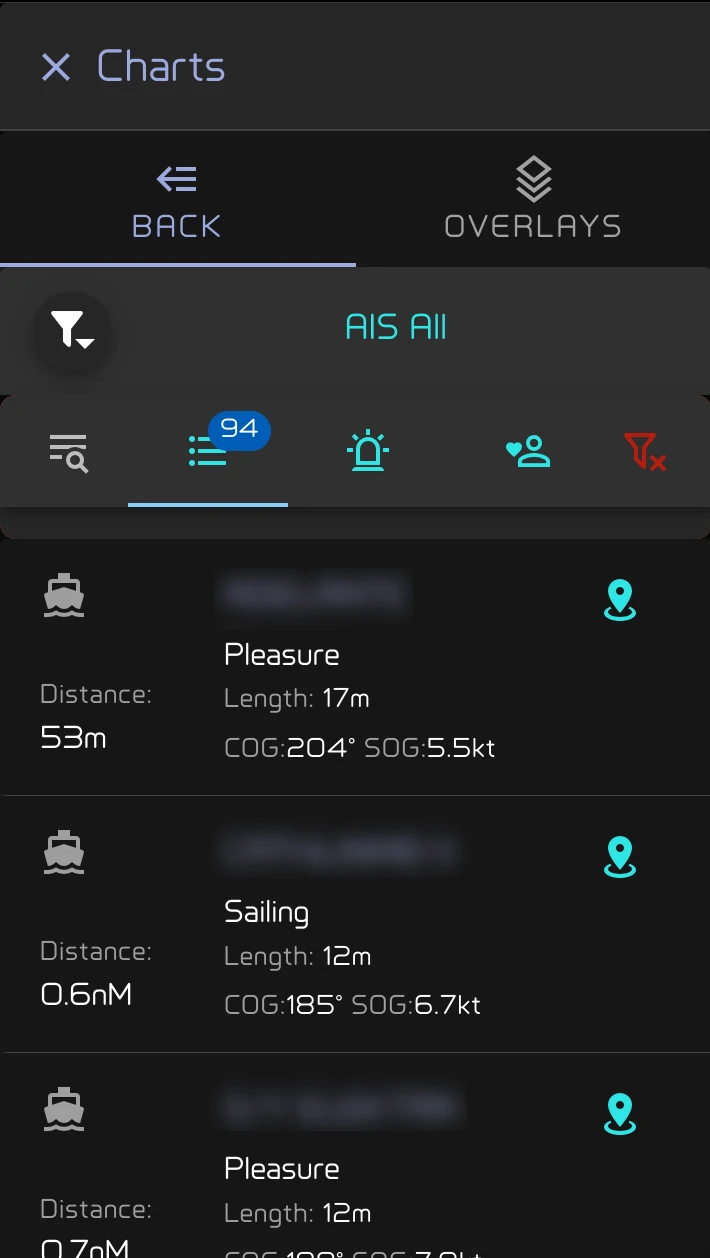
The title says which list you are on: AIS All, AIS Watch or AIS Friends. Below it:
- the search button, to find a vessel by name, call sign or MMSI
- three tabs, each with a count: all targets, the watch list (vessels under an AIS notification), and your friends in range
- the red button, which clears the search and the type filter
Each vessel shows its type, distance, name, ship type, length, COG and SOG. A vessel under a notification has a coloured edge and its CPA and the time to it. Vessels under a notification come first, then the rest, nearest first. The watch tab says no AIS notifications when it is empty.
- Tap a vessel to select it. On the AIS screen it shows on the scope.
- Long-press a vessel to open the AIS screen on it, from any screen.
- On the chart, the button on the right of a vessel finds it on the chart.
Show only some types
Tap the filter button at the top left of the list.
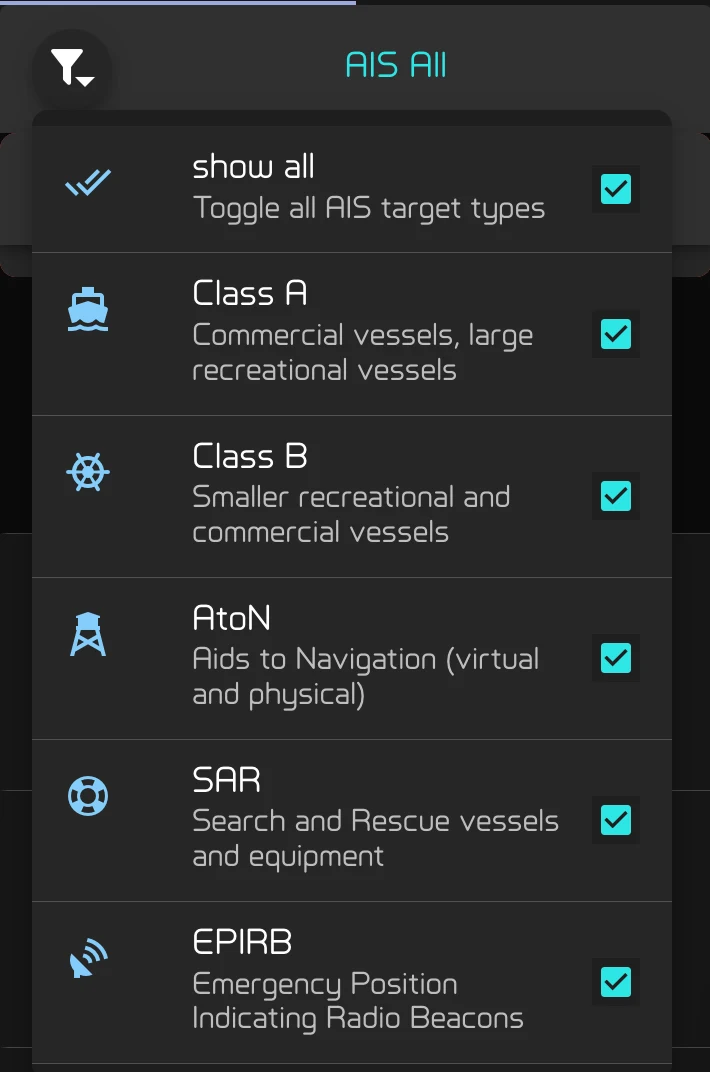
Tick the types to show: Class A, Class B, AtoN, SAR and EPIRB. show all ticks or clears them all. Long-press a type to show only that one. The filter applies to the scope and the counts too, and a dot on the filter button reminds you one is on.
Friends
Keep a list of boats you know. When one comes into AIS range, Zora gives you a short notification, Friend is on AIS, and clears it when they leave.
To add a friend:
- from a vessel's details, tap add as a friend, or
- on the friends tab, tap ADD NEW FRIEND and type its MMSI, which is exactly 9 digits.
Fill in Name of the Vessel, which it needs, and if you like Name of your Friend and Notes, then tap save. Once saved, the camera button adds pictures. cancel undoes your changes and unfriend removes the friend.
On the friends tab, friends in range come first with an open eye. Tap one in range to show it. Long-press one out of range, or long-press a friend's details, to edit it.
Set your AIS limits
Zora warns you when a vessel will pass closer than your limits. Set them once for your boat and your waters.
- Tap your own boat on the AIS screen. Notifications opens.
- Open the Auto tab and tap the pencil on AIS Notifications.
- AIS Notification Settings has two tabs. underway is used while you sail, motor, motor-sail or drift. stopped is used at anchor, on a mooring and in every other state except docked. Docked, AIS notifications are off.
- On each tab, set the alarm, warn and alert distance, in your distance unit, and the alarm, warn and alert time, in minutes and seconds (mm:ss).
- Tap save. cancel puts back the values you had.
A level goes off only when a vessel will come within its distance and within its time. So a ship that will pass close in an hour's time does not wake you; it will once it is inside your time limit.
Tap an AIS notification to open the AIS screen on that vessel.
How Zora works out the closest approach, and when it stays quiet, is in How Zora judges an AIS target.