Log in
Each person on board has their own crew account, with their own units, voice and profile. You log in at each display you use, and logging in takes the display to your own station, so your screen layouts come with you. The exception is a display with a station of its own: it stays on that station whoever logs in.
Log in
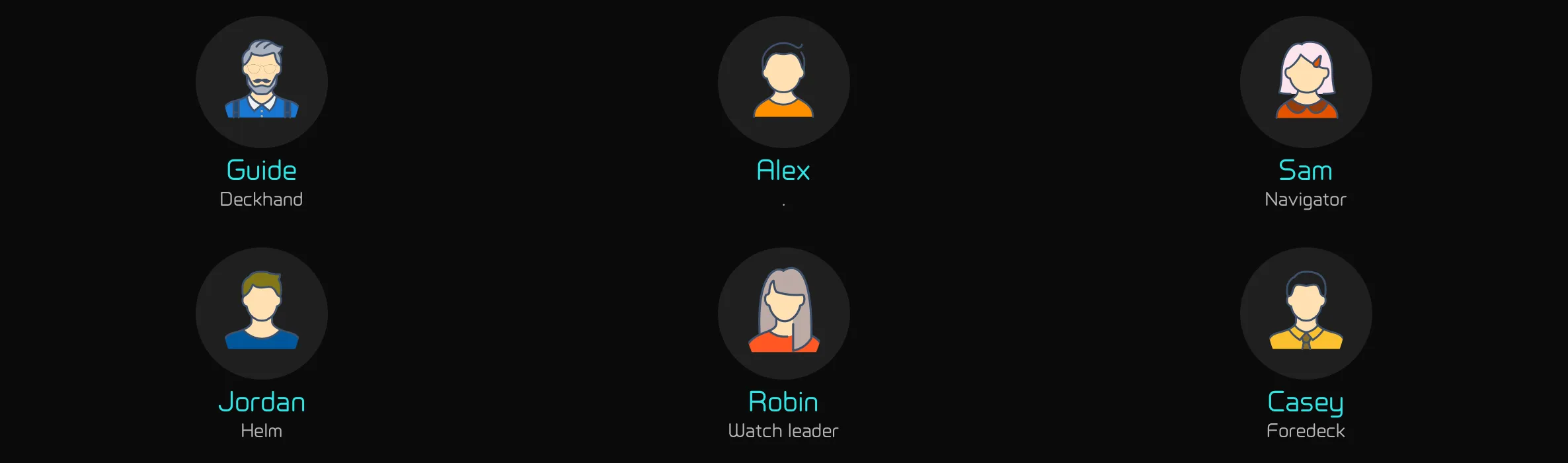
When nobody is logged in, the display shows the login screen. It has an avatar for everyone aboard and for every Captain, with their name and About line. If no crew list is set, everyone is on it.
- Tap your avatar. A Captain, or anyone whose role may use more than Crew, then enters a personal code. At your first login you set one by entering it twice; see Personal codes.
Zora opens on your own station, or on the display's station if it has one, and the logbook records the login with your name. If Zora is still starting up, it says so and logs you in as soon as it is ready.
Reloading the page on the same display logs the same person straight back in. If they have been taken off the crew since, it shows the login screen instead, except for a Captain, who is always logged back in.
Tap the crew button at the bottom right, a person with a pencil, to open the crew list. New crew members are added there, and the pencil beside a name opens that person's details. If the boat has a Captain, Zora asks for a Captain's code before the list opens. To change someone's details, long-press their avatar. If they have a personal code, Zora asks for it, or for a Captain's code, before the editor opens. Once logged in, change your own from Edit profile in the user drawer. See Crew.
Tap the Zora logo at the top left for About.., with the app's version, the licence agreement and the acknowledgements, and Get support..., which works before anyone logs in.
The station
If the display has a station of its own, its name is at the top of the login screen, above the word station, and everyone who logs in there lands on it. Otherwise that space is empty and logging in moves the display to your own station. To use another station, switch from the screen selector once you are logged in; see Stations.
Log out
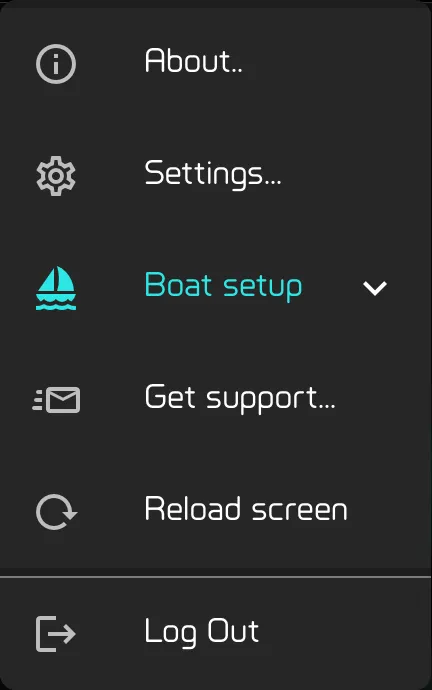
Tap the Zora logo in the app bar and choose Log Out. A running watch timer stops.
The screensaver
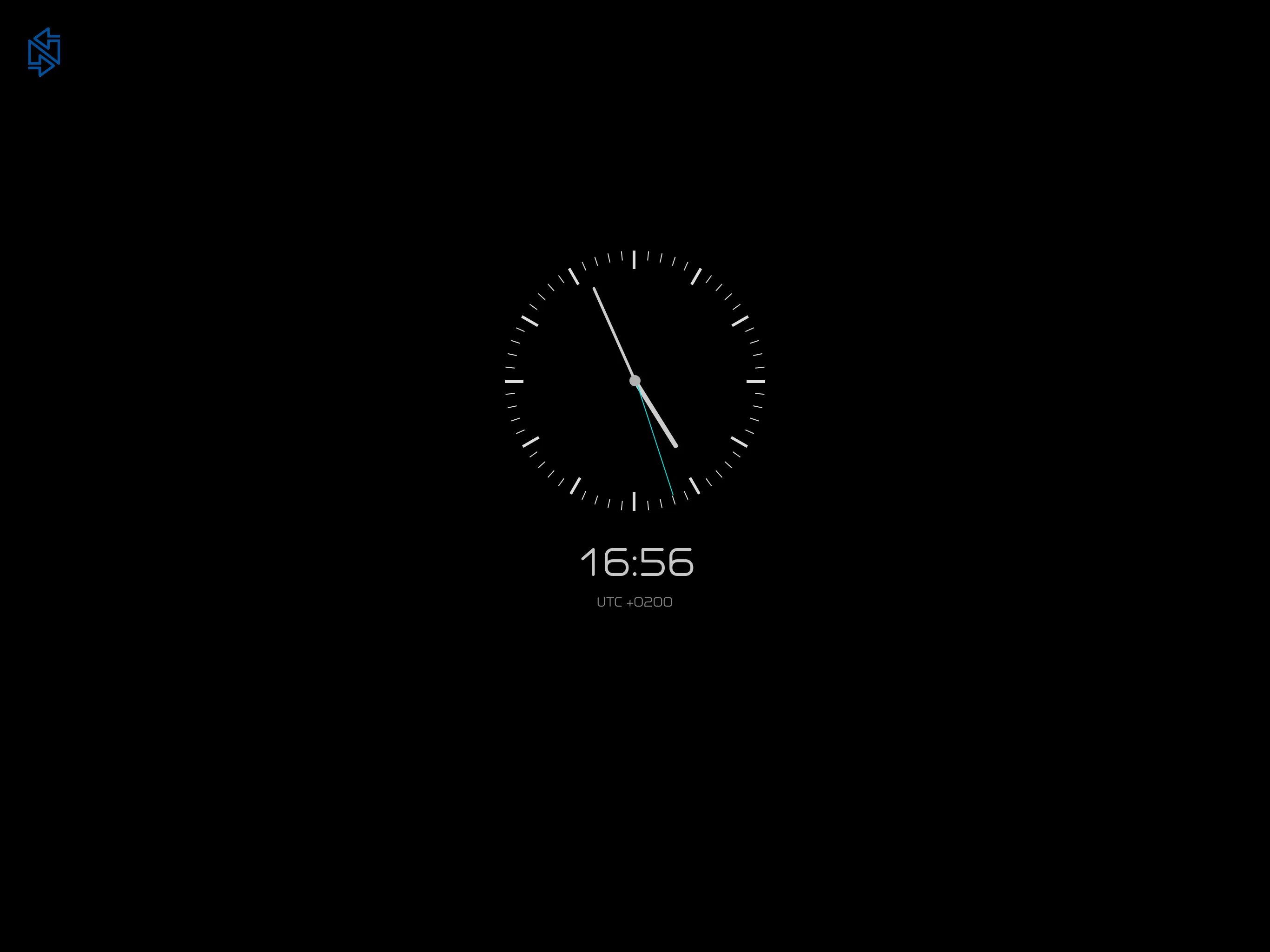
After 30 seconds with nobody using it, the login screen gives way to the screensaver: a clock with the boat's local time and its difference from UTC. Tap anywhere to go back to the login screen.