Permissions
Roles decide which parts of Zora each crew member may use. The Captain may use everything, and sets what every other role may use.
The locks are there to prevent accidents, such as a crew member engaging the pilot by mistake. They are not security, and they will not stop someone determined to get round them.
Open Permissions
Open Settings and choose Permissions under Crew and preferences. It asks for a Captain's code once per login: after that, Crew, Permissions and Stations open without asking until you log out.
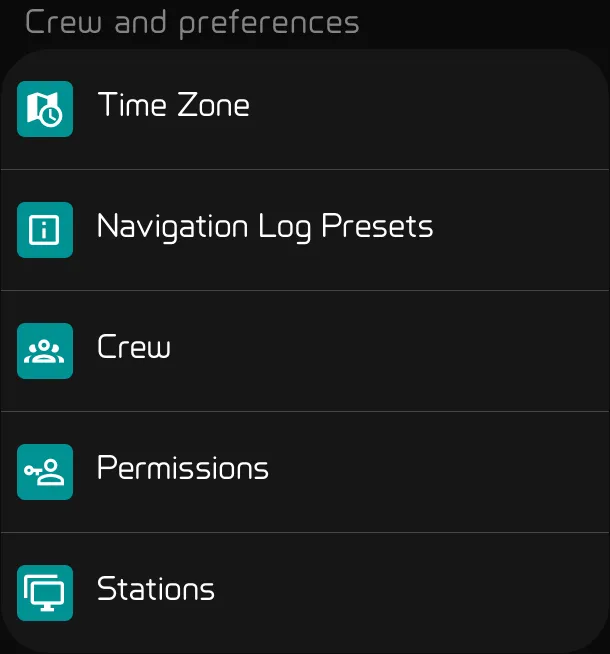
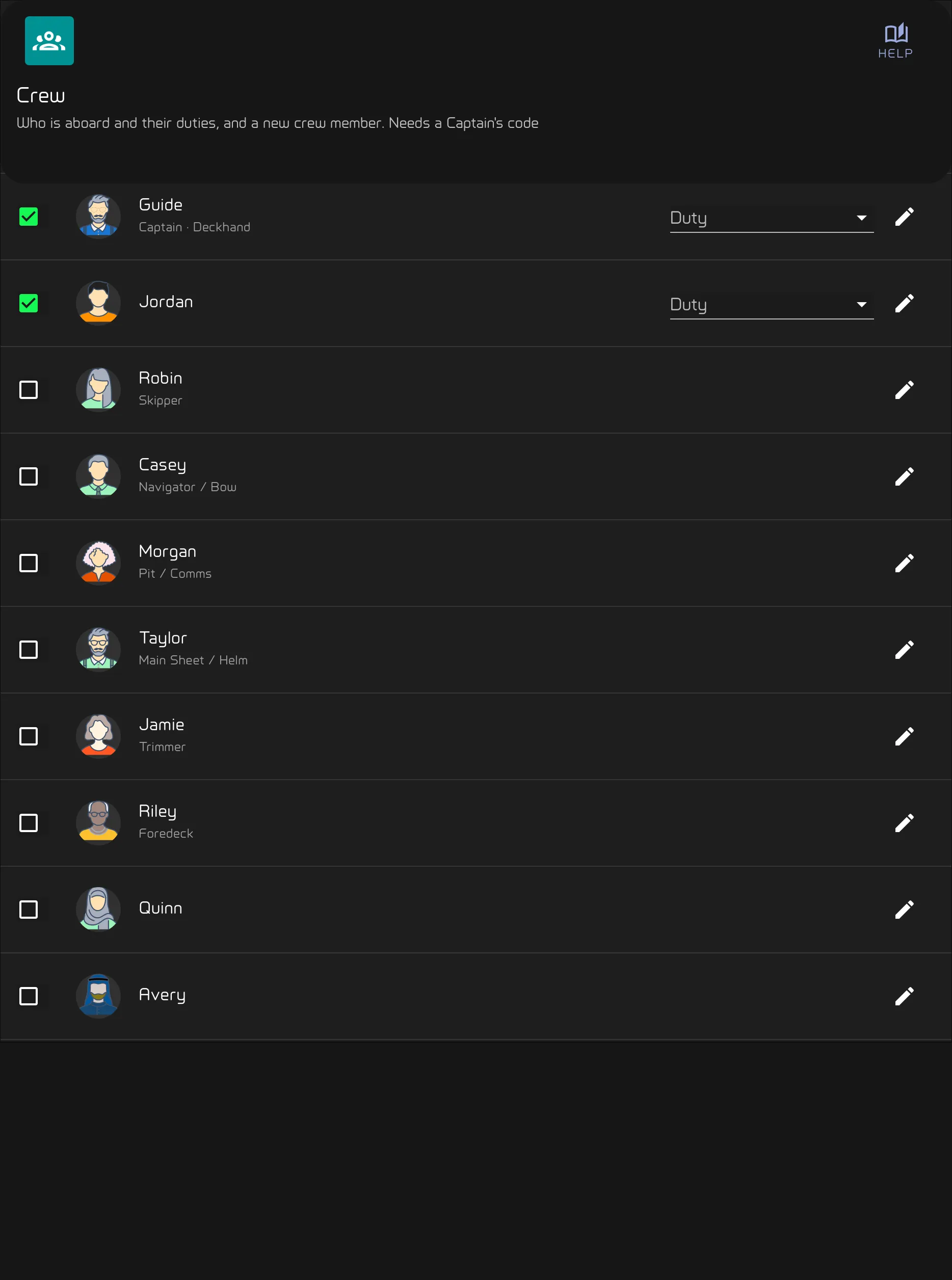
Who is aboard, with their duties, is set in Crew, next to it. See Crew.
Become Captain
On a boat with no Captain, Permissions offers Become Captain instead. Set a personal code and you are the Captain.
After the update that brought roles, everyone on board is Crew and the boat has no Captain. The first person to open Crew, Permissions or Stations in Settings can become Captain. Old login codes are removed by that update.
The boat always keeps a Captain. Zora will not give the last Captain another role or delete them, and says Make another user Captain first.
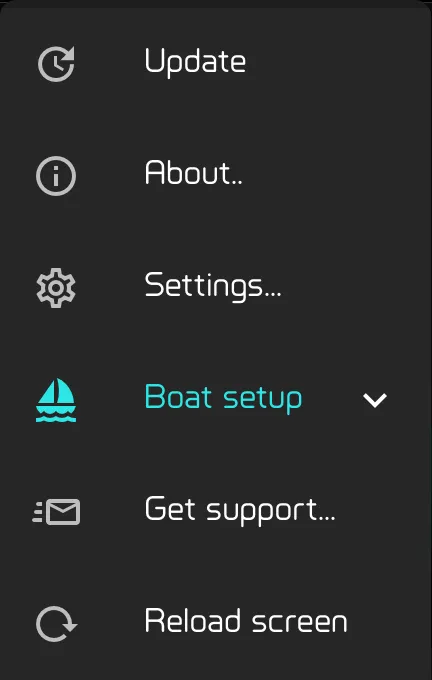
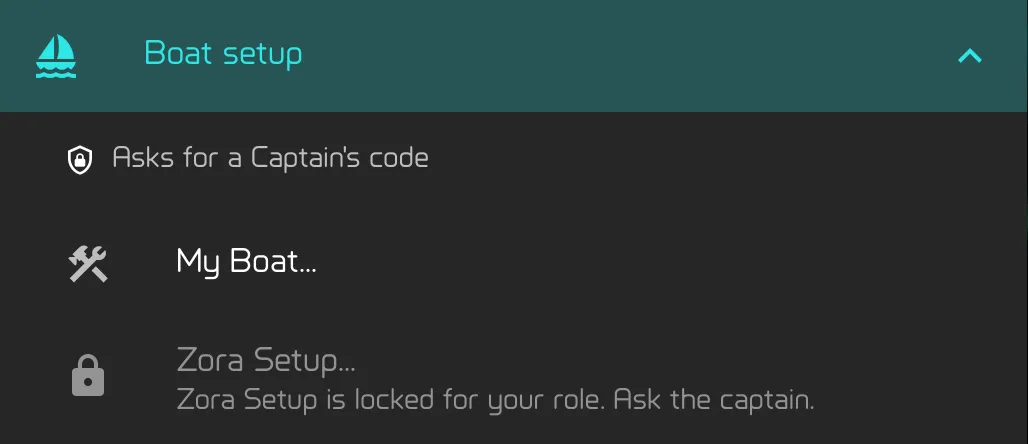
Once a Captain has a personal code, My Boat... and Zora Setup... under Boat setup in the Zora logo menu also ask for a Captain's code, except when a Captain is logged in. The menu then shows Asks for a Captain's code above them.
When a software update is ready, Update appears at the top of the Zora logo menu, or Retry after a failed update. It asks for a Captain's code in the same way.
Roles
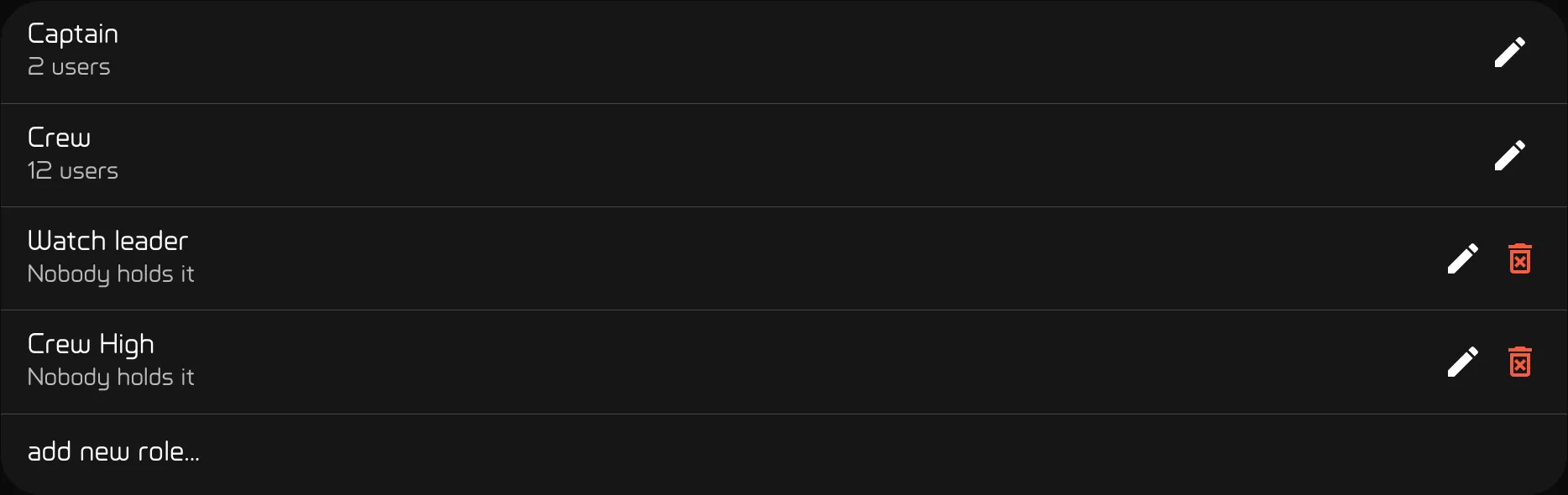
Every boat has two roles that cannot be deleted, Captain and Crew. A new crew member is Crew, and so is anyone whose role is deleted.
Tap add new role... to make another. A role can be renamed, and deleting one moves the people who hold it to Crew.
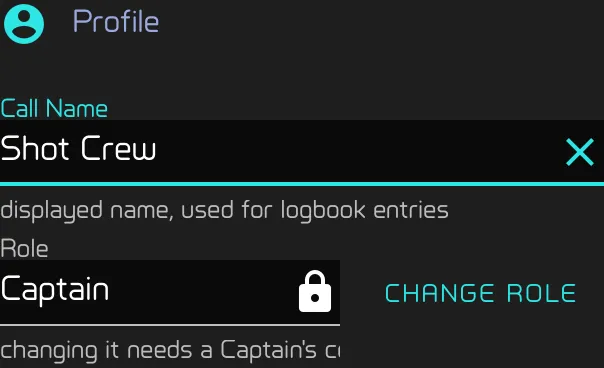
To give someone a role, open their account from the login screen and set Role in the Profile panel. Changing it needs a Captain's code. See Crew.
In someone's account, leave boat and delete ask for a Captain's code once the boat has a Captain. An account opened from a crew list asks no second time, since the list already asked. A Captain is never offered leave boat.
About, in the Profile panel, is free text that reminds everyone who someone is, such as "Anna's brother, delivery crew 2025". It shows under their name on the login screen and in the crew selection. It has nothing to do with roles.
Duty, such as Watch Leader or Cook, is a person's job on the trip. You set it in the crew list rather than in their account, and it grants nothing.
Lock a part of Zora
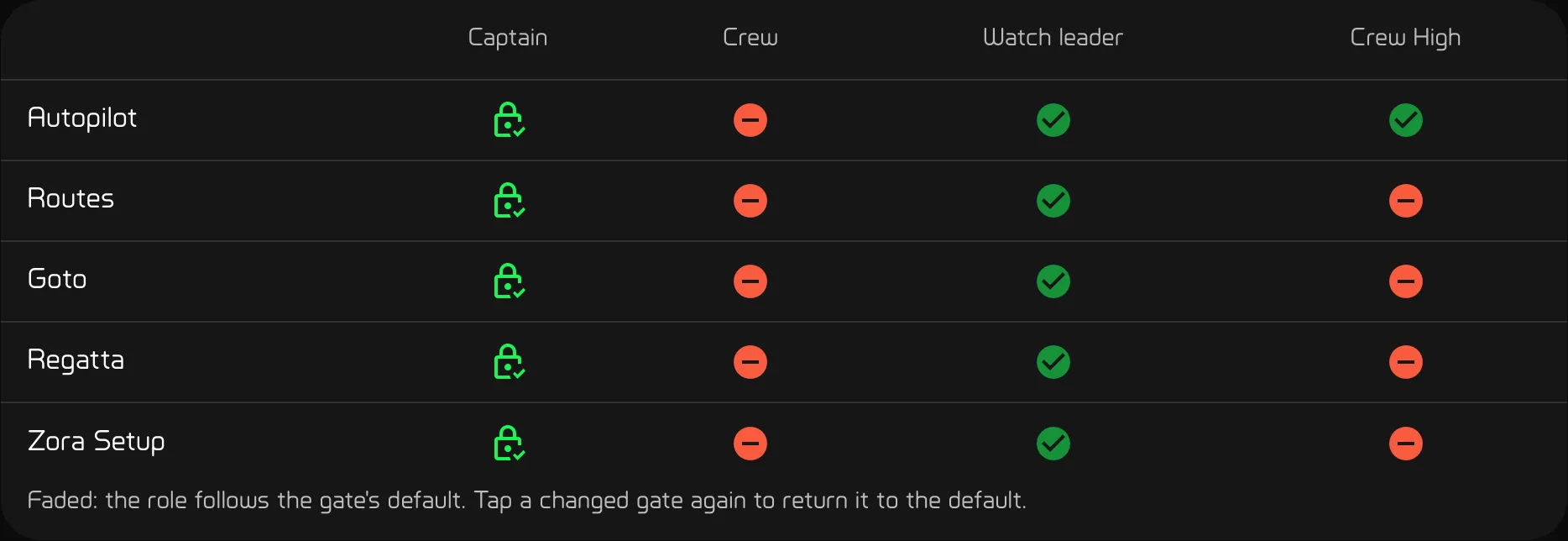
Five parts of Zora can be locked: Autopilot, Routes, Goto, Regatta and Zora Setup. Out of the box every role may use all five.
The Permissions grid has a row for each part and a column for each role. Tap a cell to allow or lock that part for the role. The Captain's column is always allowed. A faded cell follows the default. Tap a changed cell again to return it to the default.
A change takes effect at once on this display. Other displays pick it up at their next login.
A role that may use something Crew may not logs in with a personal code. The Captain always does.
What a locked part does
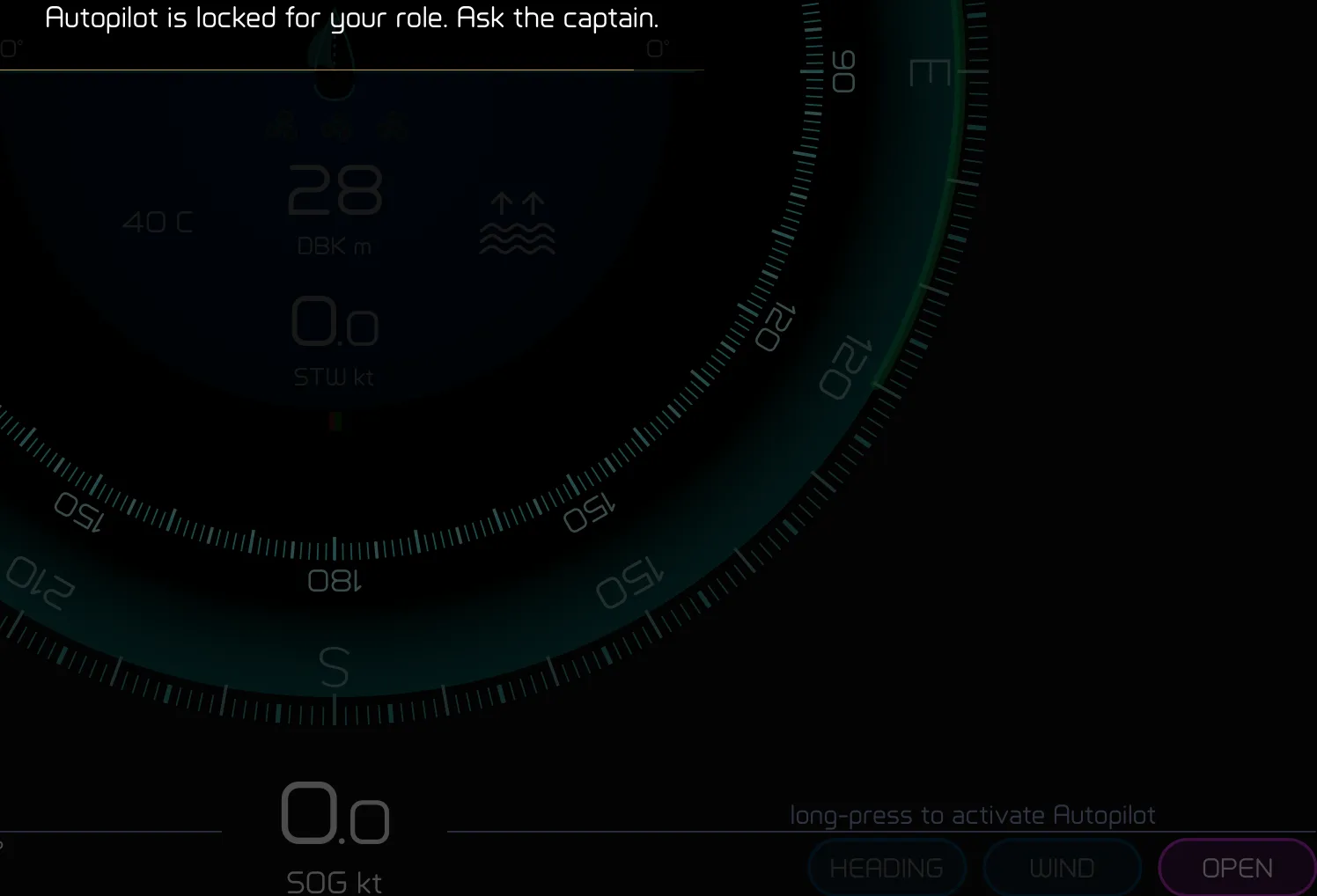
A locked control stays on screen, greyed, so its value can still be read. Tapping it says <Part> is locked for your role. Ask the captain.
| Part | What it locks |
|---|---|
| Autopilot | The pilot's buttons on the PND, the autopilot tools and the chart's autopilot corner. OPEN on the PND still opens the tools to watch the pilot. |
| Routes | Starting, stopping and editing the route being sailed (reroute, skip, back, add at the boat), and weather routing of it. Other routes can still be drawn and edited. |
| Goto | Starting a goto, from the chart, a waypoint or the waypoint list. |
| Regatta | Racing: activating a Regatta plan or resetting one under way, resuming a suspended race, the start signals, the start timer, the Abort menu, Finished, Protest and Penalty taken. |
| Zora Setup | Zora Setup... under Boat setup in the Zora logo menu, which opens the Setup app. The entry shows a lock and says Zora Setup is locked for your role. Ask the captain. |


Per station
A station can grant or deny each part to whoever logs in at a display bound to it. Under Station permissions, pick the station, then choose Grant, Follow user or Deny for each part. Each choice is saved as you tap it. Grant or deny at the station wins over the role. The Captain is always allowed. A display that follows whoever logs in uses no station's permissions, and switching station keeps the permissions the login started with. Binding a display to a station is in Stations.
Personal codes
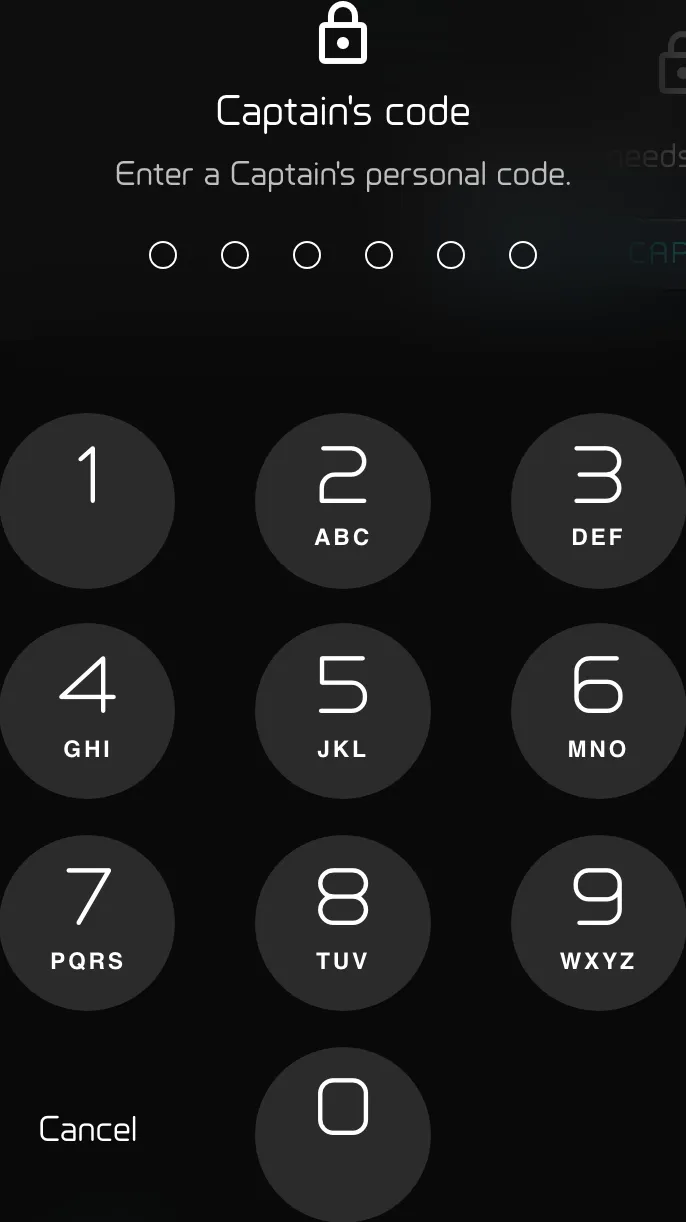
A personal code is six digits. Someone who needs one and has none sets it at their first login, entering it twice. The keypad has a phone's letters under the digits, so a code remembered as a word is typed on the same keys as on a phone. A wrong code shows Wrong code.
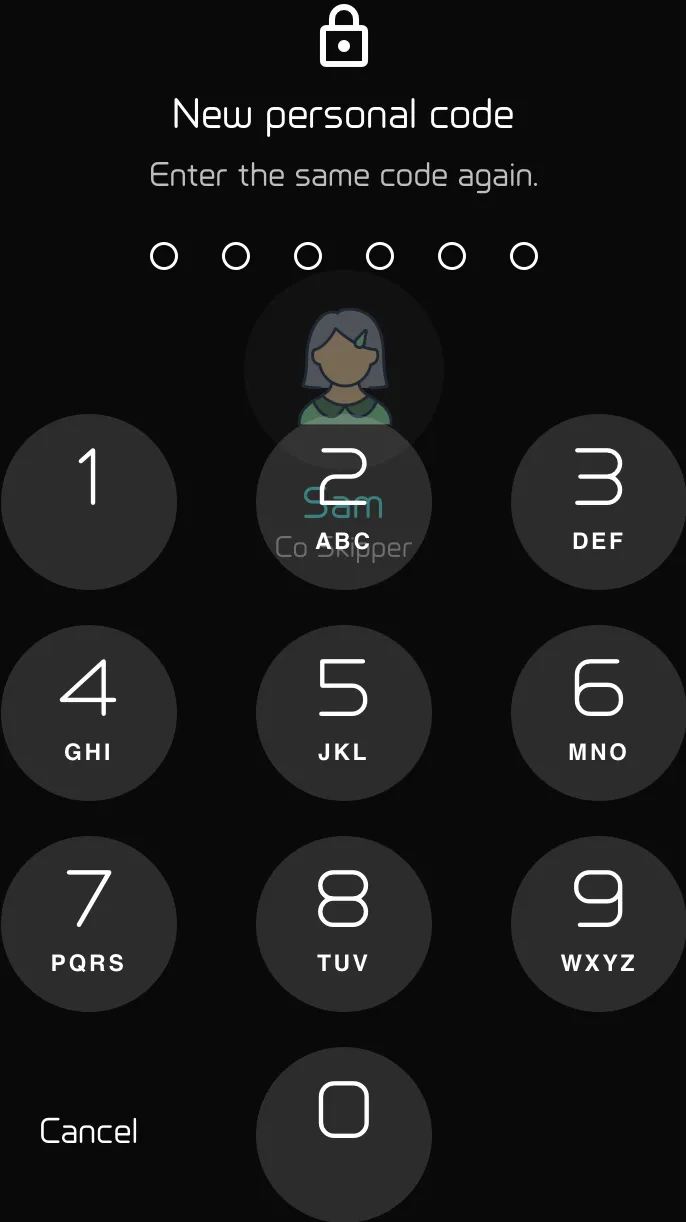
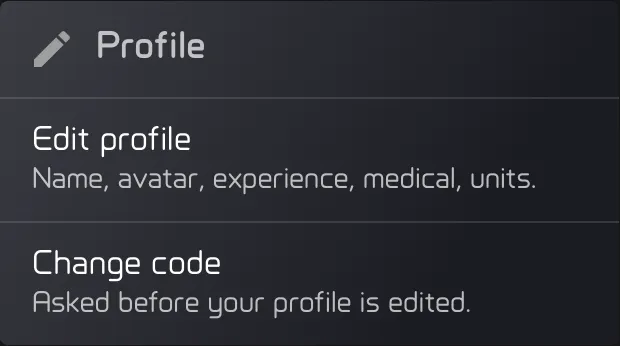
Change your own code from the user menu with Change code. Zora asks for the code before your profile is edited. Anyone else who wants to edit it needs your code or a Captain's.
Personal codes on Permissions lists who has one. Clear someone's code there and they set a new one at their next login.
A forgotten code
At the code prompt, enter 123456, then 234567, then 345678, and the code is cleared. Zora writes the reset into the logbook and raises the notification Personal code reset, with the name of whoever reset it, or "at the login screen" if nobody was logged in.