

Crew
Everyone on board gets a crew account. It holds their name and picture on the login screen, the details the crew list for customs needs, their experience and medical notes, and their own units and notification voice.
Crew accounts are managed on the login screen. To get there, tap the Zora logo at the top left and choose Log Out. See Log in.
Add a crew member
Tap + at the bottom right of the login screen. A new account appears, called noName. Each new account also gets its own station, named after it. Logging in moves the display to that station, unless the display is set to a station of its own. See How stations work.
Long-press the new avatar to fill it in.
Edit a crew member
Long-press a crew member's avatar. A tap logs them in instead.
Edit User opens with five tabs: user, avatar, experience, medical and units.
There is no save button. A tab is saved when you move to another tab and when you close the editor with the ✕ at the top left.
Delete a crew member
Tap Delete at the top of the editor and confirm. The account and its station are removed. The button only shows while there is more than one crew member.
The user tab
Four panels: Profile, Personal, Identity Document and Address. Tap a panel to open it.
Profile
- Call Name: the name on the login screen and in logbook entries.
- role: shown under the name on the login screen.
- email: filled in as the reply address when this person sends a message with Get support... from the Zora logo.
- phone.
- POB Beacon MMSI: the nine-digit MMSI of the AIS man-overboard beacon this person carries. When that beacon transmits, Zora raises a person overboard and names them. See Person Overboard.
Personal
Title (Mr, Mrs, Ms, Mx, Capt, Dr, or type your own), First Name, Middle Name, Last Name, Birthday (pick it on the calendar) and nationality.
Identity Document
Document Type (Passport, ID Card, Driver License, Seamans Book, or type your own), Doc Number and Expiration Date.
The printed crew list for customs takes the names, birthday, nationality and identity document from here. See Voyage Plan.
Address
address, city, zip, state and country.
The avatar tab
The switch at the top picks Avatar or Photo. The login screen shows the one you pick; Zora keeps both, so you can switch back.
Avatar
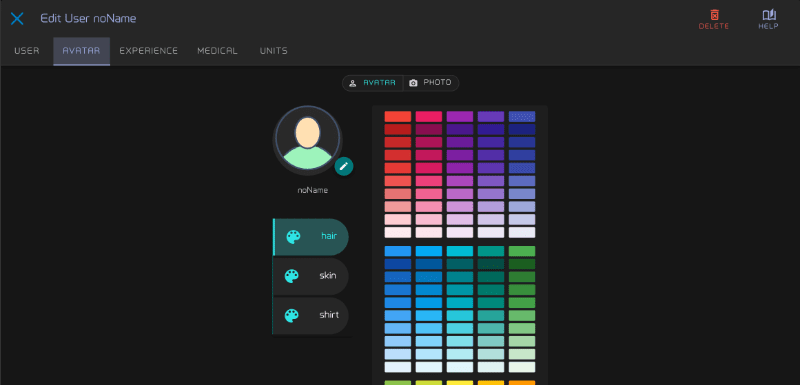
Tap the picture to choose another avatar. Then pick hair, skin or shirt and tap a colour in the palette.
Photo
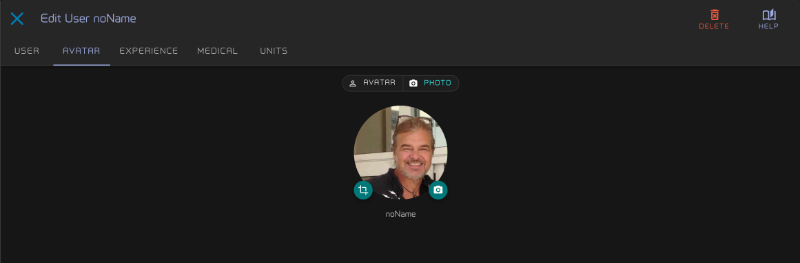
Tap the camera button and pick a picture. Adjust Photo opens:
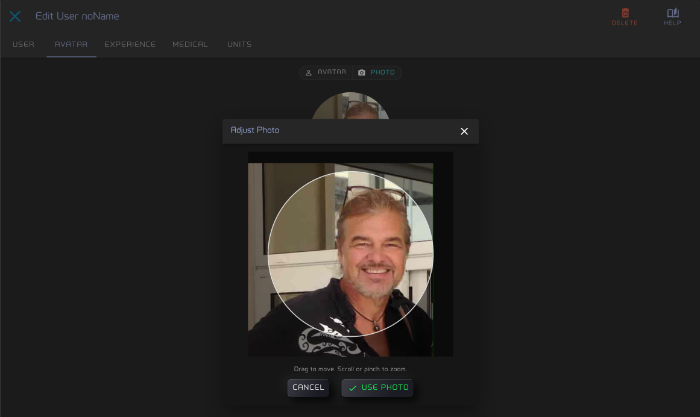
Drag to move the picture, scroll or pinch to zoom, and tap Use Photo. The photo is uploaded straight away. The crop button beside it opens Adjust Photo again while the picture is still loaded.
The experience tab
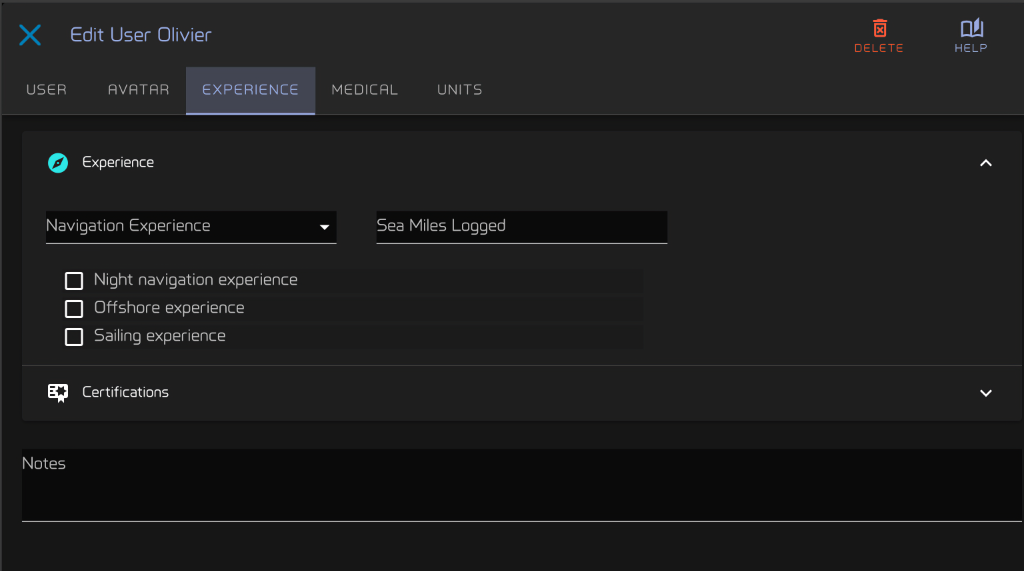
- Experience: Navigation Experience (None, Beginner, Intermediate, Experienced or Professional), Sea Miles Logged, and Night navigation experience, Offshore experience and Sailing experience.
- Certifications: Day Skipper, Yachtmaster, STCW, First Aid, VHF / SRC, Diesel Engine, and Other certifications for anything else.
- Notes below the panels.
The medical tab
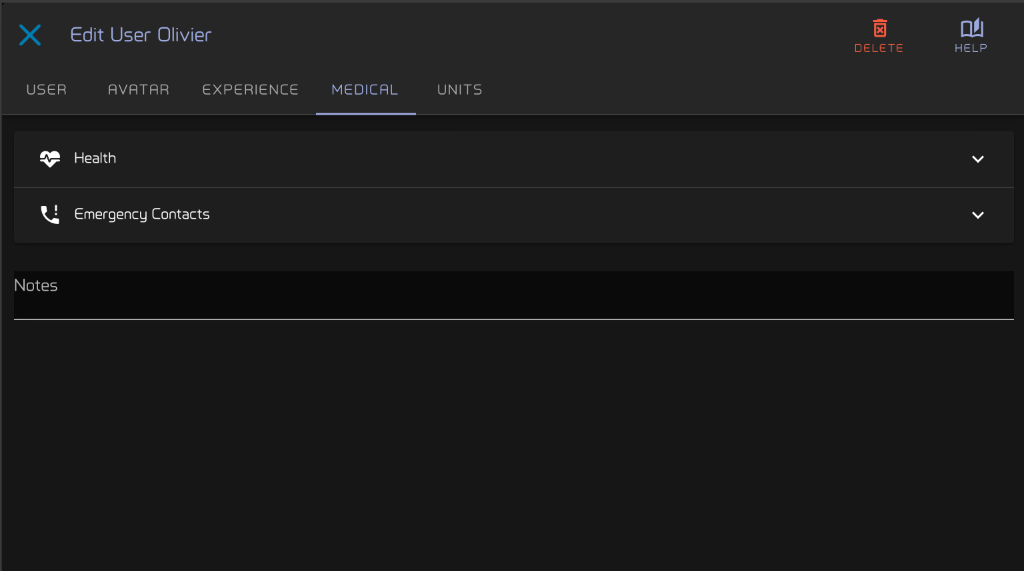
For first aid on board.
- Health: Blood Type, Weight (kg or lbs), the conditions Diabetes, Epilepsy, Heart Condition and Asthma, Other conditions, Medications and Allergies.
- Emergency Contacts: Emergency Contact (name and phone number), Physician and Physician Phone.
- Notes below the panels.
The units tab
Units and voice belong to the crew member. They apply whenever this person logs in, on any display.
- Notification Voice: Grace or Billy. Tap one to hear it.
- One row per measurement: speed, boat speed, angle, long distance, short distance, depth, position, date, temperature, volume and flow. Tap the unit you want. Boat speed starts on the same unit as speed.
- Position and Date show an example above the row, so you can see the format.
- Depth Shading: which depth areas the chart shades. all shades every one; a depth such as 5 m shades only the areas down to that depth.