

Simulation
Simulation plays a recorded data file into Zora, so you can try the system out with no instruments connected. When the file ends it starts again from the top, for as long as Simulation is on.
Switch it off before relying on Zora
Replayed data reaches Zora the same way live data does, position and depth included. Switch Simulation off before the boat goes to sea.
Open Simulation
- In the Setup app, open Connections & Sources, then the Connections tab.
- Tap Simulation. On Server V3 it is under SSD, the server's storage module. On Server V2 it is under Serial & Network.
While Simulation is on, its card carries a green chip with the file's name.
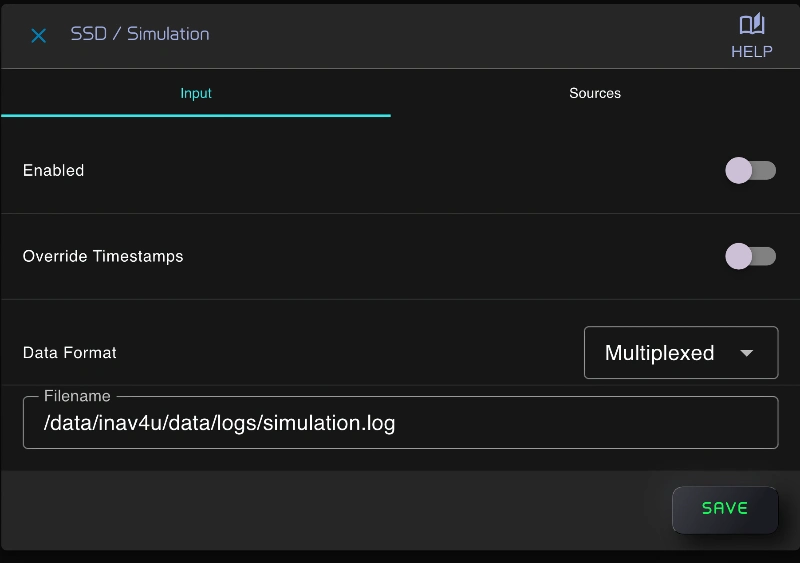
Play a recording
The file must already be on the server.
- Data Format: choose the format the file was recorded in, Multiplexed, NMEA 0183 or NMEA 2000. Multiplexed is the format Data Logging writes on the other connections.
- Filename: type the full path to the file on the server.
- Override Timestamps: switch it on to stamp the replayed data with the time now. Off, the data keeps the times it was recorded with.
- Switch Enabled on and tap Save.
- Go back to the Setup home and tap Back to Zora, which has turned yellow. Restart Required opens; tap Restart & Go Back. The replay starts once Zora has restarted.
Try it with a sample file
Every server carries two sample recordings:
| File | Data Format |
|---|---|
/usr/lib/node_modules/signalk-server/samples/aava-n2k.data | NMEA 2000 |
/usr/lib/node_modules/signalk-server/samples/plaka.log | NMEA 0183 |
Stop the replay
Open Simulation again, switch Enabled off, tap Save, and restart Zora the same way on your way out of Setup.