
Waypoints
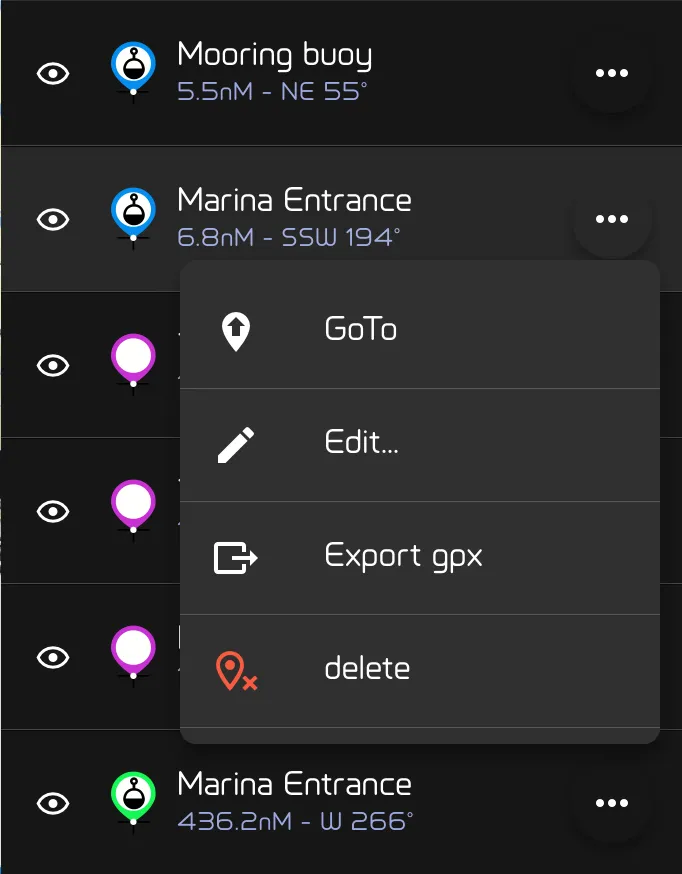
Tap Waypoints on the right of the chart. Each waypoint shows its symbol and name, and its distance and bearing from the boat.
- Tap a waypoint to show it on the chart. Tap it again to let go.
- Tap the eye on its left for its details.
- Long-press it to edit it.
- Its menu (⋯) has GoTo, Edit..., Export gpx and delete. GoTo is greyed out while a route is active.
A waypoint's details show its description, folder, tags and countries. The centre button beside its name moves the chart to it.
At the top of the list, the sort button orders the waypoints by distance to the boat, distance to the middle of the chart, name, or when they were last changed. The menu beside the title exports the ones shown or all of them as a GPX file, or imports a GPX file.
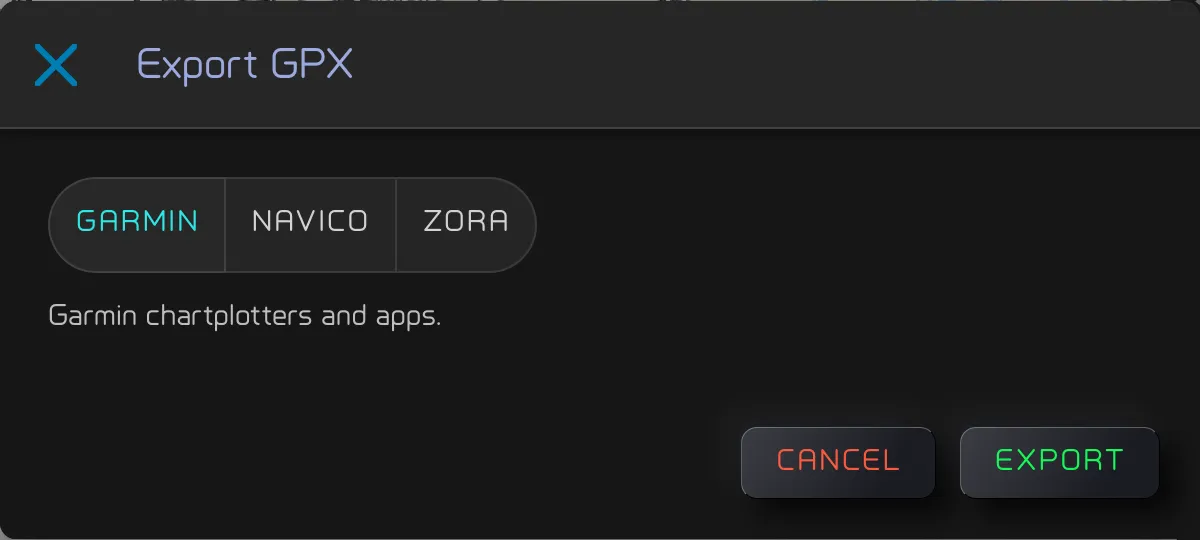
Every export, including a single waypoint's Export gpx, first opens Export GPX to ask which chartplotter the file is for: Garmin (the default), Navico (B&G, Simrad and Lowrance) or Zora (another Zora, or any app that reads GPX). The file names its symbols as that chartplotter does, so the chartplotter shows the same icons.
Importing a file again does not duplicate the waypoints already on board. Zora matches each one by its id, or by name and position when the file has no ids. A matched waypoint takes its icon from the file and keeps everything else, so importing a chartplotter's file again corrects its icons. The message after the import says how many icons were updated.
Edit a waypoint
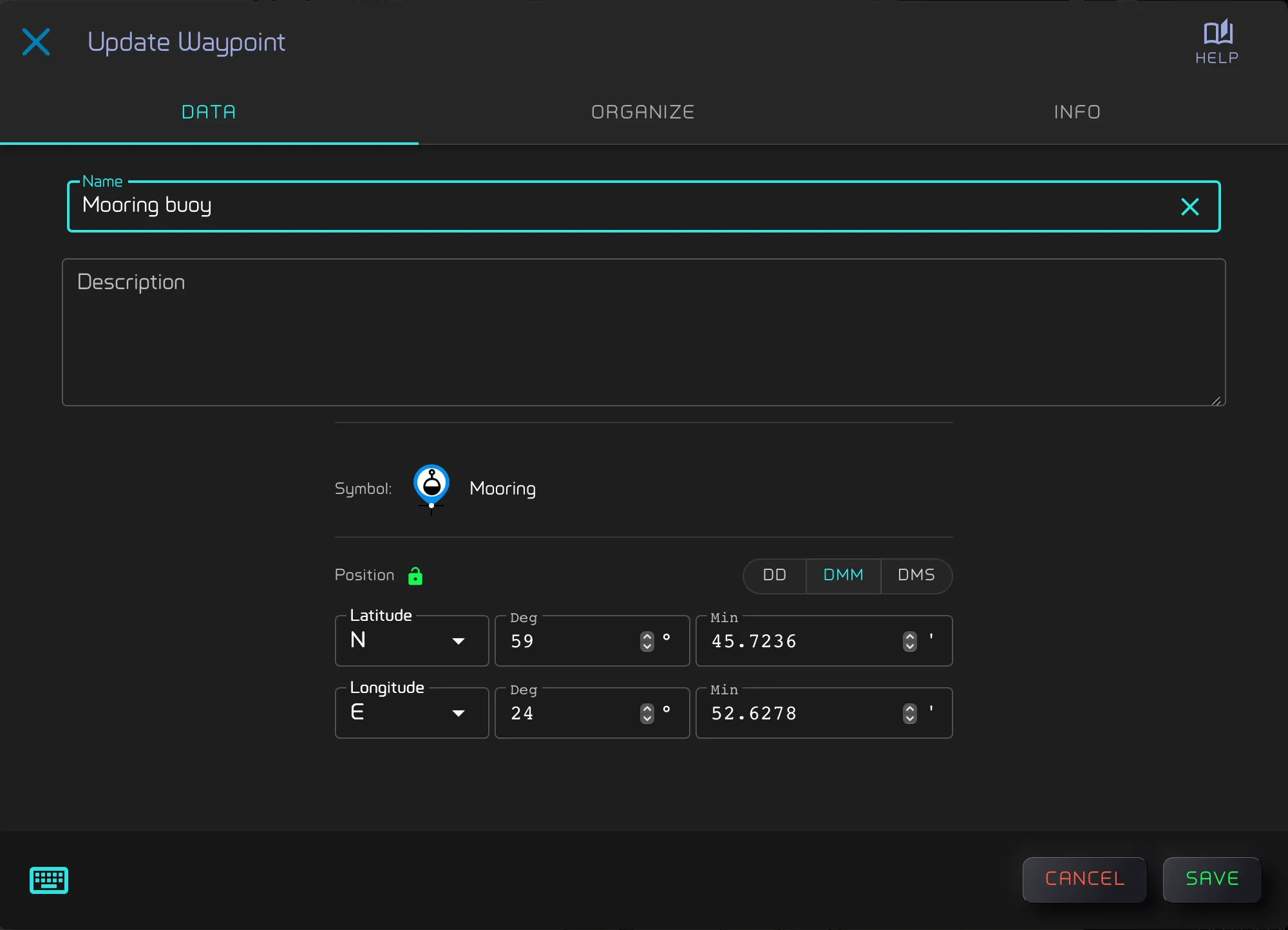
The Update Waypoint dialog (Save Waypoint for a new one) has these tabs:
- Data: the name, a description, the symbol, and the position. Type the position in degrees (DD), degrees and minutes (DMM), or degrees, minutes and seconds (DMS).
- Organize: its folder and tags. See Folders, tags and filters.
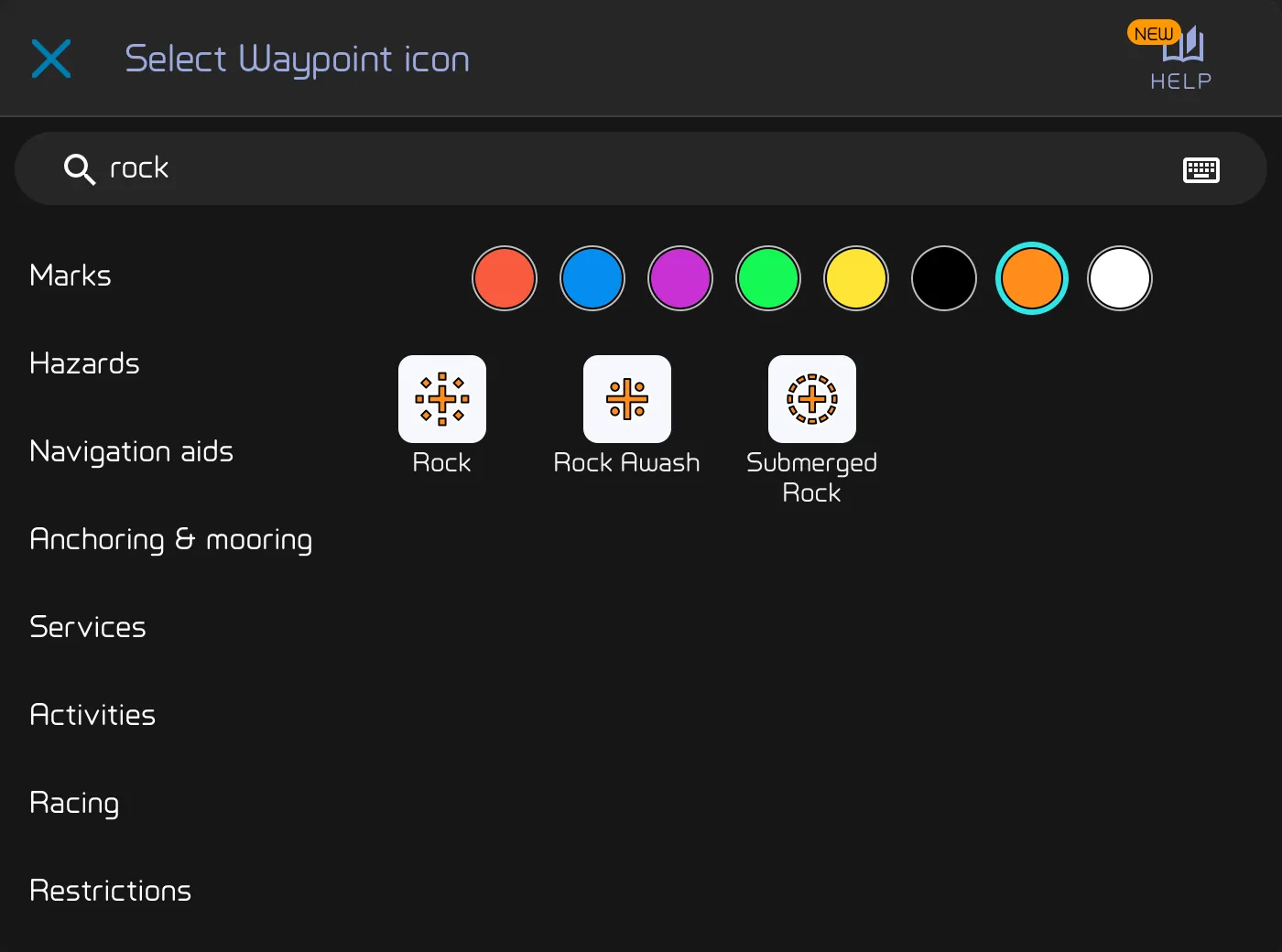
Tap the symbol to change it. Search finds an icon by its name, and the colour chips set its colour. Some icons keep their own colour.
Folders, tags and filters
Waypoints and routes share folders, tags and filters.
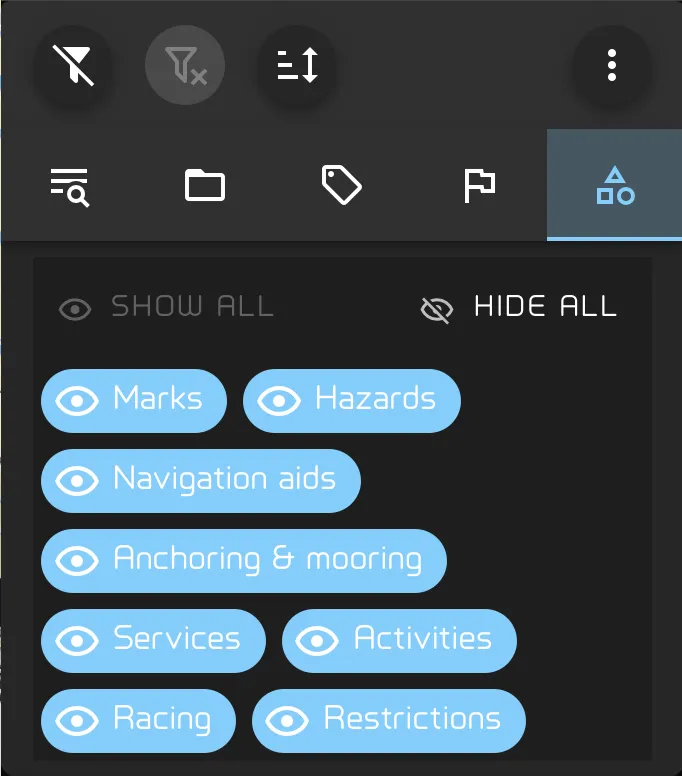
Filter the list. Tap the filter button at the top of the Waypoints or Routes list. Search the text (for a waypoint, its name or description), or choose a folder, tags or countries. The Waypoints list can also hide waypoints by icon group. In that tab, tap a group to hide or show it. Long-press a shown group to show only that group, or a hidden one to show them all. show all and hide all are above the groups. Hidden groups leave the list and the chart until Zora restarts. The red button beside the filter button clears the filter. It is greyed while no filter is set.
Put a waypoint or route in a folder, or tag it, in the Organize tab of its edit dialog. Zora fills in its country from its position when you save it.
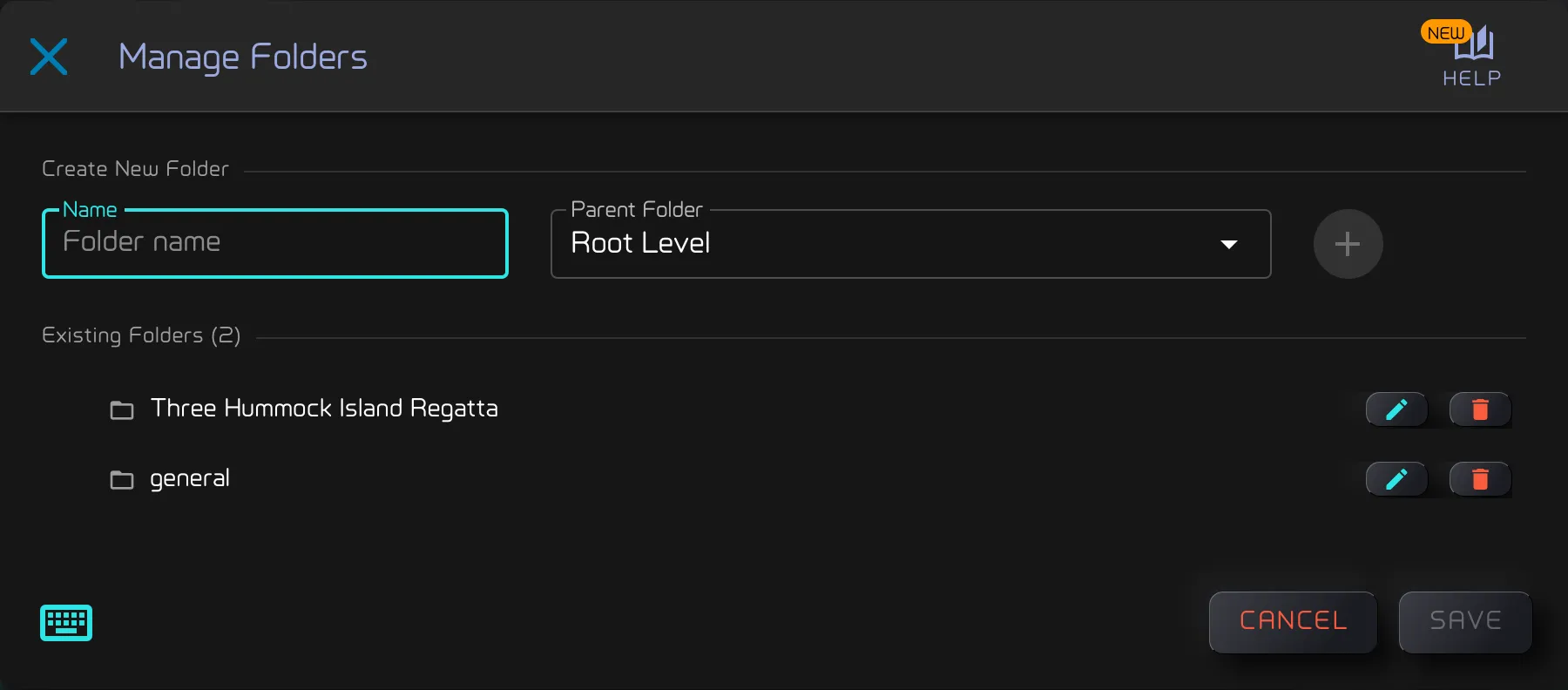
Manage folders. Tap the folder button beside the folder field. In Manage Folders, type a name, choose a Parent Folder to put it inside another, and tap +. Double-tap a folder, or tap its pencil, to rename it; press Enter to save or Esc to cancel. Deleting a folder moves the routes and waypoints in it to the top level. Folders inside it move to the top level too, with everything in them.
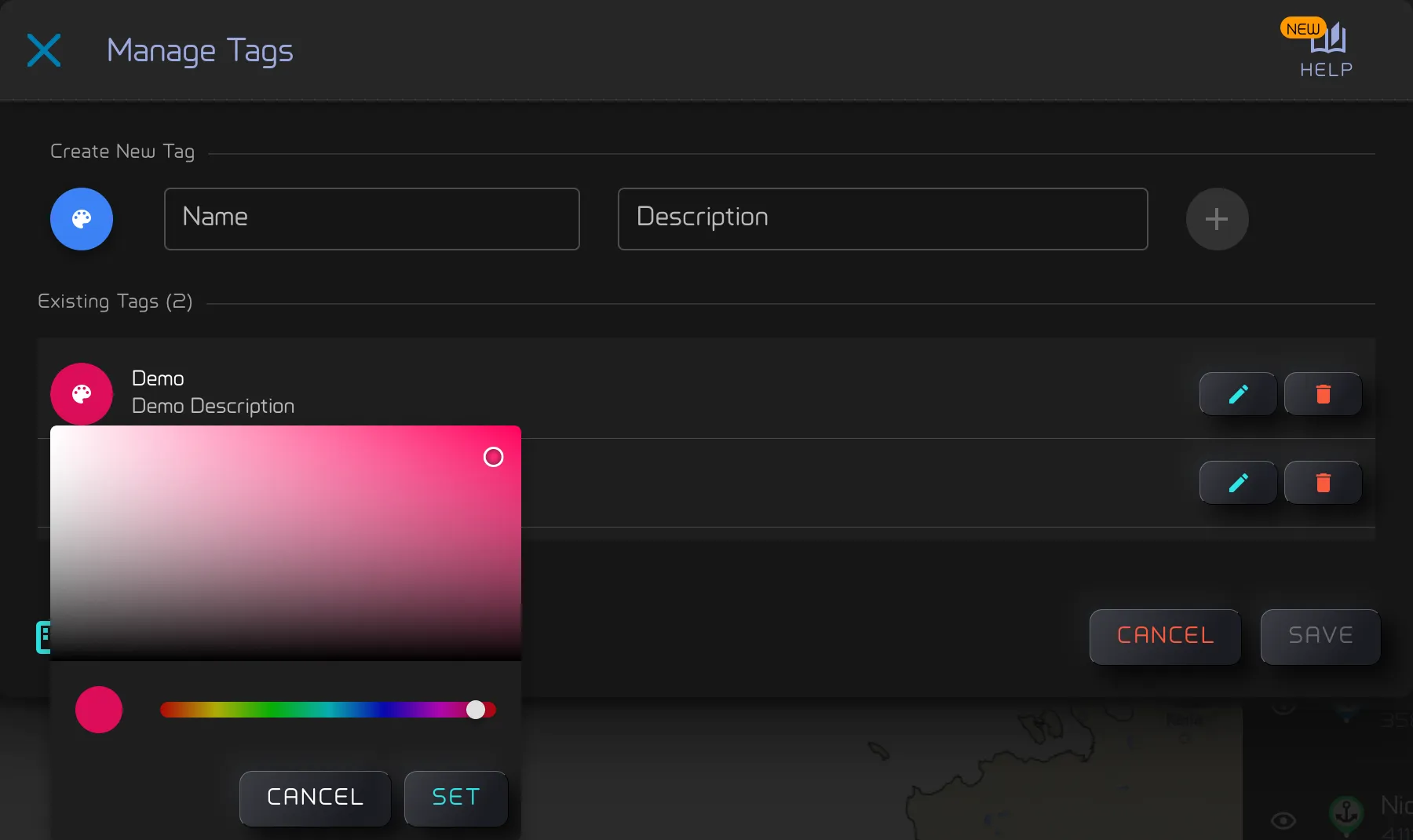
Manage tags. Tap the tag button beside the tags field. In Manage Tags, choose a colour, type a name and a description, and tap +. Double-tap a name or description, or tap the pencil, to change it. Tap a tag's colour to change it, then Set. Deleting a tag takes it off every route and waypoint that carries it.