

Routes
A route is a passage you plan once and sail as often as you like: a line of points from a departure to a destination. Its points belong to the route. A waypoint is different: a single place you keep for its own sake.
Draw a route
- On the Charts screen, long-press where the route starts and choose New Route.... The first point goes where you pressed, the chart turns north up, and the route opens in the Tools panel. New Route... is greyed out while a route is being sailed.
- Long-press the chart for each next point. Each one adds a leg to the end of the route.
- Tap save in the route panel when you have two points or more.
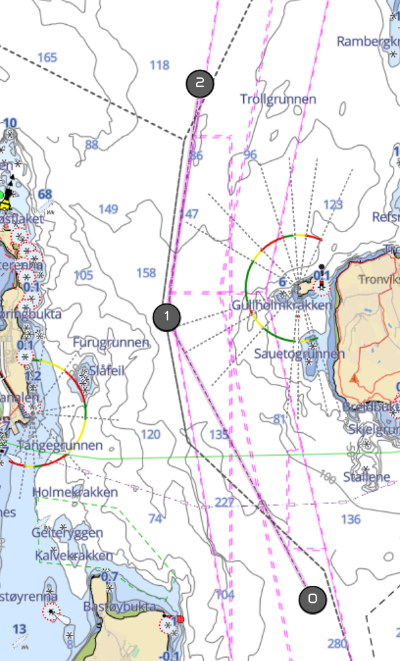
While you draw:
- Move a point: tap it (a ring shows it is selected), then move the chart under it. It snaps to a waypoint or the boat when it comes near one. Tap anywhere else to let it go.
- Add a point between two others: with no point selected, long-press the leg between them.
- Remove a point: select it and tap delete point, or press Delete on a keyboard.
- undo and redo step back and forward through your last 20 changes.
- cancel throws the new route away.
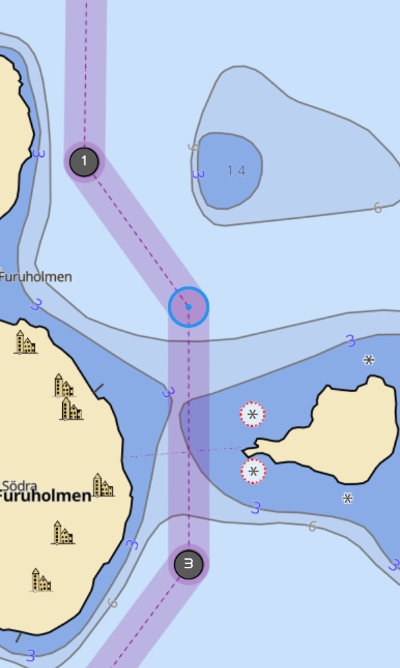
The route panel lists each point with its bearing and distance from the one before.
To add points to the end of a route you already have, show it on the chart, long-press where the next point goes and choose Add to Route.... The route opens for editing.
Save a route
save opens Save Route (Update Route for one you are changing).
- Data: the Departure, which it needs, the Destination, and a Description. The arrows between them swap departure and destination.
- Organize: its folder and tags, as for waypoints; see Folders, tags and filters. Zora fills in the countries the route passes when you save it.
- Regatta: the Start line and Finish line, if the route is a race course. A route with a line is a regatta course. Set each line by its Committee boat and Pin ends, or switch on The finish line is the start line.
Changing the points of a saved route keeps its name, folder and tags. To change those, long-press the route in the list or the top of the route panel.
Import a route
Bring in a route planned elsewhere, as a GPX or KML file of up to 50 MB.
- Open Routes in the NAV tab of the Tools panel, then the menu at the top of the list, and choose Import gpx/kml.
- Validation: Zora reads the file and shows its points, distance and how many points are usable. Continue is greyed out if the file has errors.
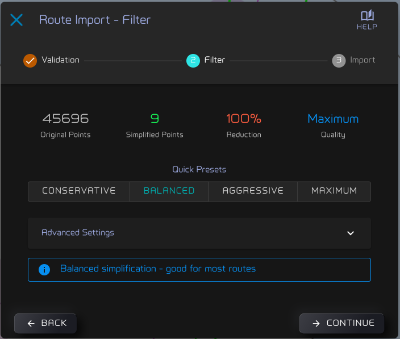
- Filter: a route drawn on a computer can carry thousands of points. Choose how far to simplify it: Conservative, Balanced (selected to begin with), Aggressive or Maximum. Zora shows the points before and after. Advanced Settings has the finer controls.
- Import: check the Departure, Destination and Description Zora took from the file, choose a folder and tags, and tap Import Route.
The routes list
Open Routes in the NAV tab of the Tools panel. Each route shows its departure, destination, length and folder, and a regatta flag if it is a race course.
- Tap a route to show it on the chart. Tap it again to hide it. When it shows a route, Zora turns it round if needed so that its destination lies ahead of the boat. With no course over ground, the end nearer the boat becomes the start.
- Tap the arrow on its left to open it in the route panel.
- Long-press it to change its departure, destination and the rest.
- The filter button works as for waypoints. Tap a route's folder to filter by that folder.
- The sort menu orders the list by Distance to Boat (the usual order, by whichever end of the route is nearer), Distance to Map, name, or when it was last updated.
The route shown on the chart gets a menu (⋯) in its row: edit route, reverse route, edit settings, plan voyage, export as GPX, export as KML and delete. weather routing... is not available yet. The menu is closed while the boat is sailing that route.
reverse route turns the route round on the chart; the saved route keeps its direction. If you then start it, the boat sails it the way it is drawn.
delete asks first; tap yes delete to remove the route for good.
The route panel
The route panel shows the route's Total length, the Total time to sail it at your planning speed, and, under To start, how far the boat is from the highlighted point where the route would begin. Below come the points, each with its bearing, distance and time. Before you start, the times use the planning speed, 5 knots until you change it in the route's settings. Once the route is running they follow the boat's speed made good.
Along the bottom:
- edit: change the route's points, as when you drew it.
- start: sail the route.
- the cog: the route's settings.
Its menu (⋯) holds the same entries as the list's, with Export greyed out. It is closed while you edit the route or sail it.
At the top, regatta and route choose what the start button does. A route with lines reads as regatta, and the button starts the race. On a route with no lines, tapping regatta opens the line editor on the chart. Long-press regatta to change the lines of a course that already has them.
Sail a route
Tap start in the route panel. Zora works out the leg to sail from where the boat is at that moment, and the route bar appears across the top of the screen.
| On the bar | Means |
|---|---|
| ETA -> DEST | Time of arrival at the destination. Tap it for TTG -> WPT, the time to go to the next point. It reads ETA -> WPT while Zora has no arrival time for the whole route |
| VMG | Speed made good towards the next point, red when you are losing ground |
| COG | Course over ground |
| BTW | Bearing to the next point |
| DTW | Distance to the next point |
| XTD | How far the boat is off the track, and to which side, from 5 m |
Tap the bar for its tools:
- stop: end the route.
- the back and skip arrows: go back to the previous point, or skip to the next.
- add: put a point where the boat is now. The boat keeps heading for the same next point, and the track now runs from here.
- the cog: the route's settings.
- the last button: open or close the route panel.
The route panel of a running route shows Active Route, when you started, the ETA, the Total, and a bar with how much of the route you have sailed. Its button reads stop.
The PND shows the route too: a mark for the bearing to the next point, and the boat drawn off centre when it is off the track.
What Zora does along the way, from moving on to the next point to telling you when you have arrived, is in What Zora does when a route is active.
Change the route underway
Tap edit in the route panel and change the points. Then:
- reroute sails the changed route this time only; the saved route stays as it was.
- save keeps the change and sails it.
- cancel drops the change and carries on as before.
Route settings
Open them from the cog in the route panel or on the route bar, or with edit settings. Changes take effect as you make them, and they apply to every route.
- Track: Cross Track Error XTE, how far off the track the boat may go before Zora warns you (10 to 100 m, 25 m to begin with), and corridor opacity, how strongly the corridor is drawn on this screen. Under Where do you want the XTE warning? you choose the states to warn in: Sailing, Motoring, Motor-sailing and Drifting. Sailing starts switched off.
- Points: how many minutes before each point Zora tells you it is coming, from 0 to 30, separately for Sailing, Motor-sailing and Motoring. 0 turns it off. Zora starts with 5 minutes under sail and the other two off.
- Speed: the planning speed a route uses before you start it, from 1 to 15 knots, kept on this screen. Below it, how many minutes Zora averages your speed towards the next point over once the route is running, from 1 to 10. A short time follows every change in speed; a long one gives steadier arrival times. Zora starts with 1 minute.
save keeps these values as your own; restore brings them back and reset goes back to Zora's.
Plan a voyage
plan voyage in the route's menu opens a voyage plan for it, departing at the next full hour at least an hour from now.
A route from a track
Every passage Zora has recorded can become a route.
- Open Tracks in the NAV tab of the Tools panel. It lists your passages and stops, nearest the boat first; the sort menu has other orders and the filter narrows the list.
- Tap a passage to draw its track on the chart. Tap it again to take it off.
- In its menu, choose Create Route. The import steps follow, as for a file, with the tag track already set.
A track's menu also has Export, to a GPX or KML file.