

Notifications
Everything the boat wants to tell you arrives as a notification: a dragging anchor, a closing AIS target, a falling barometer, an alarm you set yourself. This page shows where to read them, how to quiet one you have seen, and how to choose what makes a sound and what reaches your phone when you are ashore. For what happens behind the screens, see How notifications work.
The notifications button
The NOTIFICATIONS button sits in the app bar.

Its three circles stand for information, warnings and alarms, from left to right. A circle fills in its colour when a notification of that level is waiting. The alarm circle also counts emergencies.
The ring round each circle shows whether that level makes a sound on this screen: coloured when it does, grey when it is silent. Check the rings on every screen on board; see Sound.
- Tap to open the notifications list in the Tools panel. Tap again to close it. With nothing waiting, nothing opens.
- Long-press to open the Notification Manager.
Read your notifications
The list in the Tools panel holds every active notification, newest first. Muted and shelved ones stay in it, so the list is the place to check what is going on.
Each row gives the title, the message and how long ago it came in. The coloured edge gives its level. Tap a row's message to open what it is about, where it has somewhere to take you.
Routine notifications collapse into panels under the other rows, so they never push an alarm off the top:
| Panel | Counts |
|---|---|
| Equipment | devices offline and back online |
| Zora | Zora's own faults, warnings and notices |
| Maintenance | jobs due and coming up |
| Tasks | tasks overdue |
Tap a panel to open it. The panels start closed each time you open the list.
The cog at the top of the list opens the Notification Manager. The list closes by itself when the last notification clears.
The banner
While the list is closed, a banner at the top of the screen shows the waiting notifications one at a time, changing every 3 seconds. Its colour is the level. The dots under it count the notifications, up to 12. A panel from the list shows as one entry with its counts, such as "Maintenance: 2 due".

The banner is hidden while the list is open, and while the screen has lost its connection to Zora.
Mute a notification
Tap the banner, or swipe it up, to mute what it is showing. On a panel entry that mutes every notification in it.
A muted notification leaves the banner and stops making a sound on this screen. It stays in the list. It comes back if it gets worse, a warning turning into an alarm for example. Once the condition has cleared, the next time it happens starts afresh.
A mute is kept only until the screen reloads.
Shelve a notification
Shelving quiets a notification for a set time.
- Tap the eye on the right of the banner, or on the left of a row in the list.
- Under Shelve for, pick 15 min, 1 hour, 4 hours, 8 hours or Until I clear it.
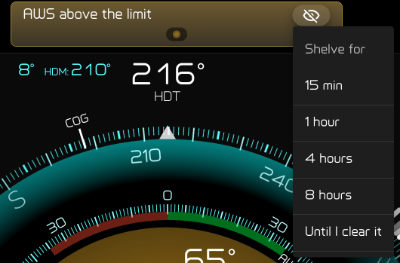
On a panel, in the list or on the banner, the menu reads Shelve all for and shelves every notification in it at that moment. One that comes in later reaches you as usual.
A shelved row in the list is striped grey and its eye lights up. A chip on the row shows the time left in hours and minutes, or Hold if you picked Until I clear it.
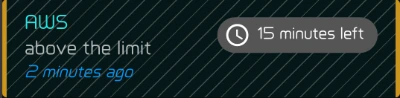
Tap the chip to unshelve it. To pick another period, tap the eye and choose under Change to.
Shelving also mutes. When the period runs out or you unshelve it, the notification stays off the banner. Two things bring it back:
- It gets worse: a rise above the level you shelved it at lifts the shelve and puts it back on the banner.
- It clears and comes back later: a shelve outlasts the condition: if it clears and returns at the same level within the period, it stays quiet. After the period, it starts afresh.
Shelves are kept on this screen and survive a reload.
The Notification Manager
Long-press the notifications button, or tap the cog at the top of the list. The Notification Manager has the sound buttons at the top, and two tabs: Alarms for your own alarms and Auto for the notifications Zora raises by itself. Leaving the boat at the bottom is Away mode.
Sound
The three round buttons next to Sounds switch the sound for information, warnings and alarms on this screen. A button is coloured when its level sounds and grey when it is silent. A new screen starts with all three on.

Sounds switches all three off if any is on, and all three on if they are all off.

While a notification is waiting, its level's tone repeats every 15 seconds. A new one is announced once, in words where it has them, in the Notification voice chosen for your crew account. Muted, shelved and hidden notifications make no sound.
Emergencies always sound, whatever the buttons say. So does an alarm's all-clear, where it has one.
Your own alarms
The Alarms tab lists the values you can put an alarm on: heading, apparent wind angle and speed, speed through water, depth below keel, speed over ground, course over ground, true wind direction and speed, current speed and direction, and rudder angle.
- Tap + beside a value. Its history opens.
- Set the low and high limits there; see History.
- Close the history. The value now shows its two limits.

- Change a limit: tap one of the two limits to open the history again.
- Remove the alarm: tap the red cross.
While the boat is anchored, Anchor dragging Alarm heads the list; while moored, Mooring not holding Alarm.
Each alarm has an email and an SMS icon for Away mode:
| Icon | Means |
|---|---|
| Grey | Off |
| Orange | On, sent once you are in Away mode |
| Green | On, and Away mode is on: it will be sent |
Email starts on for both alarms, so a new boat already sends them by email in Away mode.
Tap an icon to switch it. Your choice is saved for the whole boat when you close the Notification Manager. The same two icons sit at the top of a value's history.
Automatic notifications
The Auto tab lists five kinds of notification Zora raises by itself: Shallow water, Weather Pressure, AIS Notifications, Server Temperature and Radar Guard Zone.
Each has two eyes, one for info and one for warn. Tap an eye to close it: that kind, at that level, no longer shows or sounds on this screen, in the list, on the banner or in the circles. Tap it again to bring it back. Alarms cannot be hidden here. Zora keeps watching, and the other screens on board keep showing it.
The pencil beside two of them sets when they fire, for the whole boat:
- Shallow water opens Depth Notification Settings: the alarm depth, warn depth and alert depth, in your depth unit.
- AIS Notifications opens AIS Notification Settings: for each level, how close a vessel will pass (the distance) and how soon (the time, in minutes and seconds). A level goes off when a vessel will pass inside both. With the stopped settings, the vessel must also be moving at half a knot or more and still closing on you. While the boat is docked, AIS sets off no notifications.
Both have an underway and a stopped tab. Underway covers sailing, motoring, motor-sailing and drifting; everything else uses stopped. Tap save to store the values, or cancel to put the fields back as they were.
Away mode
When you leave the boat, Away mode sends your alarms to your phone by email and SMS.
First add the email addresses and mobile numbers in Notifications Settings; see Notifications Settings. Then, in the Alarms tab, switch on the email or SMS icon of each alarm you want to receive.
Tap Leaving the boat at the bottom of the Notification Manager.

The line beside it turns to Cloud Notifications active, and the button to back on board.

Away mode is for the whole boat. On every screen with the full app bar, the notifications button turns green, blinks and reads AWAY. The Notification Manager is titled Away Alarms and shows only the Alarms tab.

An alarm with email or SMS on is sent when it goes off, changes level or ends.
When you are back, tap back on board.