

Edit Mode
Edit mode is where you build a screen: you choose its widgets, place them and size them. It works on the screens you make yourself and on the layouts of the DNS. Every widget is described in the widget library.
Which screens you can edit
- Your own screens, the ones in the Custom row of each tab of the screen selector. To make one, see Custom screens.
- The DNS, one layout per vessel state. It has its own way in, described on the DNS page.
Zora's other screens are fixed. Charts, PND, AIS, Radar, Weather, Trips & Stops, Worldmap Overview and the Equipment screens say This layout is fixed and cannot be edited.
Enter edit mode
- Show the screen you want to change.
- Long-press SCREENS in the app bar.
The app bar turns into the edit bar and a grid appears over the screen. A new screen made with + in the screen selector opens in edit mode by itself.
If a widget is open full size, the first long-press only brings the screen back; long-press again to edit.
The edit bar
- The station and the screen's name, at the top left.
- Background: switches between the widgets and the pictures behind them. On a narrow screen it reads BG.
- Add Content: adds a widget. On a phone it reads Widget.
- Select: works on several widgets at once.
- …: Settings for the screen, and the tools for selected widgets.
- Cancel and Update: leave edit mode. On a screen less than 1024 pixels wide they are a ✕ and a save disk.
On a phone the bar takes three rows: the names, then Cancel and Update, then the tools.
Add a widget
- Tap Add Content. Select content... opens.
- Choose a group on the left, or type in Search widgets... to search all of them.
- Tap the widget's picture.
The widget lands in the top left corner of the screen at its starting size. Move it into place next. Zora remembers the group you used last.
Move, resize and set up a widget
Widgets are locked while you edit, so a stray touch moves nothing.
- Select: tap a widget. It is outlined and can be moved.
- Move: drag it. It snaps to the grid and cannot overlap another widget.
- Resize: drag the handle in its bottom right corner.
- Its menu: tap the selected widget again.
- settings opens the widget's own settings. Each widget's page in the widget library explains them.
- move appears on a widget one cell in size. Tap it before dragging, because on so small a widget a drag resizes it.
- deselect locks it again. Tapping an empty part of the screen does the same.
- duplicate adds another of the same widget just below it. Its settings are not copied.
- delete removes it.
Nothing you change here is kept until you tap Update, and that includes deleted widgets and the settings you save for a widget. Cancel throws it all away.
Work on several widgets
- Tap Select. Each widget gets a circle.
- Tap the widgets you want. Their circles are ticked.
- Open … and choose:
- Select All or Deselect All,
- Align Widgets, then Left Edge, Right Edge, Top Edge or Bottom Edge, to line them up on the outermost one,
- Delete selected.
- Tap ✕ where Select was to go back to single widgets.
Background pictures
A screen can carry pictures behind its widgets.
- Tap Background. The widgets dim and Add Content becomes Add Image.
- Tap Add Image. An empty frame appears in the top left corner. Drag and resize it like a widget.
- Tap the frame and choose Edit Image. In Background Image Settings, pick a picture you saved before, upload one, or type its Image URL. Set the Opacity, the Fit Mode (cover or contain) and the Blur, then tap Save.
The same menu has Lock, to stop the picture moving, and Delete. Tap Background again to go back to the widgets.
Screen settings
Open … and tap Settings.
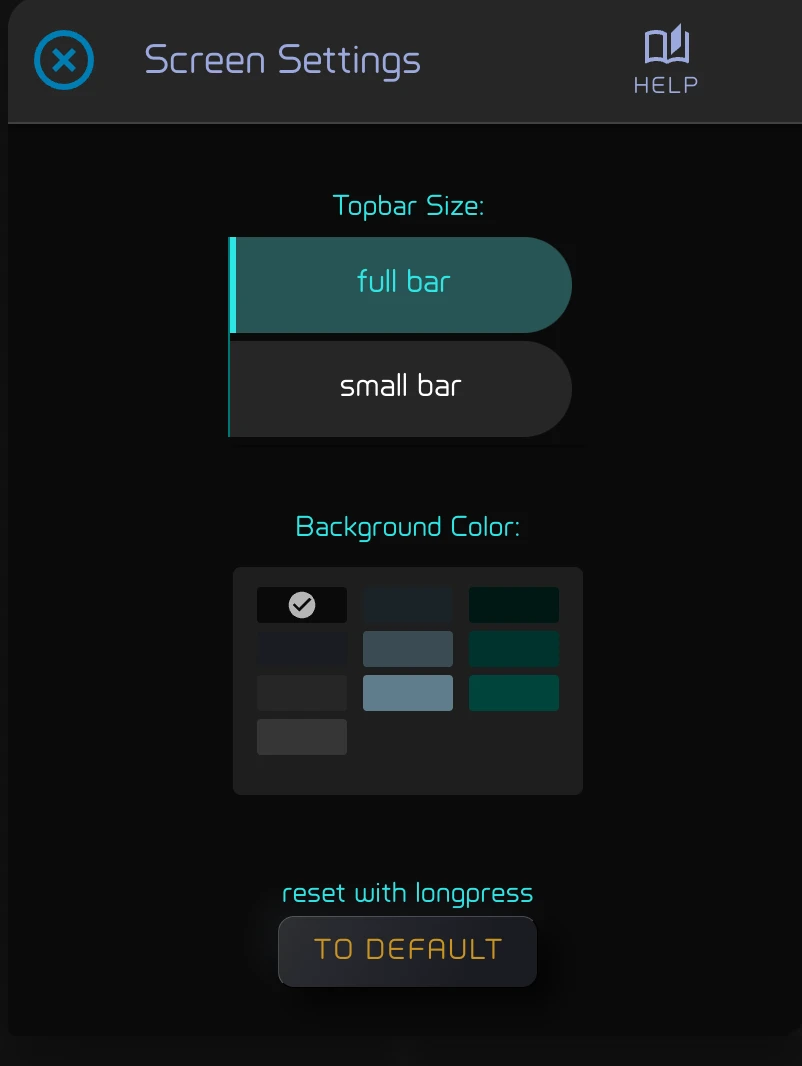
- Topbar Size: a full bar or a small bar on this screen.
- Background Color: the colour behind the widgets.
Both are kept when you tap Update, like the rest of the layout.
To throw the screen's layout away, long-press to default. Zora leaves edit mode and shows the layout it came with. The button reads no default on a screen that has none, such as one you made yourself.
Save or cancel
- Update keeps the layout and leaves edit mode. On one of your own screens the Edit Screen dialog opens next, to name it and choose its tab; see Custom screens. The button reads Save on a screen that has no layout yet.
- Cancel leaves edit mode and puts the screen back as it was when you started editing. Long-pressing SCREENS again does the same.
If Zora cannot save, it says Failed to save layout. Please try again. and stays in edit mode.
A layout belongs to the display you made it on: its station, its size and whether it is upright or on its side. A tablet turned sideways shows its landscape layout, which you edit separately.
On a station other than the default, each vessel state of the DNS shows the default station's layout until you save one for that state on this station. From then on the station uses only its own layouts of that state, upright and on its side, and changes made on the default station no longer reach it.
The grid
Widgets sit on a grid of cells, each close to square. The number of columns depends on the display:
| Display | Columns |
|---|---|
| Phone | 18 |
| Tablet, upright | 36 |
| Tablet, on its side | 48 |
| Desktop | 60 |
| Wide screen | 120 |
The rows fill the height of the screen. Placing and resizing always snap to the grid, so widgets line up.