

Logbook
The logbook is the boat's record of what happened: the notes you write, and the entries Zora writes for you when you leave, set a sail, start an engine, anchor or log in. This page shows how to write an entry, find entries again, and print or export them.
Open the logbook
Tap LOGBOOK in the app bar. The logbook opens full screen and the button reads BACK. Tap it again to go back to the screen you came from.
The toolbar at the top holds:
- new, to write an entry.
- the number of entries on screen out of all the entries in the period, for example 50 of 212 entries.
- Period, the days the logbook shows. See Choose the period.
- the template button, with the name of the template in use. See Templates.
- the ⋮ menu, with Print and Export CSV.
The newest entry is at the top. The logbook shows 50 entries at a time: more... at the bottom loads the next 50, and more... at the top goes back.
Write an entry
- Tap new.
- Type a title and a note.
- To attach photos or files, tap the camera button. You can pick several at once.
- Tap save.
Zora shows saved! and the entry appears in the logbook. cancel, or the close button at the top, closes the editor without saving.
From any screen, double-tap LOGBOOK in the app bar to open a new entry straight away.
The date and time start at now. Tap either one to set when it happened, and the entry is filed at that time.
If you leave the date and time as they are, the entry is written at the moment you save, and Zora adds the boat's position, heading, speed, wind, depth and current at that moment. An entry set to an earlier time is saved without them.
If the display cannot reach the boat's server when you save, it keeps the entry and sends it the next time Zora starts on this display, once someone has logged in.
Quick entries from presets
Long-press LOGBOOK in the app bar. The menu lists New Log Entry, Presets, and then your presets. Tap a preset and Zora writes the entry at once, with the preset's title and note. The menu closes by itself after 5 seconds.
To set up presets, tap Presets in that menu. It opens Navigation Log Presets in the settings:
- Tap add new preset....
- Fill in Label, the name shown in the menu, Title, the title the entry gets, and Content, its note.
- Tap save.
Tap the pencil beside a preset to change it, or to delete it.
Open an entry
- Tap an entry's text to show its note and photos under it.
- Tap its date and time to show the position and the readings stored with it.
The pencil beside the text is grey when the entry has no note. It turns into a camera when the entry has photos.
Long-press an entry to open it in the editor. Zora's automatic notes do not open.
- On any entry you can change the note, and add or remove photos and files. Tap save, and Zora shows updated!.
- The title, date and time stay as they were written, and so do the position and the readings.
- Your own notes, and notes written against a piece of equipment or a task card, can be deleted: tap the delete button and confirm. The photos and files go with the entry, and it cannot be brought back.
To write a note between two entries, tap the dot of one of them. A + appears just above and just below it for a few seconds. Tap one to open a new note set to that moment.
Choose the period
The logbook shows one period at a time. It starts on today, and the display remembers the period you choose.
- ◀ and ▶ beside the date move the period back or forward by one day.
- Tap the date to open the calendar. Tap the first day, then the last day. For a single day, tap it twice. The calendar closes once you have both.
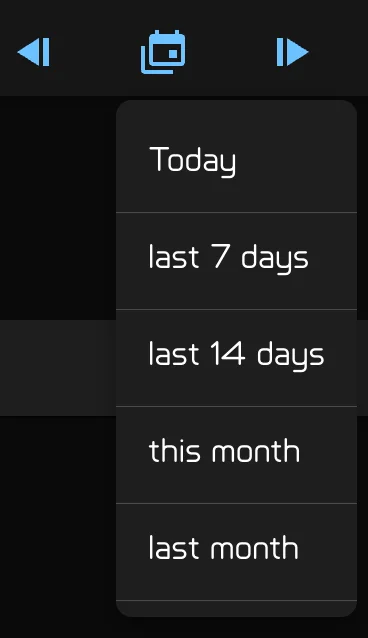
- Tap the calendar button for a ready-made period: Today, last 7 days, last 14 days, this month, last month, last 3 months, last 6 months, this year or last year.
Days after today cannot be picked.
Filter entries
Tap the list button to open the Logbook panel. Its title is the template in use, with Save beside it. When the period has no entries, the panel opens by itself.
Each row is a kind of entry, with the colour of its dot in the logbook. A tick shows that kind; a crossed-out eye hides it.
- Tap a kind to show or hide it.
- Long-press a kind to show only that kind.
- Tap Show All to show every kind again.
The kinds are Personal notes, Trip start, Engines, Sails, Autopilot, Autopilot commands, Preparation for trip end, Trip End, Communications, Zora's logs, Systems logs and Access log in or out. Three of them need a word:
- Autopilot commands are the commands you gave the pilot.
- Trip End covers all three ways a trip ends: docked, at anchor and on a mooring. Hiding it hides your anchorings too.
- Zora's logs includes the day summaries.
A change in the panel shows in the logbook at once. Tap Save to keep it in the template in use. Close the panel without saving and the logbook goes back to the template. This display remembers which template is in use.
Templates
A template is a named set of kinds, and the logbook always shows one. Its name is on the template button in the toolbar. Tap the button and pick a template to switch to it. The one in use is highlighted.
Zora starts you with three, and the logbook starts on Navigation:
| Template | Shows |
|---|---|
| Navigation | Personal notes, Trip start, Engines, Sails, Preparation for trip end, Trip End |
| Trips | Trip End, Trip start, Zora's logs |
| System | Systems logs |
- To add one, tap the template button, then + New template. In New Template, type a Template name and tap save. The new template takes the kinds shown now, and the logbook switches to it.
- To rename one, tap the pencil beside it. In Edit Template, change the Template name and tap save.
- To change a template's kinds, switch to it, open the panel, change the kinds and tap Save.
- To delete one, tap its pencil, then the delete button, and confirm. The last template cannot be deleted.
Templates are saved for the station you are on. A station with no templates of its own uses the default station's, and changing one there makes that station its own copy.
Print the logbook
Zora shows Generating PDF..., then opens the PDF Viewer. There you can turn the pages, zoom, rotate, search with Search in PDF..., tap Print, or tap Download to keep a copy.
The PDF holds every entry of the period that passes the filter, oldest first. The page of 50 on screen does not limit it.
What the printed log shows
- Header: the vessel's name with nav logbook, and the period. A print of today also names the current trip's departure and destination. If the vessel has a letterhead, its logo and text sit at the top. See Letterhead.
- Days: a heading for each day when the print covers more than one.
- Entries: one row each, with the time in UTC and local time, who wrote it, the boat's state and the title, the position, then heading (HDT), speed over ground (SOG), apparent wind speed and angle (AWS, AWA), depth below keel (DBK) and current (CUR). The note prints under the row.
- Anchorings: two more lines. anchor gives where the anchor went down, the depth, the chain, the scope, and the scope at low and high water. watch gives the swing and alarm radius, the tide at the drop, and the next high and low water.
- Moorings: one more line with the buoy's position, the depth, the line, the swing, and the next high and low water.
- Day summaries: on a grey band, with the day's highest speed over ground, speed through water and apparent wind.
- Footer: when the PDF was made, who made it, and Page X / Y.
Export to a spreadsheet
- Set the period and the filter.
- Tap the ⋮ menu and choose Export CSV.
- Tick the columns you want. Default puts back the standard set: Date, Time, Kind, Event, Label, Content and Author.
- Tap Export.
The file holds every entry of the period that passes the filter, oldest first. The page of 50 on screen does not limit it. Speeds and depths are in your units, and each column title names its unit. The display remembers the columns you chose.