

Maintenance & Tasks
Two screens of the Equipment tab track the work on the boat. Maintenance holds the jobs that come round again, such as an oil change every 250 hours, and shows how close each one is to due. Tasks is a board of jobs to do, and it is where a due maintenance job lands.
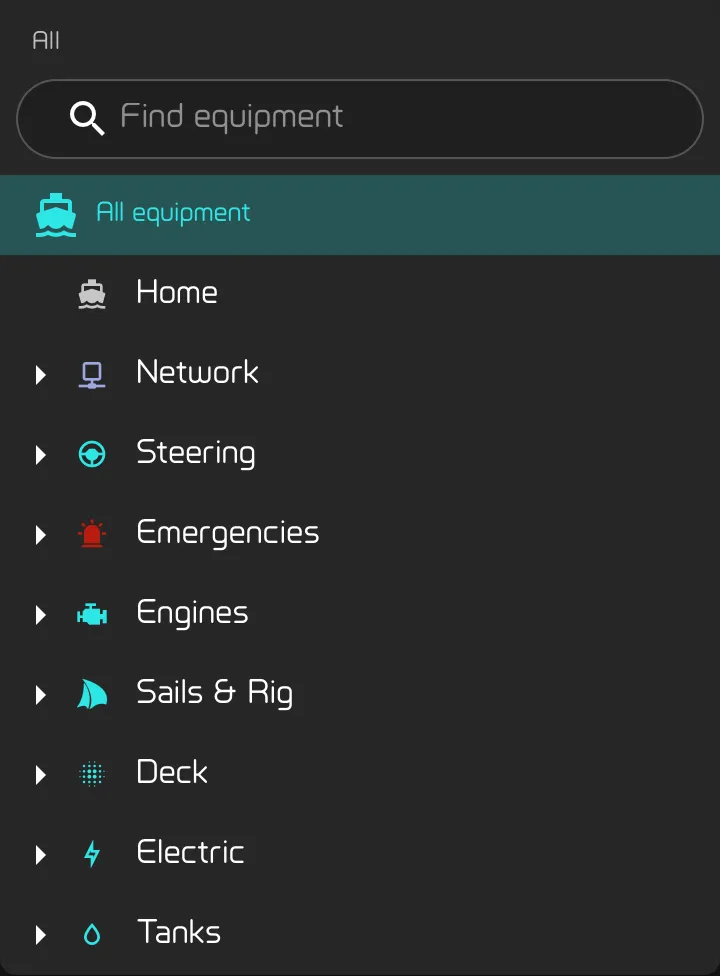
Both screens show the asset chosen in the bar at the top and everything under it. Choose All equipment to see the whole boat.
Add a maintenance task
A task belongs to one asset, such as an engine or a winch.

On the Assets screen, open the asset and its Maintenance tab (Maint on a phone). On the Maintenance screen you can also use an asset that already has tasks.
Tap the ... button beside the asset's name and choose Add maintenance task.
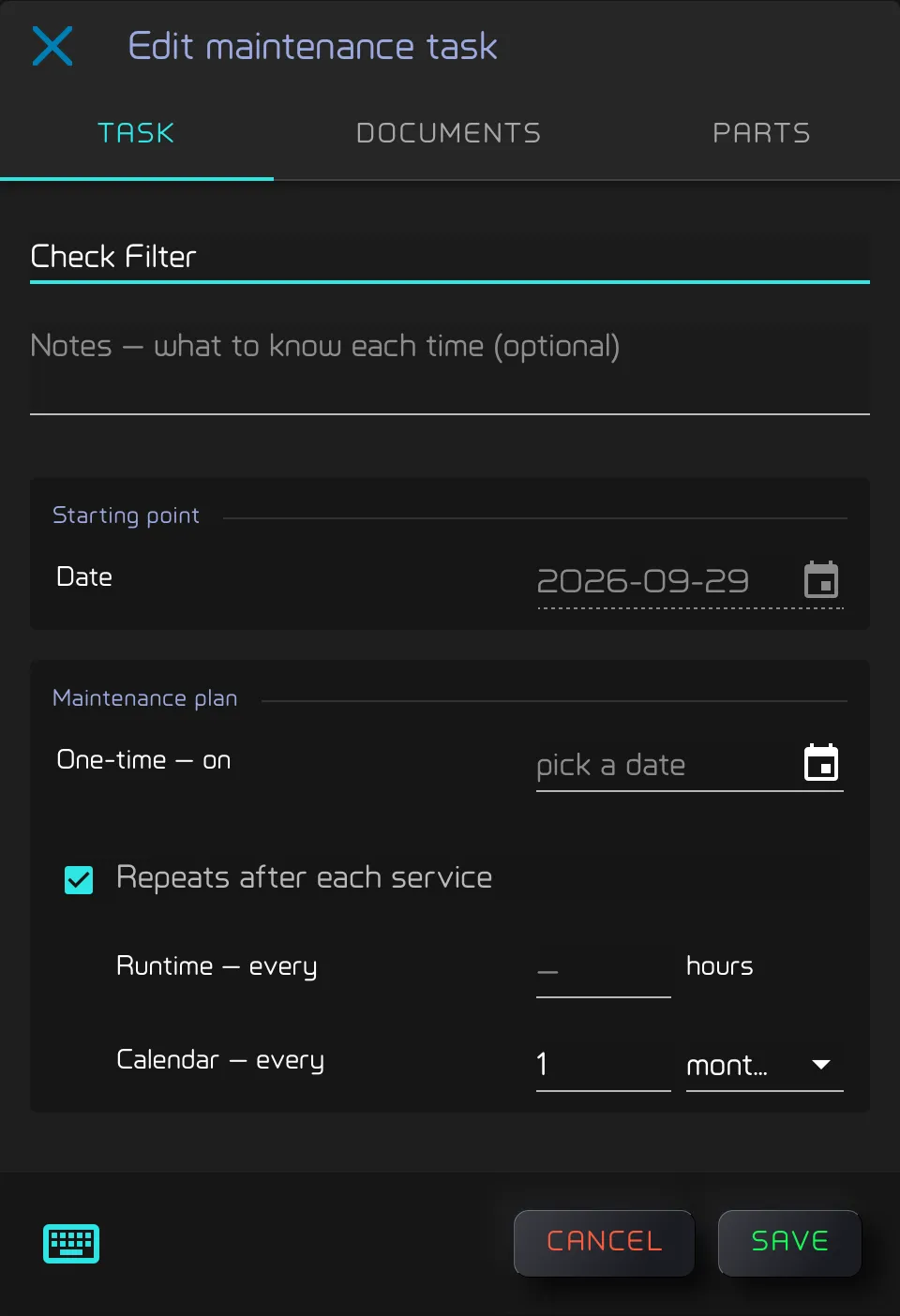
Type the Task, for example "Change engine oil". Add Notes for what to know each time the job comes round.
Under Last done, set the Date the job was last done. It starts at today and cannot be in the future. When the task counts engine hours, Runtime starts at the asset's current hours. Zora counts from here until the first service is recorded.
Under Maintenance plan, set when the job falls due:
- Runtime — every: a number of running hours.
- Calendar — every: a number of days, months or years. A month counts as 30 days and a year as 365.
- One-time — on: a date. For a job done only once, switch off Repeats after each service and set this date.
With Repeats after each service off, a runtime figure reads Runtime — at: the job falls due once, at that many hours, and is done when its service is recorded.
Use at least one. With more than one, the job is due at whichever comes first.
Tap Save.
Once the task is saved, its Parts tab lists what the job needs, under Tools, Parts and Consumables. Tap + to add a line. Parts and consumables take a quantity and a unit. Each line is saved as you change it.
After the first service, Last done reads Starting point and is locked. Zora counts from the service instead.
When an engine sends its own hour meter over NMEA 2000, Zora takes the engine's hours from it, setting them to the meter's reading as each run ends. An engine without one counts the time it runs.
Read the Maintenance screen
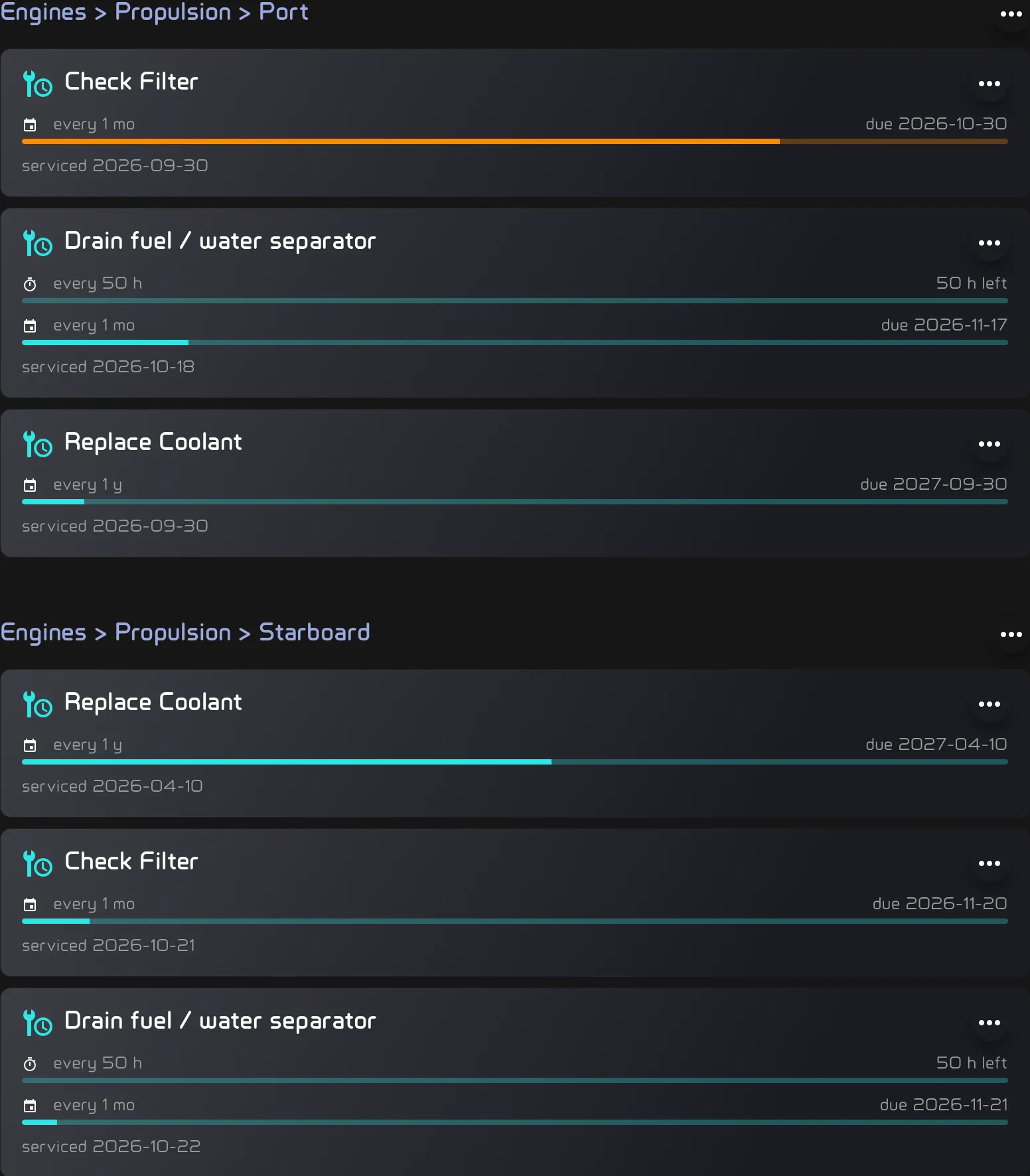
The screen lists every asset with maintenance, by its folder path. Under each asset, every task has one bar for each way it counts:
- a runtime bar, every so many hours, with the hours left or reached
- a calendar bar, every so long or once on a date, with the due date or reached
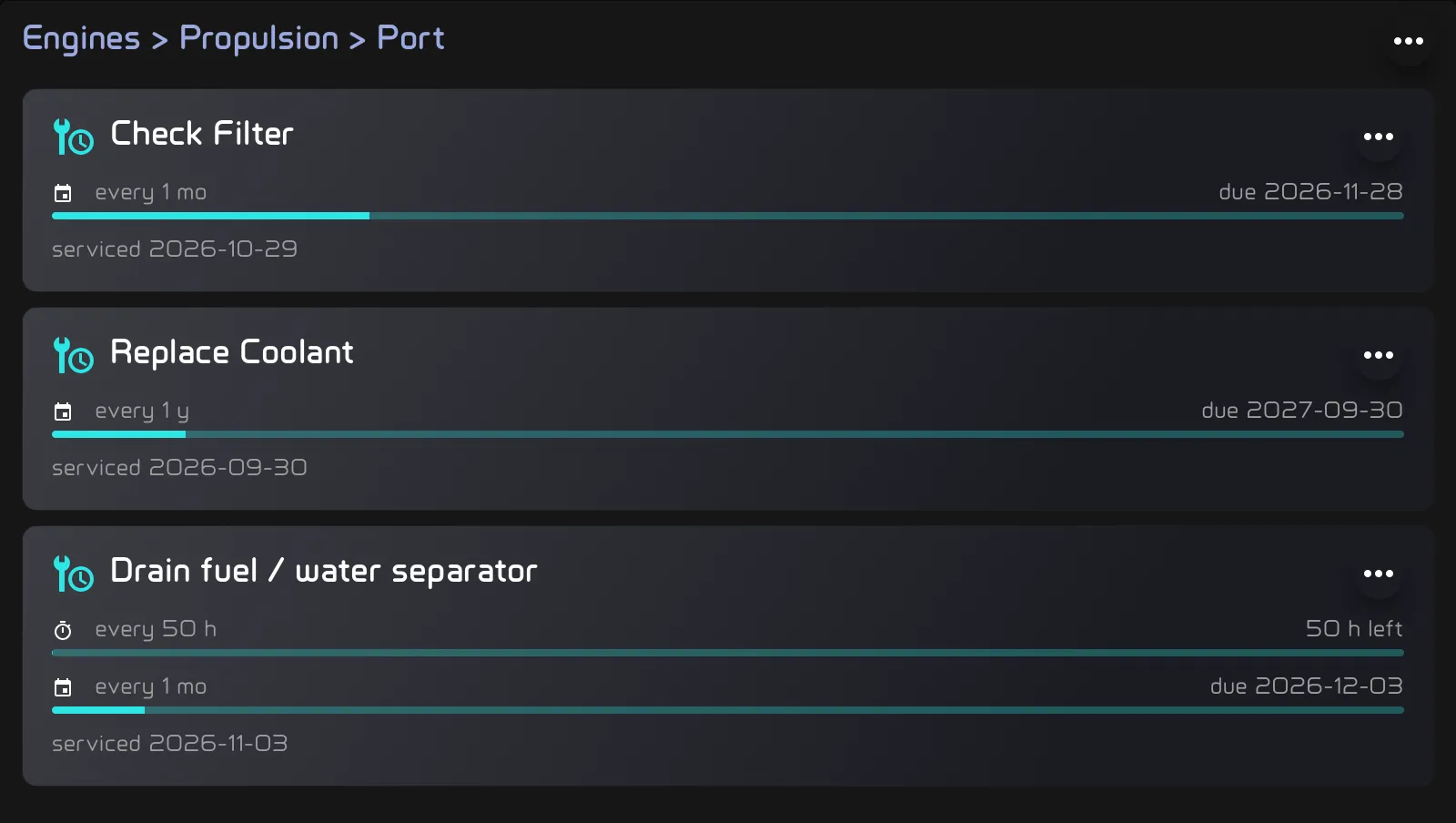
Below the bars, the task says when it was last serviced, or never serviced. A bar turns amber at three quarters of the way and red when the job is due, and a due task carries a due chip. Due tasks come first, then the ones furthest along. The screen refreshes itself every minute.
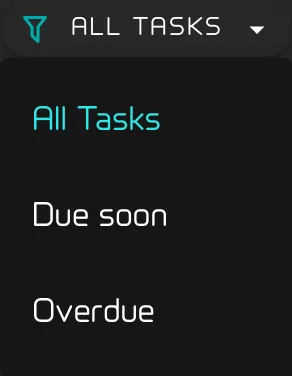
The filter button at the top narrows the list:
- All Tasks
- Due soon: not due yet, with a bar at three quarters or more
- Overdue: due now
A task's menu
Tap the ... button on a task. Long-pressing the task opens Edit directly.
- Add as task: puts the job on the Tasks board now, whatever the plan says.
- Mark as done: records the job without going to the board. Pick the date it was done, today or earlier. For a task that counts engine hours, Zora fills in the hours on that date. The task counts again from there, and its card moves to Done. A task with no open card gets one, straight in Done.
- Edit: change the task.
- Duplicate: opens a copy to rename, the quick way to add several jobs that share an interval.
- Copy to another asset…: copies just this task to another asset.
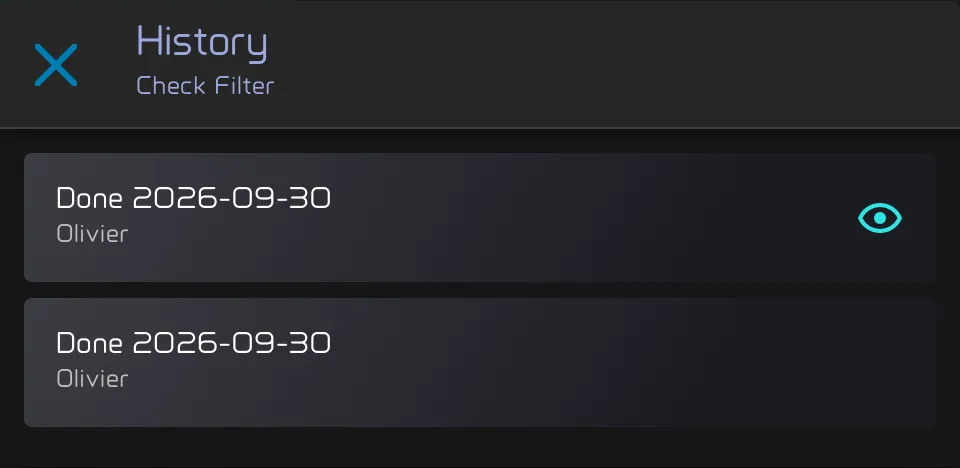
- History: the jobs done on this task, newest first, with the date, the engine hours if the task counts them, who recorded the job and who it was assigned to. Tap a job to open its card.
- Delete: removes the task. Its service history is kept.
An asset's menu
The ... button beside the asset's name has:
- Add maintenance task
- Print: prints the list as the filter shows it.
- Tasks: Copy to another asset… copies all the asset's tasks to another asset. Export tasks (JSON) saves them to a file, and Import tasks (JSON) brings the tasks in such a file into this asset.
When the asset receiving tasks already has one with the same name, Zora updates that task and it keeps its service history. The others are added. A task's own Copy to another asset… works the same way.
When a task falls due
Zora checks every task once an hour, and an asset's tasks as soon as its engine stops.
- When the job gets close, a notification reads Maintenance coming up with the asset's name. It comes when a quarter of the interval is left: at least 2 days and at most 30 days ahead for the calendar, at least 2 hours and at most 50 hours ahead for runtime, and a week ahead of a one-time date.
- When it is due, the notification reads Maintenance due, and a card for the job appears in To Do on the Tasks board, marked by Zora, with a done date a week away.
Tap the notification to open the Maintenance screen at that asset. A task never has more than one open card. Once its card is In Progress, or you put the job on the board early with Add as task, the notification stops. An asset that has been decommissioned gets no cards and no notifications.
After Add as task, a message says the job was added, or that it was already a task and which column its card is in. The second message stays until you close it.
Use the Tasks board
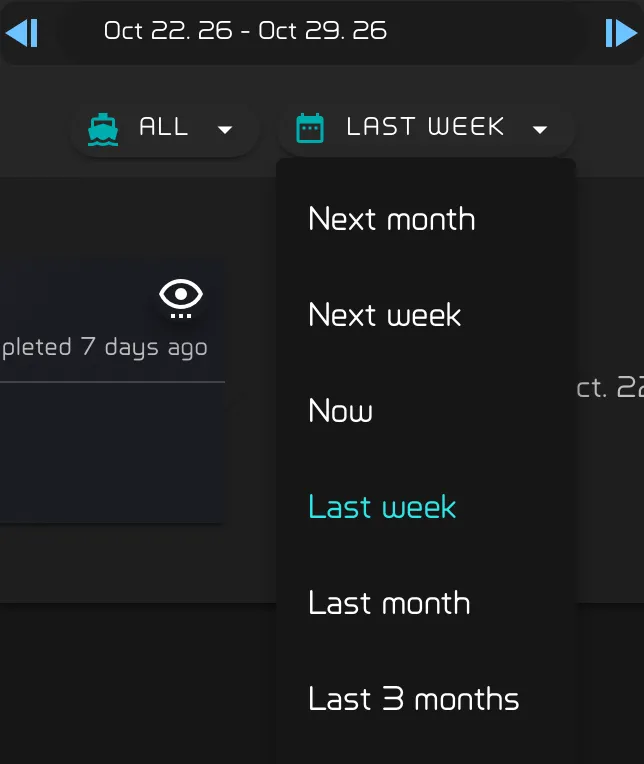
The period button at the top chooses what you see:
- Now: the board.
- Next week or Next month: the cards whose start date is still to come, in that time.
- Last week, Last month or Last 3 months: the finished cards, in that time. A month here is a whole calendar month, so Last month is the one before this one.
With a week or a month chosen, the dates show above the button. Tap them to pick other dates, or use the arrows either side to step back or forward.
The board has four columns: In Box, To Do, In Progress and Done. Tap new in In Box to add a card; it opens for you to type. Drag a card to another column as the work moves on. On a touch screen, rest your finger on the card a moment before you drag it; a small wobble does not matter. A card in Done leaves the board a day later and shows under the finished cards.
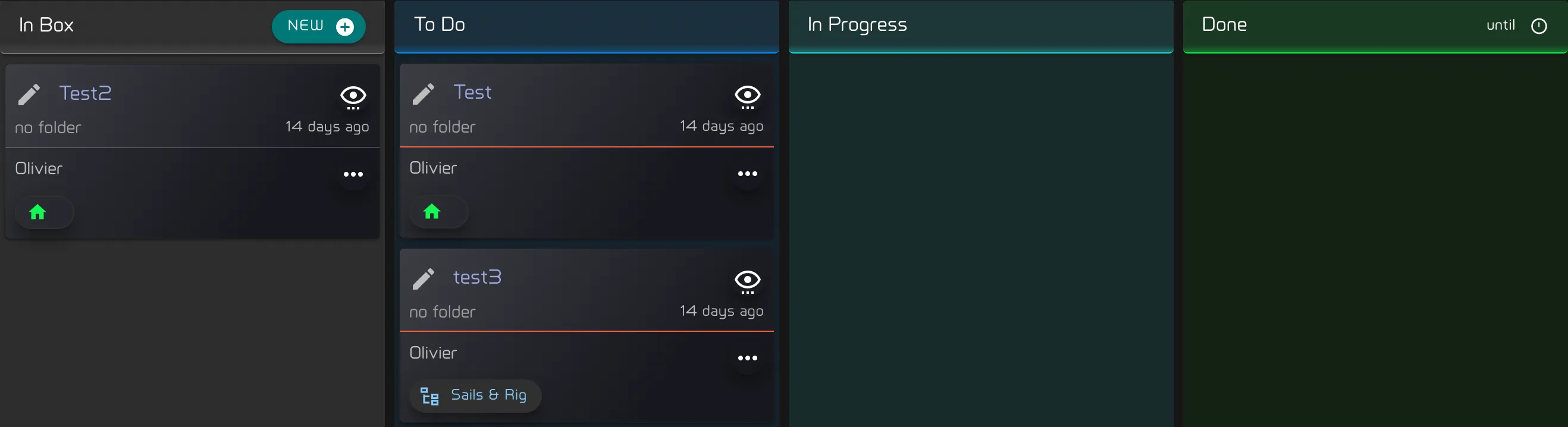
On each card:
- Long-press the card, or tap its icon, to open Edit Task: the Label and a Description. A maintenance card shows the task's own notes, and your Notes for this job below them. The Organize tab holds the Start Date and the Done date. The done date is the deadline; clear it for a job with no deadline.
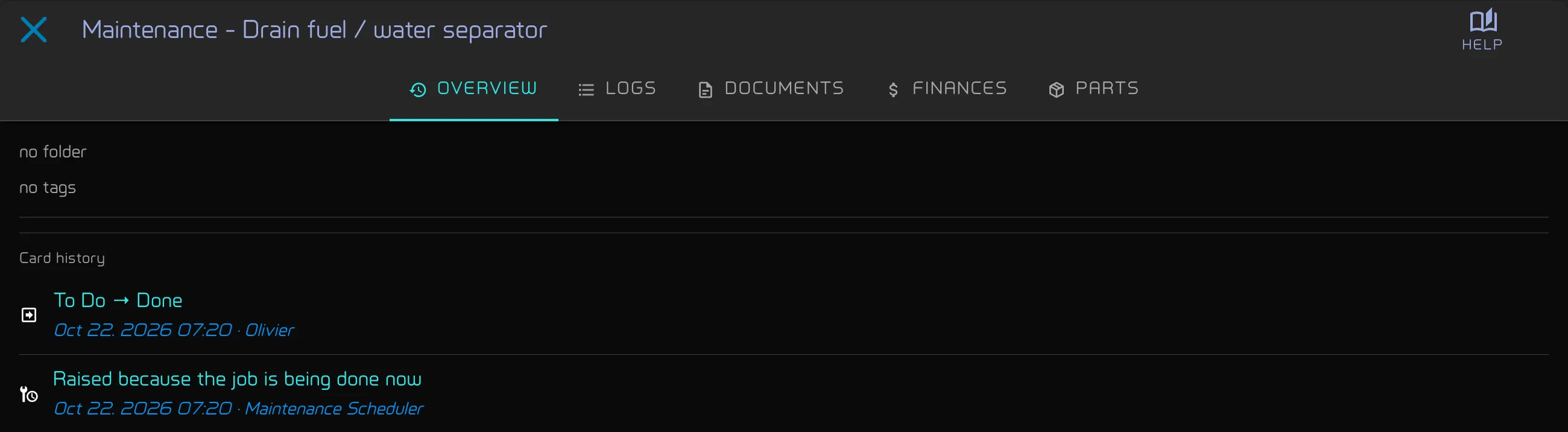
- The eye button opens the card with its overview, logs, documents and finances.
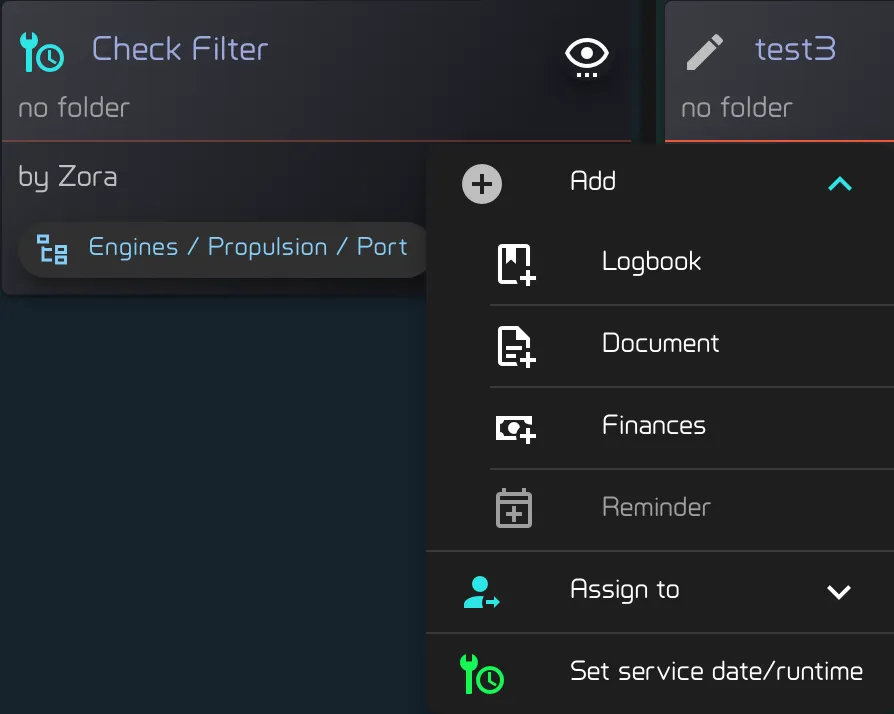
- The ... button has Add, for a Logbook entry, a Document or a Finances entry on this card, and Assign to, to hand the card to someone.
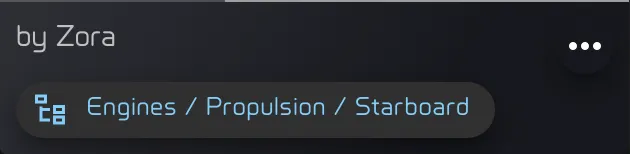
- The asset button at the bottom takes you to the asset the card belongs to. Long-press it to move the card to another asset.
When a card is past its done date and not in Done, Zora sends a notification.
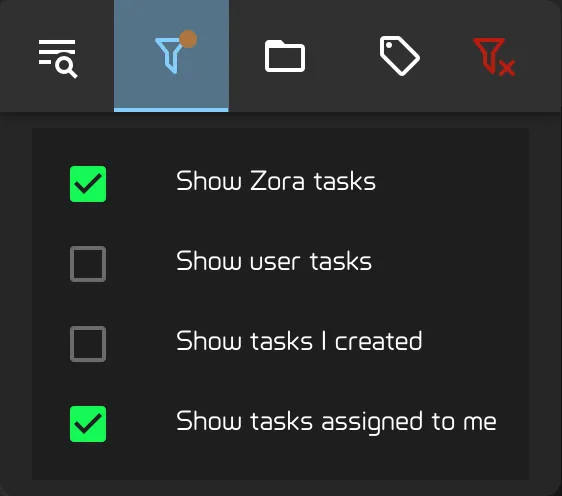
The filter button on the right searches the cards' text. Its switches show only the cards Zora raised for maintenance (Show Zora tasks), the ones people added (Show user tasks), Show tasks I created or Show tasks assigned to me. With more than one on, a card that matches any of them is shown.
Finish a maintenance job
- Drag the job's card to Done. Update maintenance service opens.
- Check the date the work was done. It starts at today and cannot be in the future.
- Check the Last Service Runtime h. Zora fills in the asset's hours on that date, and fills them in again if you change the date. Correct them from the gauge if they differ.
- Tap Update. Zora records the service with those hours, and the task starts counting again from there. The asset's logbook gets a done entry on that date. If the task counts engine hours, the entry shows them too.
Skip records nothing and puts the card back in In Progress. Set service date/runtime in a card's ... menu opens the same dialog in any column, and Update moves the card to Done. If the card's service is already recorded, the dialog opens on that date and those hours, and Update corrects them rather than adding a second service.
See also: Logs, where Zora notes each job it puts on the board, and each card as it starts and finishes.