

Weather Routing
Most of what makes a passage safe happens before you cast off: leaving at the right time, knowing what wind and sea you will meet, and keeping clear of what can hurt the boat. Zora does that homework with you.
It works out the fastest way to sail your route. The plan keeps clear of land, of the areas you have fenced off, and of rocks and shallow water wherever the charts on board show them. It times every part of the passage with the wind and tide forecast for the moment you get there. You choose how the boat travels: under sail, under engine, or both. With Comfort on, Zora also keeps you out of wind and waves stronger than you want to face. Your routepoints stay where you put them.
Before you leave, use it to choose the best forecast and the best time to go. Once you are under way, Zora keeps the plan up to date.
Before you start
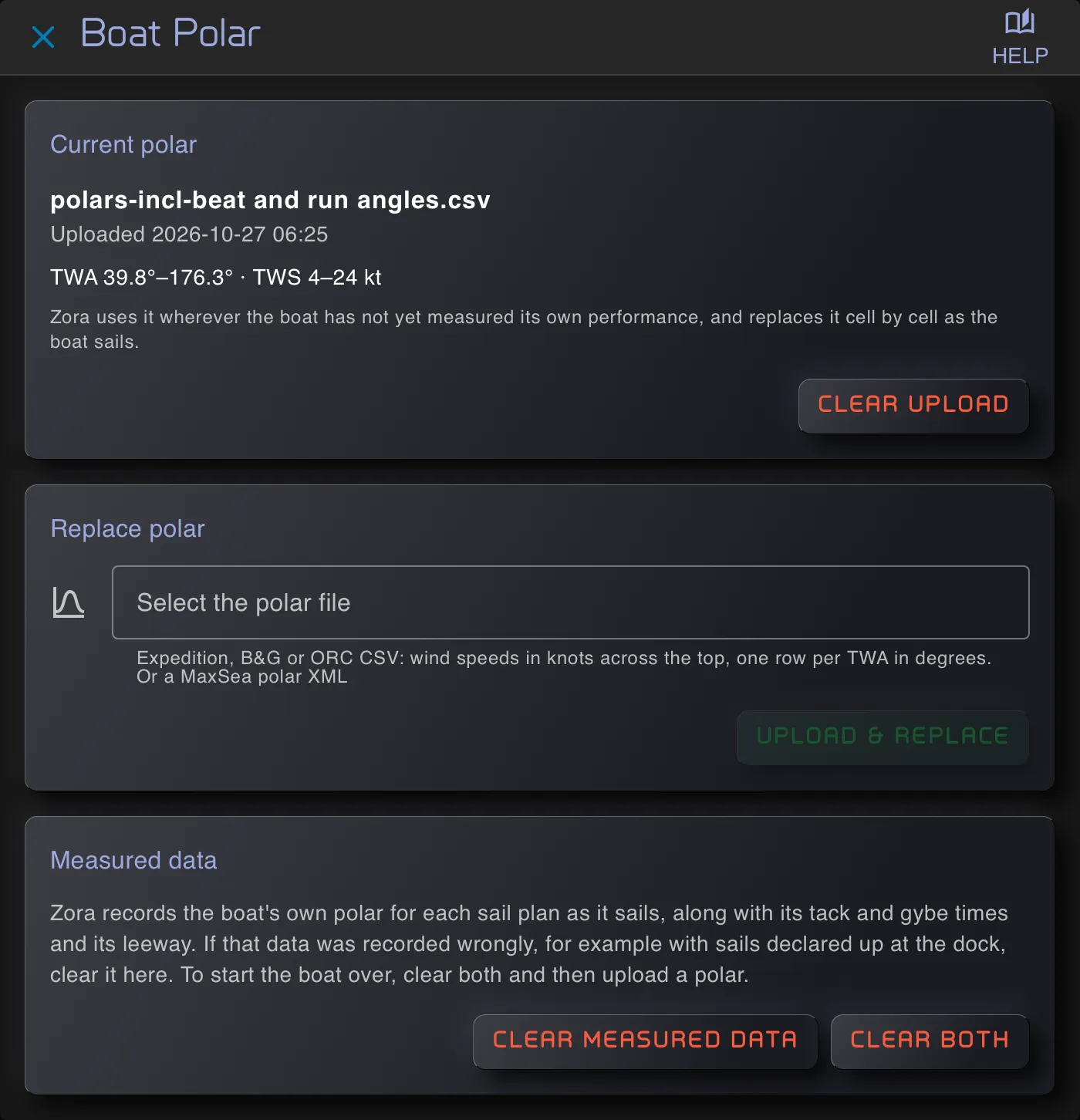
- To plan under sail, Zora needs your boat's polar: a file that tells it how fast your boat sails in each wind. See Upload the polar. Without one, Zora plans under engine only.
- The route is saved and has at least two points. See Routes.
Plan a route before you leave
A plan needs three answers from you, all given on the route's Routing sheet:
- When you leave: the day and time you set off.
- How the boat travels: Sail uses the sails only, Motor the engine only, and Auto sails and starts the engine wherever the boat would sail slower than your minimum sailing speed.
- Which forecast to follow: each weather forecast on board is a button on the sheet, called a chip. Forecasts often disagree, so you can plan on more than one and compare.
Zora then works out the passage and draws it on the chart, so you see where you will be, and what you will meet there, hour by hour. Planning does not start the route. Here is how:
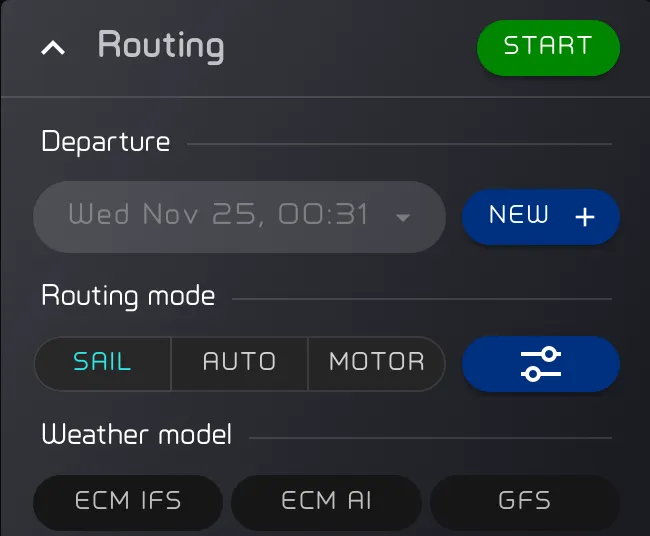
Tap Routes in the tools on the right of the chart, then tap the ⓘ button beside your route. The route opens with its Routing sheet.

Routes, among the chart tools 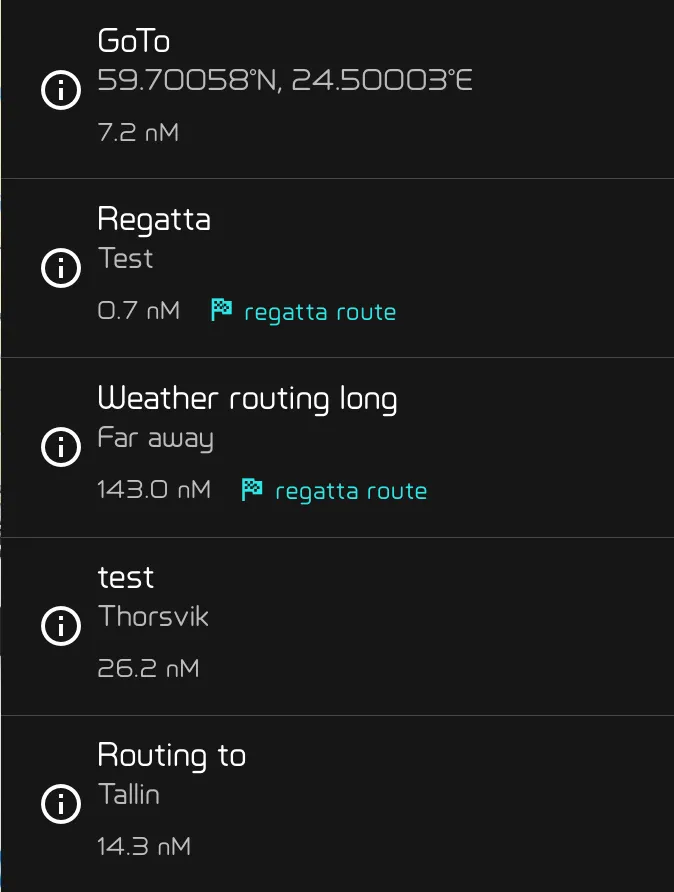
ⓘ beside the route Check which way round you sail the route. To sail it the other way, choose reverse route from the route's menu. Zora saves the route turned round, and the plans made the other way no longer show, so plan it again from step 3.
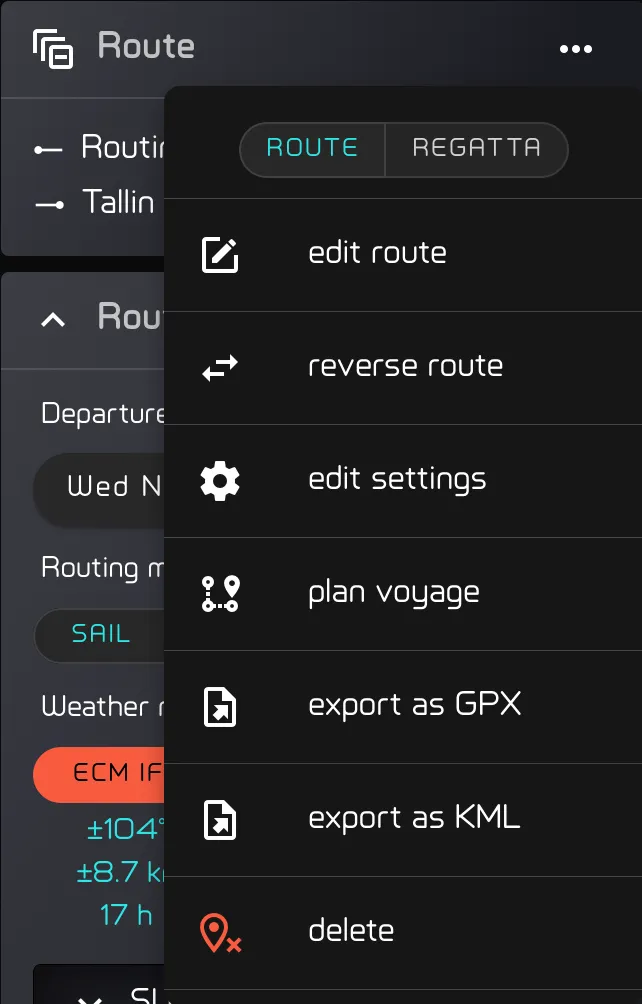
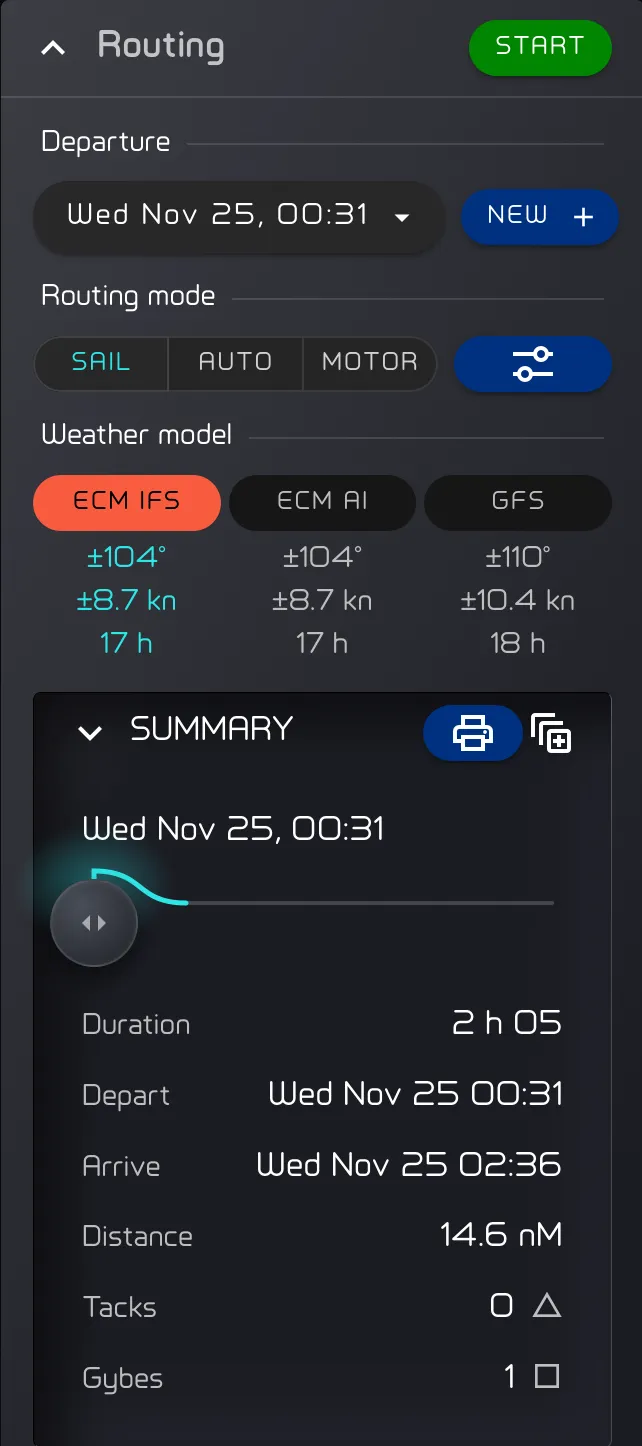
reverse route in the Route menu Tap New (1), choose the day and time you want to leave, and tap Set date.
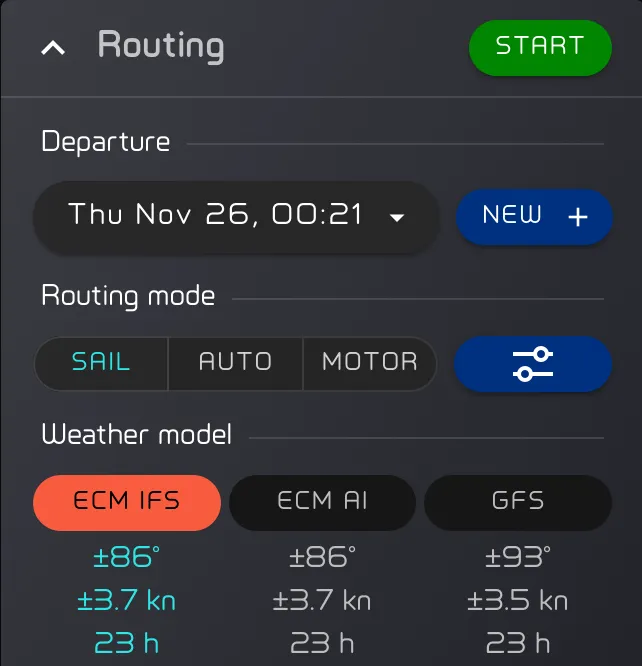
1 New, 2 the mode, 3 a forecast chip, 4 Start Choose Sail, Auto or Motor (2).
Tap a forecast chip (3). The chip spins while Zora works, and the Summary shows how far it has got. To stop it, tap Stop next to Summary. Any forecast Zora has already planned stays ready. When the plan is ready, it appears on the chart, and that forecast becomes the route's. When you are ready to go, Start (4) starts the route on that plan: see Start the route on its preview.
The colour of a chip tells you where that forecast stands:
- Dark, with grey text: no plan yet. Tap it and Zora plans the route on that forecast.
- Outlined in the forecast's colour: a plan is ready. Tap it to see it.
- Filled in its colour: selected. Its plan is the one on the chart.
- Spinning: Zora is planning it, or it is next in line.
To try another mode for the same departure, choose it, then tap a forecast chip.
The sheet groups these under three headings: Departure for the date, Routing mode for Sail, Auto and Motor, and Weather model for the chips.
The departure date
You can plan a departure up to the end of the weather forecast. Zora cannot plan further ahead, because there is no forecast yet. In Sail and Auto, the forecast that ends first sets the limit.
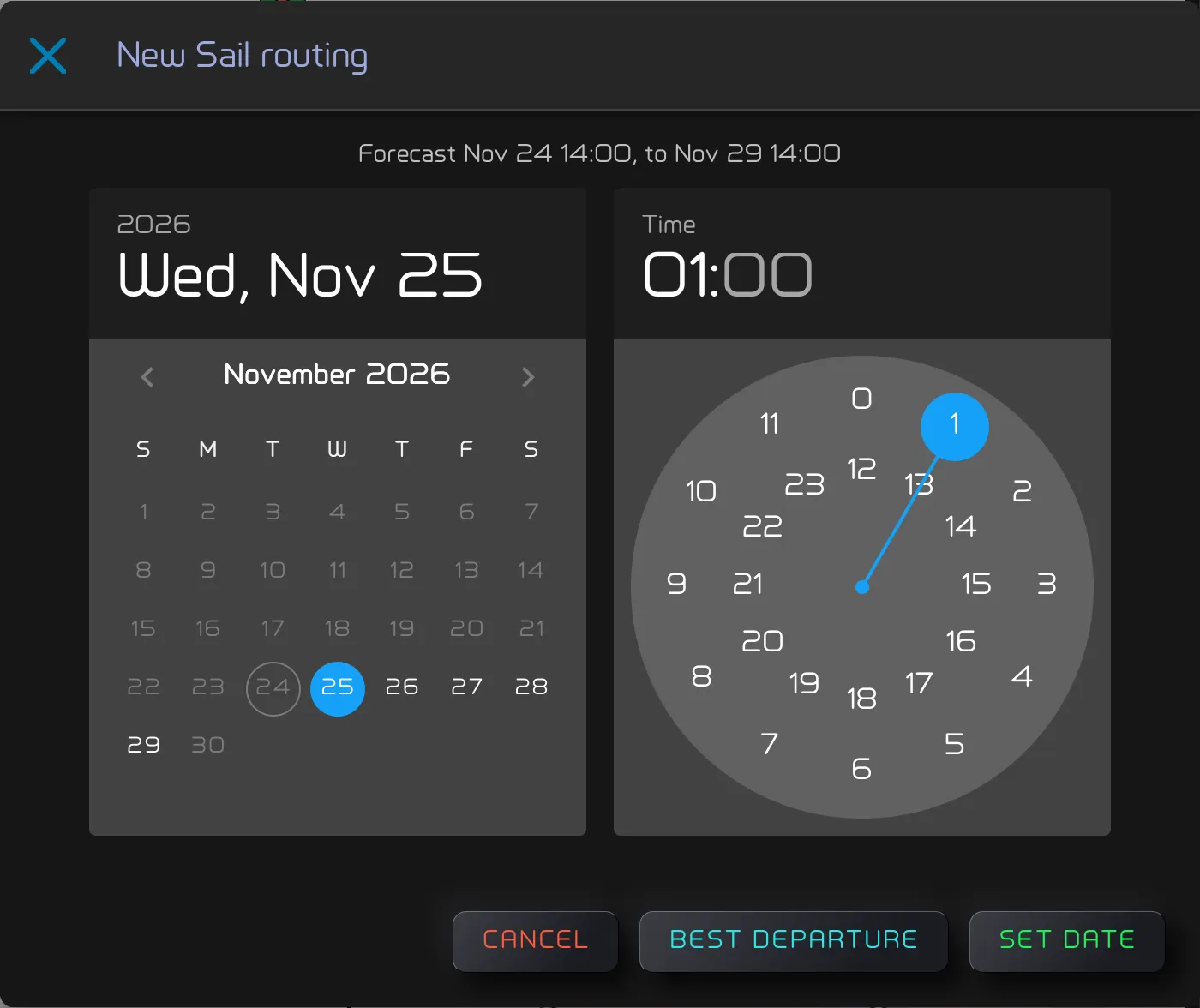
If the forecast for your departure is not on board yet, Set date downloads it and plans the route straight away in the mode you chose, so choose the mode first. With no forecast on board at all, you do not need Set date: tapping a mode, or opening the sheet with a mode already chosen, downloads the forecast and plans the route the same way. While it downloads, the Summary reads Reading the forecast for the route. With no mode chosen, nothing is planned and the Summary reads No plan yet: pick a mode to route it. If the last routing found no route, the Summary gives the reason instead, for example No route found: the destination cannot be reached. If the forecast is already on board, Set date only sets the date: tap a forecast chip to plan.
Good to know:
- The date dialog opens on the date shown, or on the next full hour once that date has passed. You can pick any time from now on.
- The limit is where the newest published forecast ends, even when the forecast on board is older.
- A departure up to an hour in the past still plans, leaving now. An hour after the departure time, Zora deletes the plan, and the chips of that date can no longer be tapped.
What the sheet tells you
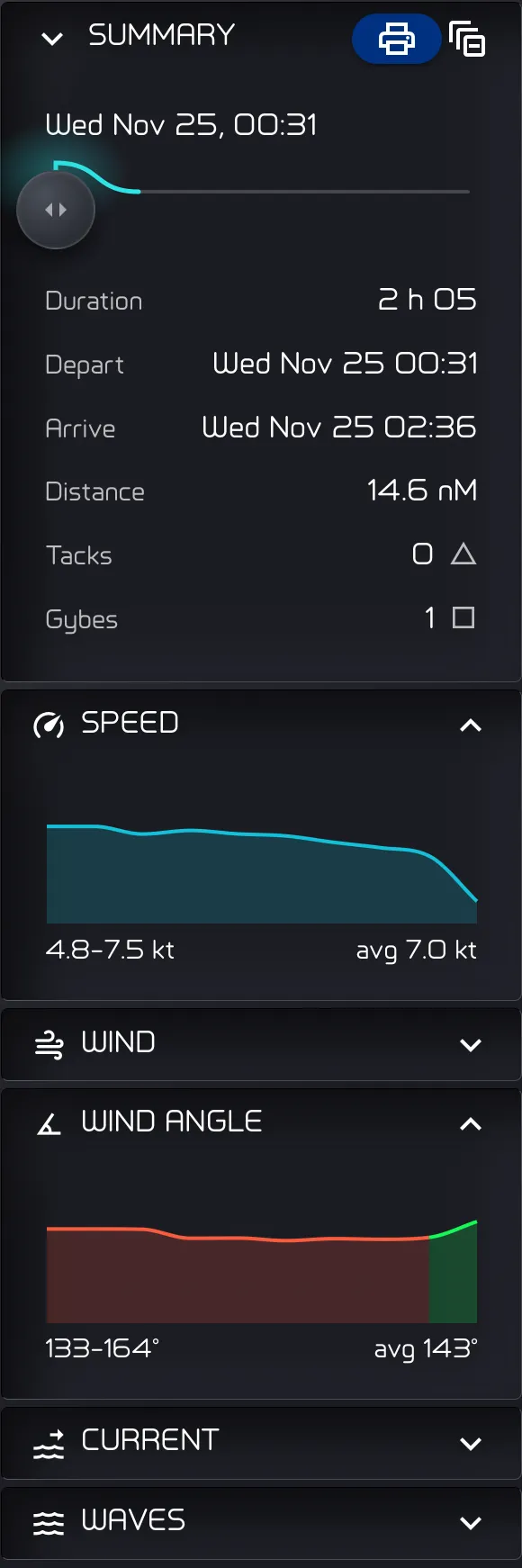
The Summary sums the plan up: how long the passage takes, when you leave and arrive, the distance, and how much of it is under engine. Where Zora knows your boat's fuel use for every stretch under engine, a Fuel line gives what the passage burns. A Sail or Auto plan also counts its tacks and gybes, the turns through the wind, and marks each one on the chart with a triangle or a square. In Auto the Summary compares the time under engine with the time under sail. The route you are sailing shows the same figures.
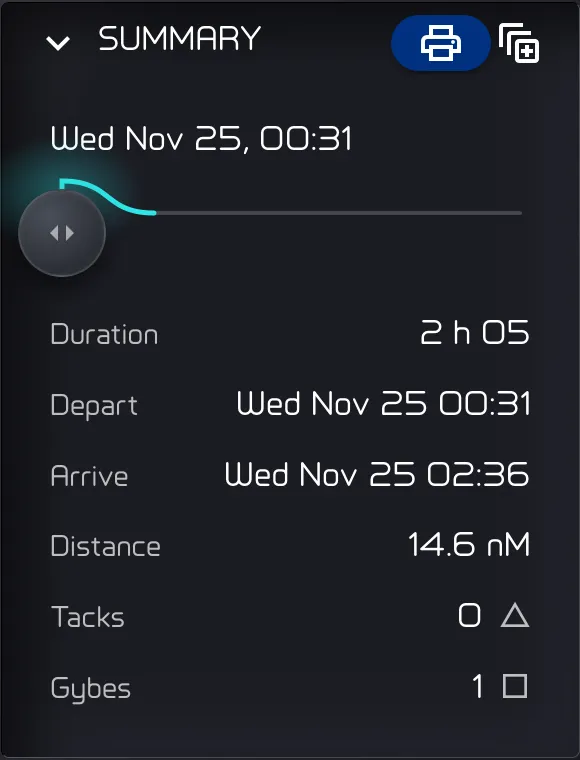
If the plan cannot reach the last routepoint, the Summary says why: the forecast ends, or under sail the wind dies (Becalmed until) or there is no way through (No route found). See Your boat's polar.
In Auto and Motor, a line under the modes shows the speed the plan uses under engine: Motoring polar once Zora has learned how fast your boat motors, otherwise a set speed, for example Motoring 5.5 kt. In Auto it also shows the minimum sailing speed. The settings button under New opens Weather routing settings. On a powerboat, only Motor is offered, and Zora never asks the switch question.
Every plan you make is kept: one for each mode, forecast, departure and Comfort of the route. Come back to a departure and mode you already tried, and its plan shows at once. If you change the minimum sailing speed, the RPM, Comfort or Use vector charts in Weather routing settings, the old plans no longer count: tap a forecast chip to plan again. When a newer forecast arrives, the sheet reads New weather forecast available → reroute. Tap Reroute beside it to plan the same forecast model in the same mode again on the newest forecast, from the departure shown, or from now if that is more than an hour past.
Read the plan along the passage
Under the Summary, small charts show how the passage goes, from departure to arrival:
- Speed: the boat's speed over the ground. Blue under sail, amber under engine.
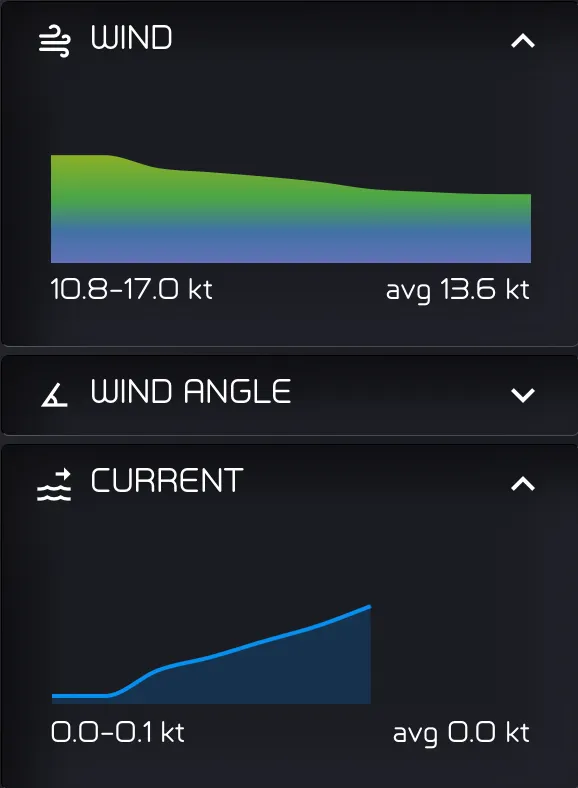
- Wind: the wind strength, in the colours of the wind map.
- Wind angle: the angle between the wind and the boat, from 0 to 180°. Green when the wind comes from the right (starboard), red when it comes from the left (port).
- Current: the strength of the tidal current, when there is one along the way.
- Waves: the height of the waves, when the wave forecast covers part of the passage.
Tap a title to open or close its chart. The button at the right of the Summary title opens all of them, or closes them all while any is open. An open chart shows its value, its range (for example 3.8–6.8 kt) and its average (avg 5.6 kt). A gap in a line means there is no current or wave figure for that stretch. Zora remembers which charts you leave open. At first the Summary is open and the charts are closed, and while Zora plans the charts are hidden.
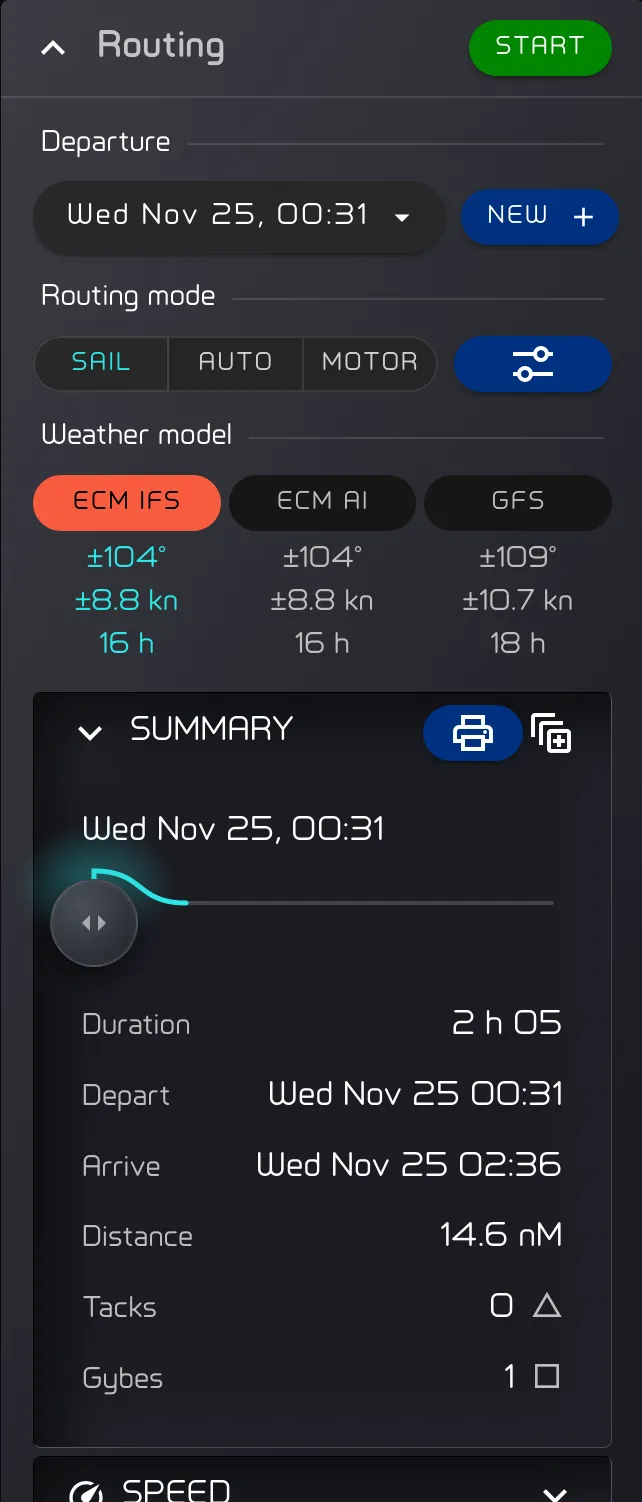
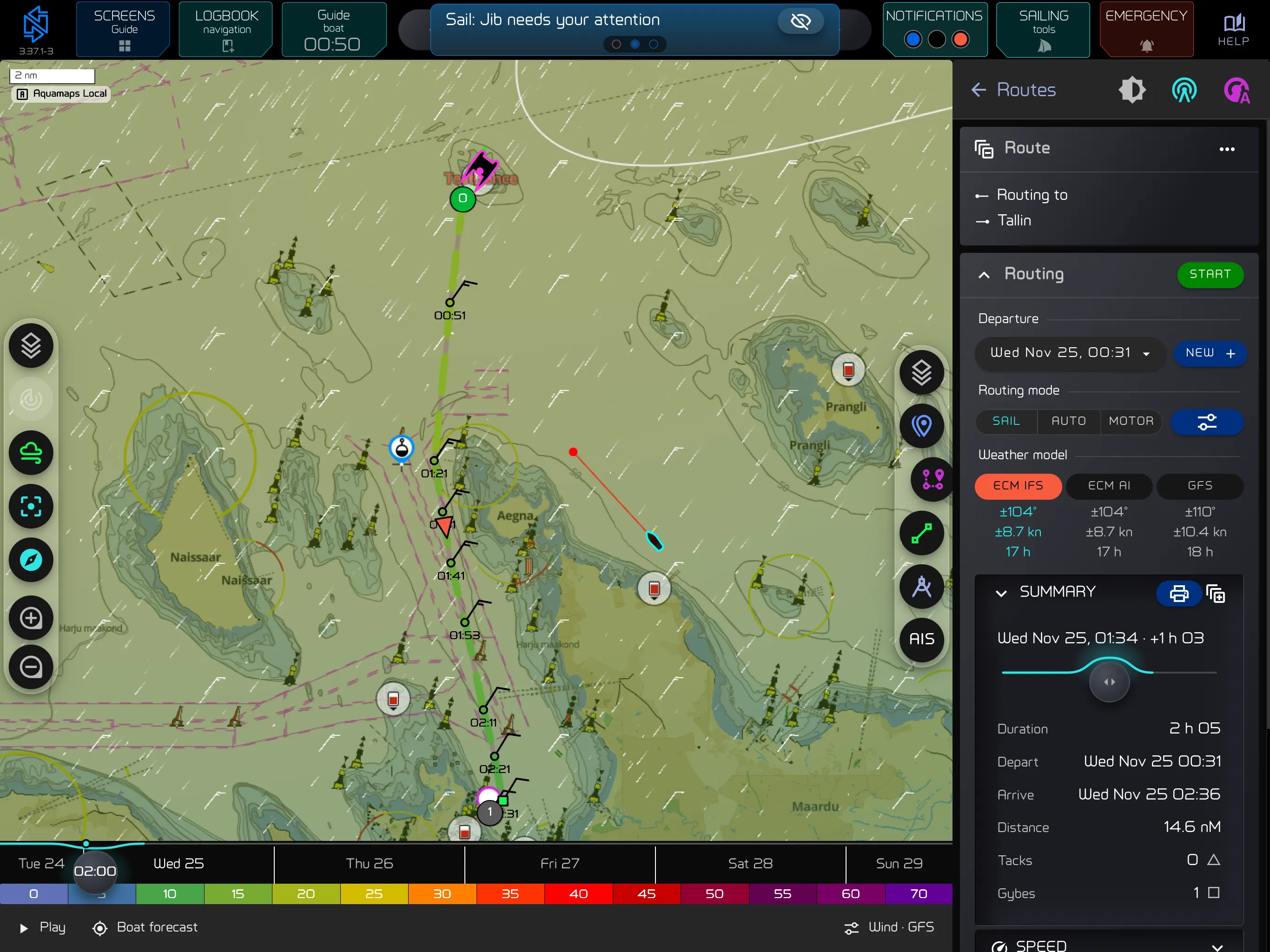
To see any moment of the passage, tap or drag along any chart. The slider under the Summary title moves there, and shows the time and how long since you left.
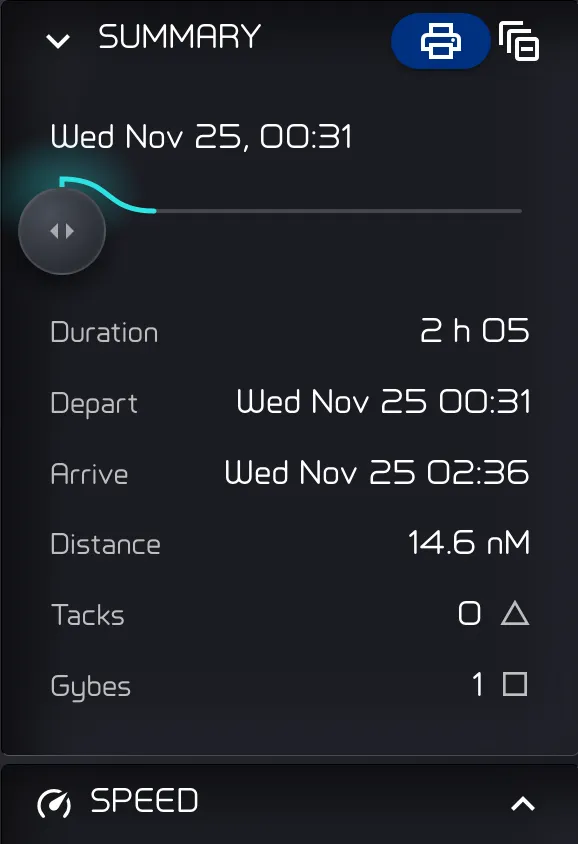
Every chart then marks that moment and shows its reading: the speed, under sail or engine, and the course; the wind and where it comes from; the wind angle and its side; the current and where it runs, or No tidal data; the waves and where they come from, or No wave forecast. On the map, a triangle shows where the boat would be at that moment. Pick another plan, date or mode, and the slider goes back to the departure.
With the wind, another weather layer or the tidal stream on the chart, the layer follows the slider and shows the forecast hour nearest that moment. It works the other way too: scrub or play the weather timeline, and the slider and the triangles move to that hour. Before the departure the boats wait at the start, and after the latest arrival they stay at the finish. A quick forecast such as +3 h gives way to the slider's hour, and the layer keeps the model you chose.
Pick a forecast Changed in 3.36.1
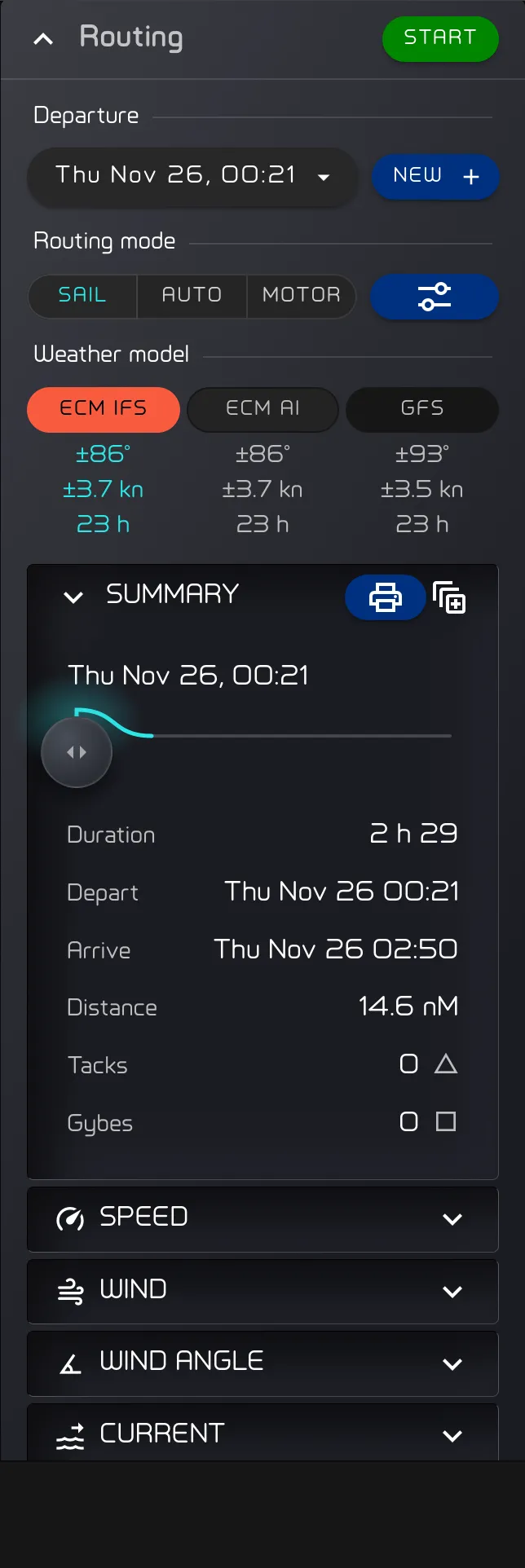
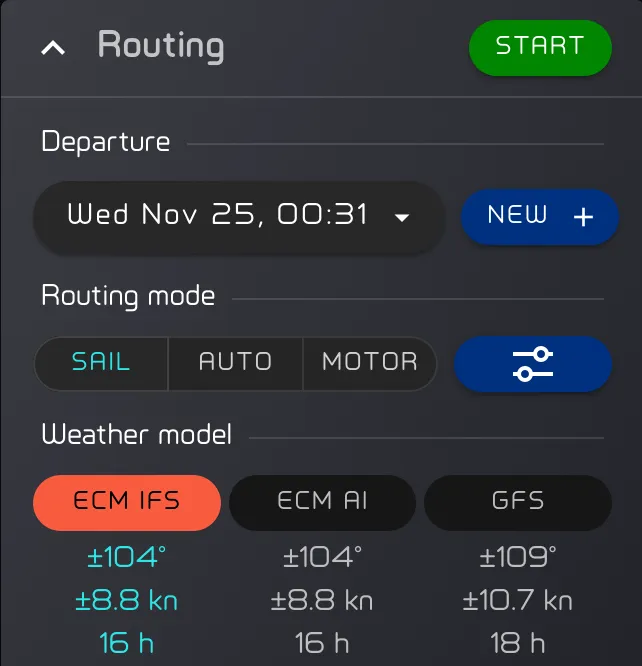
A plan is only as good as the forecast behind it, and forecasts disagree. Each forecast on board has a chip under the departure date (ECM AI is ECMWF's AI forecast). What a chip's colour means is under step 5 of Plan a route before you leave.
Under each chip, Zora shows how close that forecast has been to the wind your boat actually measured over the last 24 hours, on three lines: the average miss in wind direction (±4°), the average miss in wind speed (±1.9 kn), and how many hours of measured wind the score stands on (18 h). Wind under 4 knots counts toward the speed only, so with none stronger the direction line stays empty. The forecast closest on speed and direction together is highlighted. Until the boat has measured 6 hours of wind, the chip reads no score yet. The score helps you choose, and Zora never changes your choice by itself.
Tap a chip with a plan (1) to select it, and tap it again to clear it. The sheet opens with the route's forecast selected.
- One selected: the chart and the Summary show its plan, and it becomes the route's forecast. Start the route and the boat sails that plan, and while you sail Zora keeps planning on it.
- Several selected: the chart draws each plan as a line in its forecast's colour, so you see where the forecasts part ways. A card for each gives the distance, how long the passage takes, the time under engine and the fuel where known, the tacks and gybes in Sail and Auto, and the range of wind and waves. Start reads Select one and stays grey.
- None selected: the chart shows the route as you drew it, and Start sails it without weather routing.
Compare two or three forecasts before a longer passage. Where they agree, you can trust the plan more. Where they part ways, the weather is uncertain: keep a margin, and look again before you leave.
Tap a dark chip (2) to plan that forecast too. The chip spins while Zora works, and what you have selected stays on show. Tap several and Zora plans them one after another. In Motor, only the route's forecast can be planned.
If you plan another date or mode while a forecast is still being planned, Zora first asks Stop the comparison? stop and compute drops the plans in progress and starts the new one.
Good to know: in the score, wind under 4 knots counts for speed only, since in light air its direction means little.
Compare departures Changed in 3.36.7
Leaving a few hours earlier or later can make a very different passage: a fair tide instead of a foul one, or the wind easing after a front has passed. Zora keeps a plan for every departure you try, on each forecast. Tap the departure date to see them all.
The list of departures opens in place of the route details. Its title reads Departures, with a back arrow on the left and Start still on the right. At the top, Sail, Auto and Motor choose which mode's plans the list shows. Tapping another mode plans nothing and leaves the route as it is; the route takes the new mode only when you tap Select on a line. Below them, a key explains the marks: a flash for Fastest, a sofa for Smoothest and both for Best, then a triangle for Tacks and a square for Gybes, the marks the chart draws on the plan, then the sea colours Easy, Moderate, Rough and Past forecast.
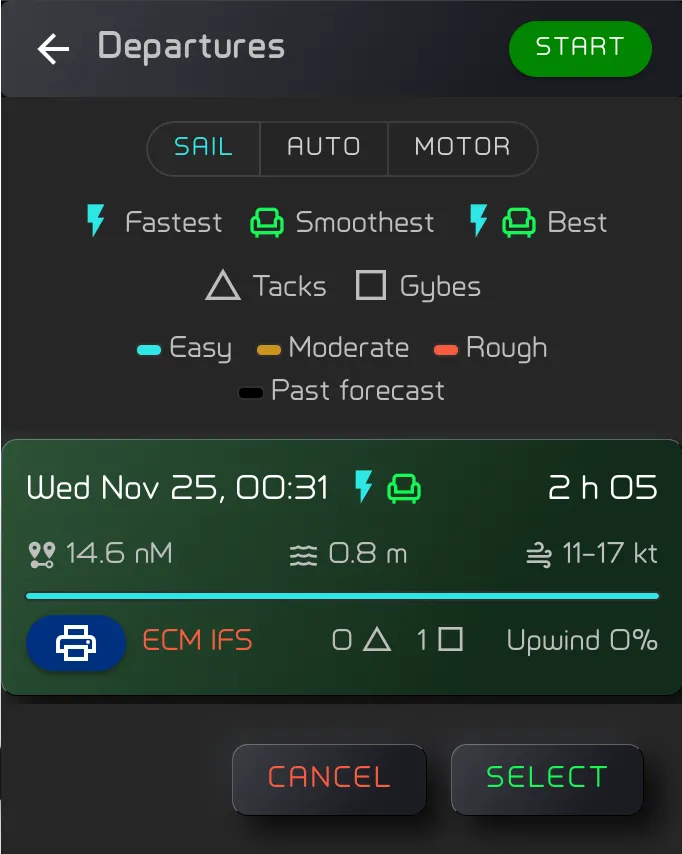
Each plan Zora keeps has a line: one departure on one forecast. Departures with a ranked plan come first, fastest first (see Find the best departure), then the rest, oldest first. If you have planned both with and without Comfort limits, each line also says which: Normal, or the limits, for example ≤ 25 kt · 2.5 m.
Tap a line to look at its plan on the chart. Zora draws it in full in place of the plan shown, with its wind barbs, tacks and gybes, motored legs and arrival times. The chart stays where it is, and the route does not change. A line whose plan is not ready yet shows no plan.
To keep a plan, tap Select. Its date becomes the departure, and its forecast becomes the route's. Cancel or the back arrow takes you back to the route, and the chart shows what it showed before.
A line planned at a different Comfort from the one set now is there for comparison only. Select stays grey, and the list tells you which Comfort to sail at, for example Start sailing at ≤ 25 kt · 2.5 m to select it. A Sail plan that finds no route to the destination cannot be selected either: Select stays grey and the list reads This plan finds no route to the destination: select another.
While you look at a line other than the plan on show, Start (or Reroute) stays grey, because the chart shows that line's plan and not the one Start would sail. The list tells you how to free it: Select it or Cancel to start., or Cancel to start. when Select is grey. The list opens on the plan on show, and that line stays marked and leaves Start as it is. In a regatta, Start is never held.
Good to know:
- While you look at a line, the triangles that follow the Summary slider are hidden.
- A departure leaves the list when it has no plan left, after a newer forecast arrives or the route is edited, and when it is more than an hour past, since Zora then deletes its plans.
- Plans made on a forecast more than one update older than the newest on board are deleted. A plan one update behind stays, and the sheet reads New weather forecast available → reroute.
Find the best departure New in 3.36.1
Instead of trying departures one by one, let Zora try a whole range of them and rank them, so you can see when it pays to leave. Here is how:
Choose Sail, Auto or Motor (1) and select the forecast chips to plan on. With none selected, Zora uses the route's forecast, and in Motor it always uses the route's forecast alone. Tap New (2), then best departure.
1 the mode, 2 New Set From and To, the window of departures to try. It starts at the date shown and runs for a day. In Sail and Auto it cannot go past the end of the forecast. Then choose how often to try a departure: every 1, 2, 3, 6 or 12 hours, 3 to begin with.
The dialog counts the plans, for example 9 start dates × 2 models: 18 plans. Unless your boat has an extra box for weather routing, a search is limited to 25 plans. Over that, the dialog says so and search stays grey: shorten the window, try less often, or select fewer forecasts.
Tap search. Zora plans the departures one after another, and the date shown moves to the first of the window. Each line in the list of departures fills in as its plan arrives.
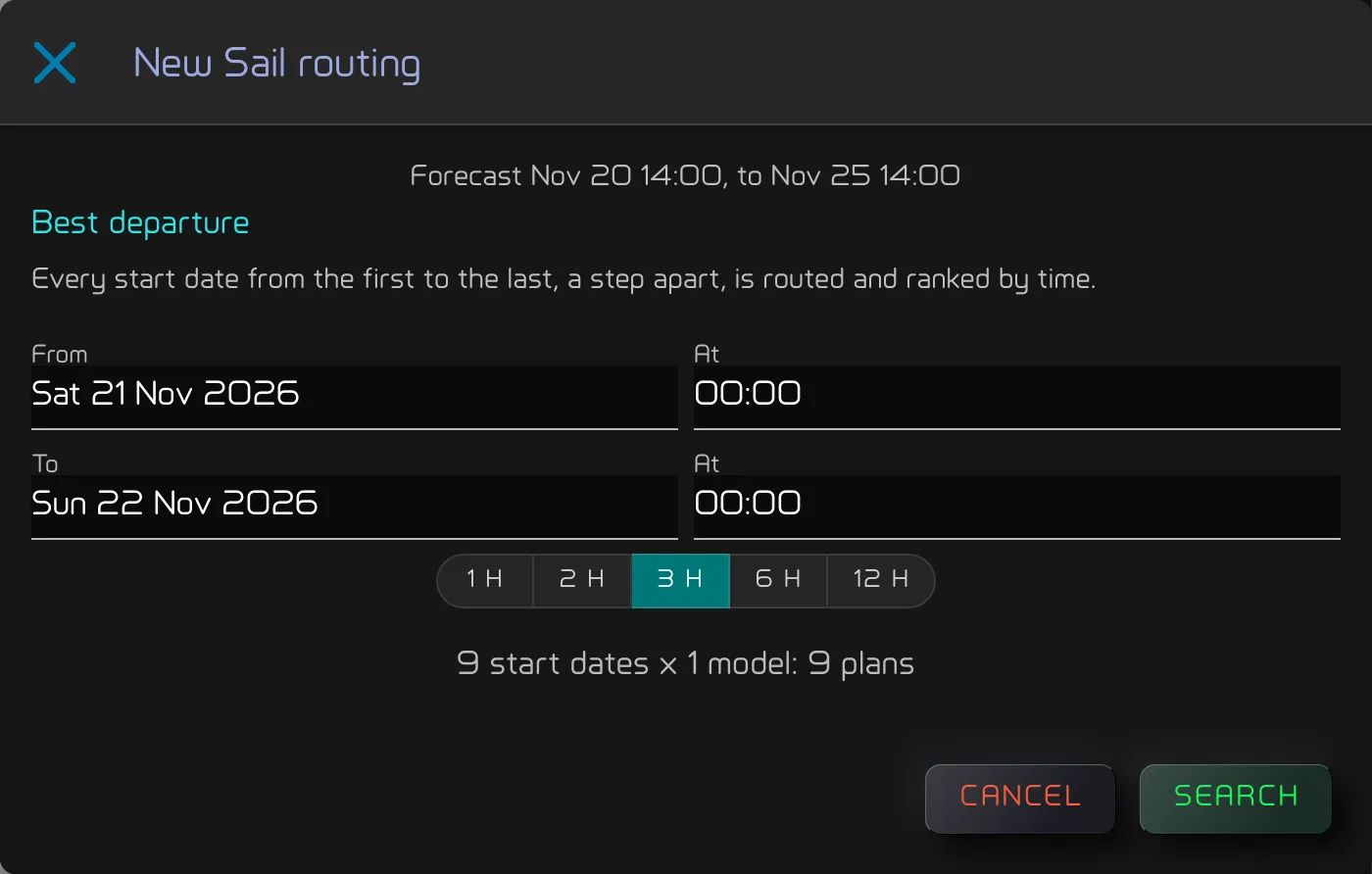
Search, below the count of plans
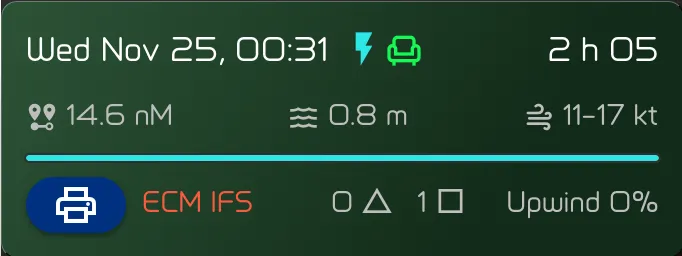
Each line in the list of departures is a card for one plan:
- the date with its marks, Fastest for the quickest passage, Smoothest for the one in the easiest sea, or Best when one plan is both, compared across every forecast and Comfort in the list; on the right, how long the passage takes;
- the distance, then the range of waves and of wind;
- a bar showing how much of the passage is in an easy, a moderate and a rough sea;
- a printer button once the plan is ready, unless it finds no route, then the forecast's name in its colour; on a Sail or Auto plan, the number of tacks and gybes, each beside its mark; and how much of the passage is upwind, for example Upwind 35%.
With a crew new to sailing, look for Smoothest first: a slightly slower passage in an easy sea makes a far better day than a fast one in a rough sea.
A line still being planned shows how far Zora has got, or Queued, with a spinner. A line with no plan says why, or No plan yet. Under the chips of the other forecasts, a clock and a wave give each one's time rank and comfort rank for the date shown.
A plan that runs past the end of the forecast is greyed out and not ranked, since Zora cannot judge what it has no forecast for. Its sea bar ends in black for the part beyond the forecast. A plan under sail that stops where the forecast ends says how far short, for example Stops at the forecast's end, 12.4 nM short. A Sail plan that finds no way to the destination is greyed out and not ranked as well, and its line gives the reason, for example No route found: the destination cannot be reached. How the ranks are worked out is in How departures are ranked.
Good to know: a search runs only while no route is active. Starting a route ends it, and the plans already made are kept. While it runs, planning from another date or mode first asks Stop the departure search?
Print a departure Changed in 3.36.7
With one plan on show, the printer button at the right of the Summary title prints it. It offers two printouts, Summary and Navigation table.
Each line in the list of departures has the same printer button, before the forecast's name, once its plan is ready. It prints that line's plan, at the Comfort limits it was planned with. Tapping the button does not open the line. A plan that finds no route to the destination has no passage to print, so it gets no printer button in either place.
Summary is an A4 portrait page under the boat's letterhead:
- Plan: the route, departure, arrival, duration, the forecast, its update and its score over the last 24 hours.
- Summary: how comfortable the sea is, the upwind share, and the strongest tidal current against the boat.
- Departures: each departure with a plan ready on that forecast, both ranks, the best marked, and why the others are not ranked.
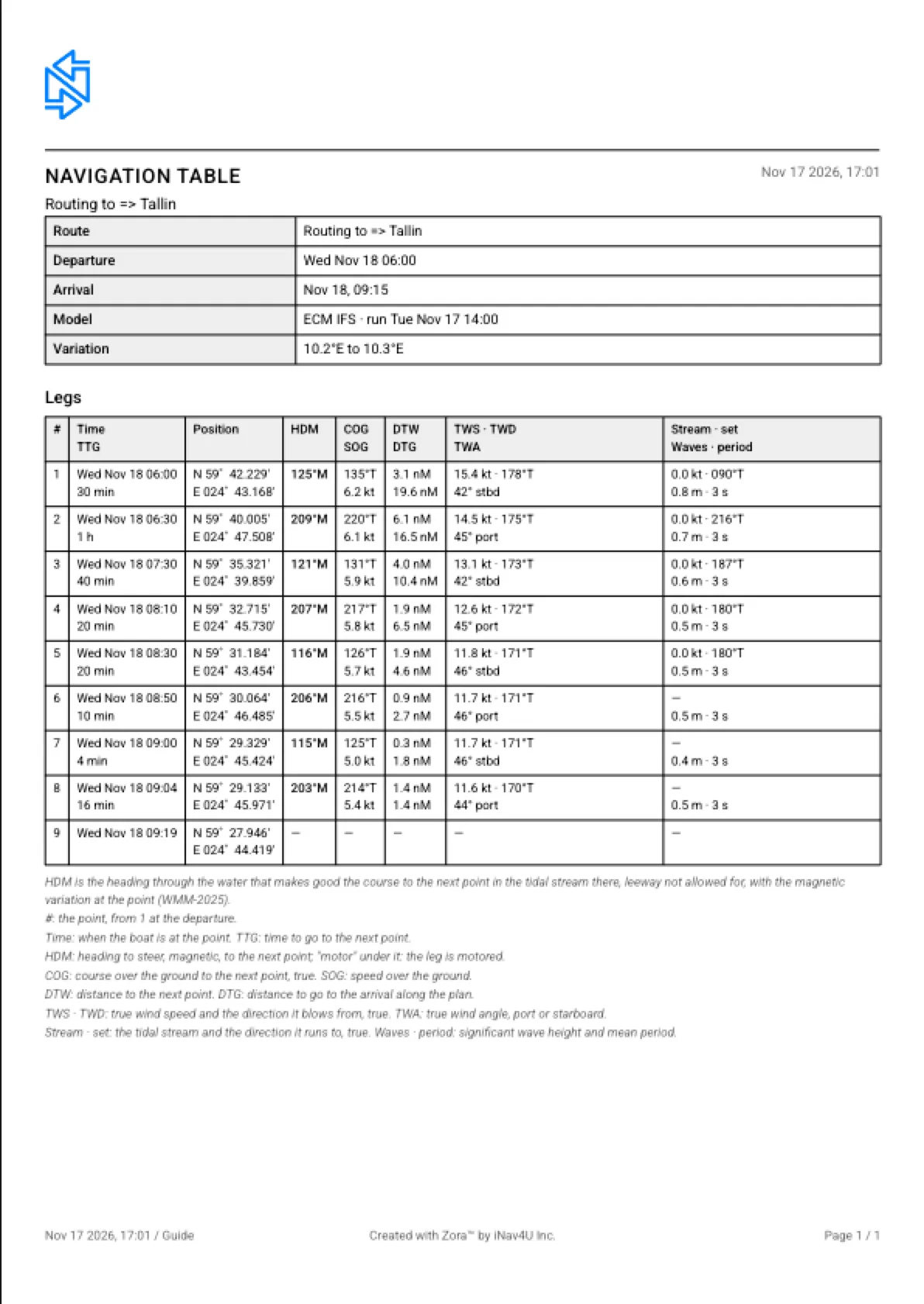
Navigation table lets the crew steer the plan with a compass and a phone's GPS. The header gives the route, departure and arrival, the forecast and its update, and the magnetic variation along the route. Below it, each point of the plan has a numbered row for the leg to the next point:
- the time, and the time to the next point;
- the position;
- HDM, the heading to steer by the compass. It allows for the tidal current but not for leeway, and on a leg under engine it reads motor underneath;
- COG and SOG, the course and speed over the ground;
- DTW, the distance to the next point, and DTG, the distance to the end;
- the wind and the wind angle, the tidal current and the waves.
Rows past the end of the forecast are shaded, and notes under the table explain each short label. If Zora can't read the magnetic variation, the HDM column stays empty, except for motor on a motored leg, and a note says why.
Start the route on its preview
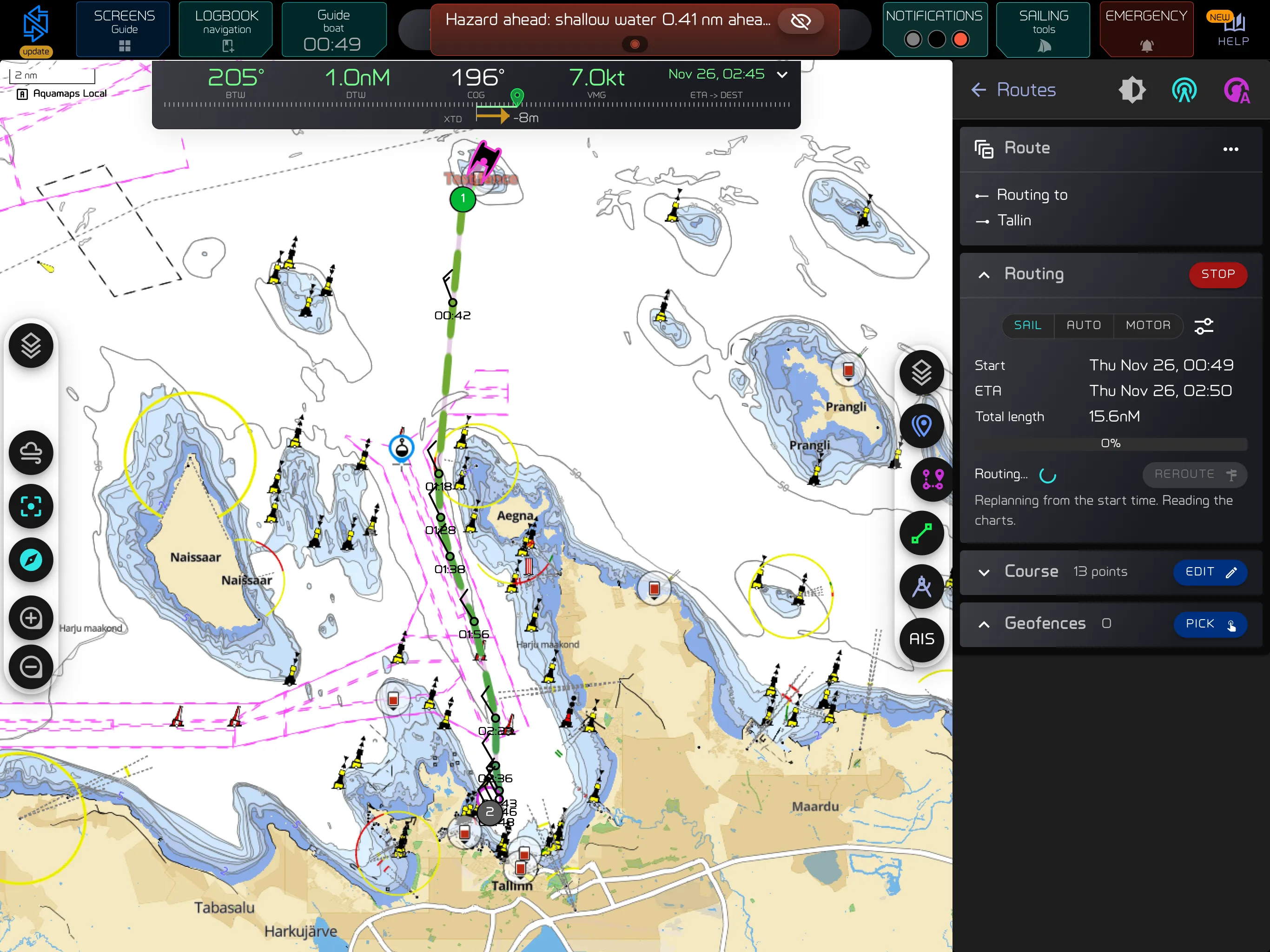
When you are ready to go, select one plan and tap Start at the right of the Routing title. The route starts on that plan straight away, in the plan's mode: Sail, Auto or Motor. With no plan selected, the route starts without weather routing.
Zora then plans the route again from the moment you started, so the plan matches your real departure. Until the new plan is ready, the sheet reads Replanning from the start time., and the plan you previewed stays on the chart and in the sheet.
Good to know:
- The route takes the selected plan however early or late you start, and also after a newer forecast, a new draft or changed Weather routing settings.
- If the selected plan's departure is more than an hour ago, Start reads Reroute: it plans the selected forecasts again from now, in the same mode, and starts nothing.
- The previewed plan stays on the chart only when you start from the first point and the routepoints have not changed since. Start from another point, or change the route (reversing it counts), its mode or the armed geofences first, and Zora plans from scratch: the route shows no plan until the new one is ready.
While you sail the route
Once you are under way, things change: a newer forecast comes in, or the boat leaves the planned track. Zora keeps the plan up to date by itself. On the route's Routing sheet you choose the mode the plan sails in, and you can ask for a new plan at any time.
At the top of the sheet you find Sail, Auto and Motor again. A route is in Auto until you choose otherwise, and Zora remembers your choice for the route. Turning weather routing off removes the plan at once; the sheet reads Removing... while it goes.
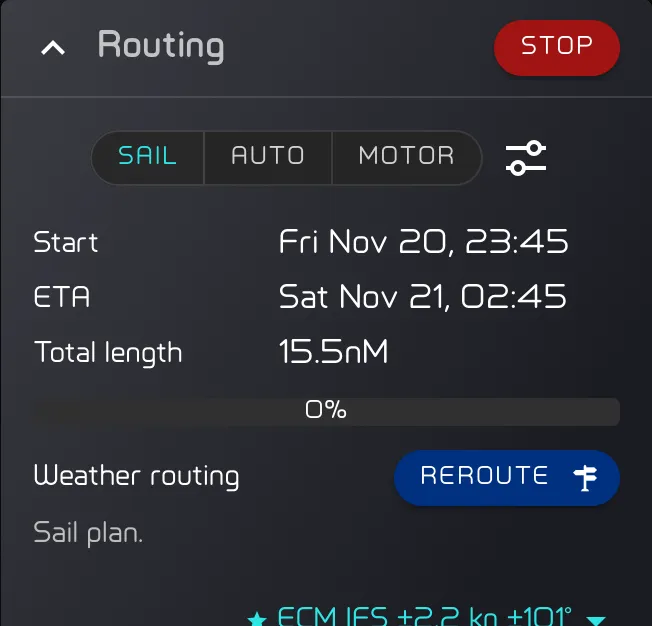
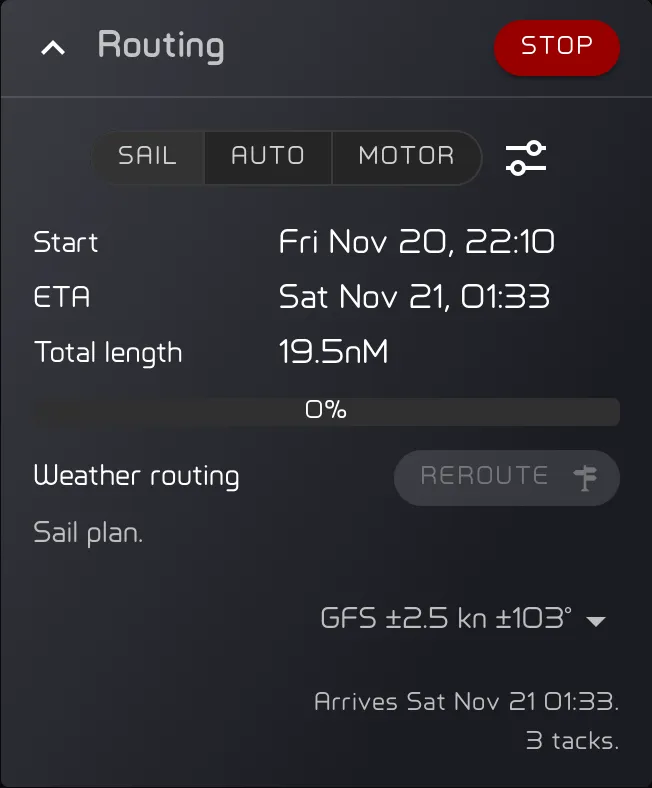
Sail sails every leg, and Motor uses the engine for every leg, whatever the boat is doing. Auto follows what the boat is doing. While you sail, and before you cast off (moored, anchored, drifting, or with no state), it plans to sail and uses the engine where the boat would be too slow, so the plan is ready when you leave. While the engine runs (Motoring or Motor-sailing), it plans every leg under engine.
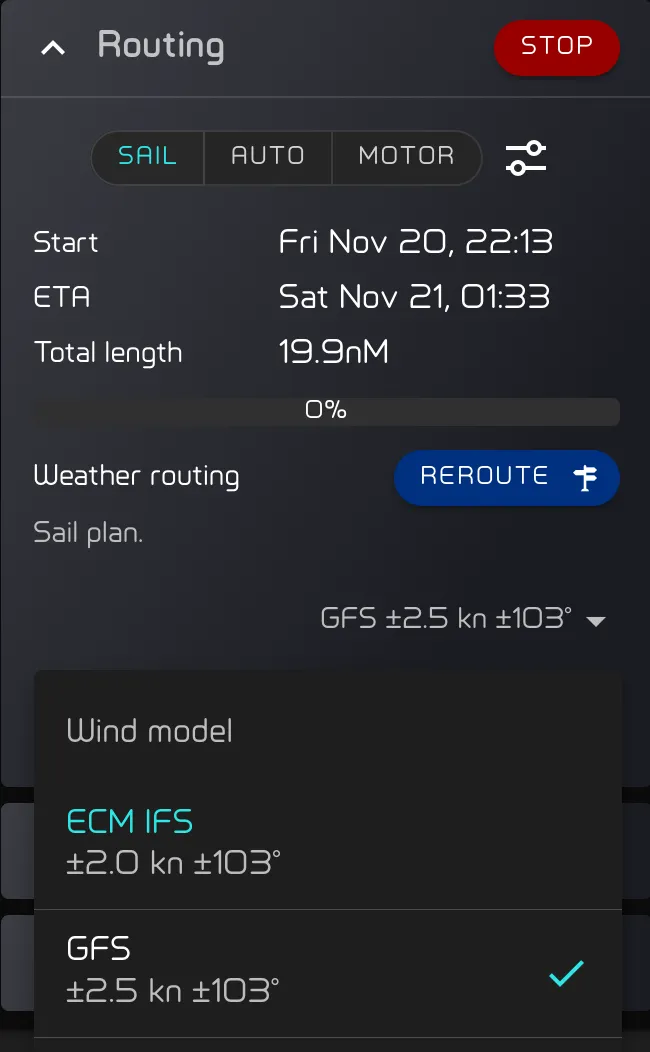
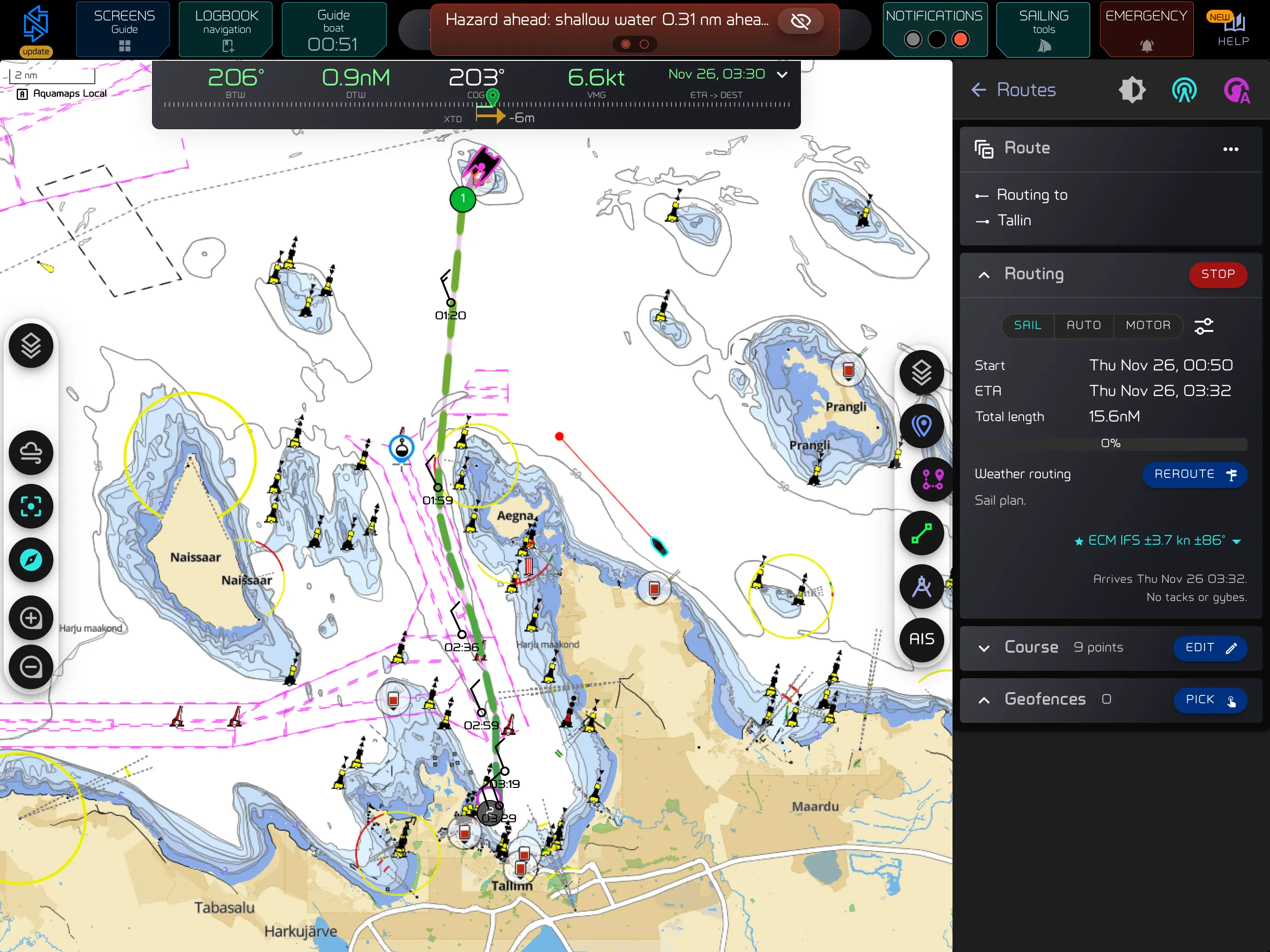
Further down, the sheet says Sail plan., Auto plan. or Motor plan., which legs are under engine and why, and from when the plan runs past the forecast, with how much of the passage the forecast covers. The line under it names the route's forecast with its score, for example GFS ±1.9 kn ±4°, with a star when it is the best on board. Tap that line to see every forecast on board with its score. Pick another and the route plans on it from then on: Zora plans again in the background, from the next point the boat steers to, and keeps your current plan until the new one is ready.
Zora plans again by itself when:
- a newer forecast arrives;
- you change the route, the mode or the armed geofences, the areas Zora keeps you out of;
- you save a new minimum sailing speed, RPM in use, Comfort or Use vector charts in Weather routing settings;
- the boat is more than a mile off the leg it sails, in any mode. The sheet then reads Replanning from the boat, off the track.;
- your arrival time has drifted by an hour in all, early or late.
When the plan changes, take a look at what changed. A later arrival, or a stretch under engine you did not expect, is often the first sign that the weather is not doing what the forecast said.
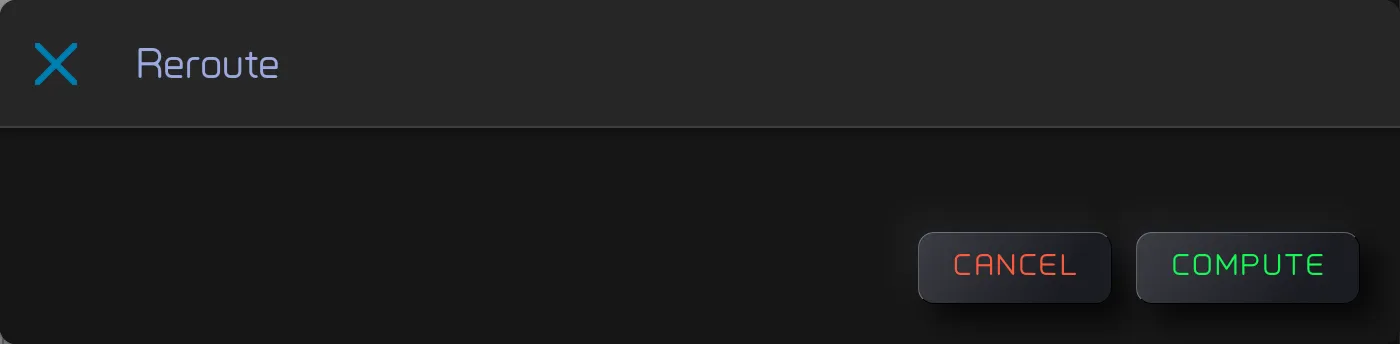
Reroute asks for a new plan whenever you want one. In Sail it plans again at once. In Auto and Motor it opens a dialog, and its Compute plans again. The new plan starts from the next point the boat steers to, or from where the boat is once it is more than a mile off its leg. Changing the route's mode does the same.
A reroute needs to know where the boat is. Without a GPS position, Zora keeps the plan it has and plans again as soon as a fix comes back. Reroute, another forecast picked under the plan's line, and Yes to either question below then read No GPS position: rerouting needs to know where the boat is.
The details of how the plan keeps up with the boat are in How the plan keeps up while you sail.
The arrival time New in 3.36.1
While weather routing is on, the arrival time on the route bar (ETA -> DEST) and on the PND is the plan's arrival at the last routepoint. A forecast is never exact, so Zora shows the arrival only as precisely as it can trust it. Treat it as a window, not an appointment, and plan to arrive in daylight with time to spare:
| Could be out by | The arrival reads |
|---|---|
| Less than an hour | the time, to the quarter hour |
| 1 to 6 hours | the time, to the hour |
| 6 to 24 hours | the half day, for example Tue morning or Tue afternoon |
| A day or more | the day alone |
The arrival is less certain while Zora still plans on your uploaded polar rather than what your boat has shown it, when the forecast has been off the wind the boat measured over the last day, and the further the passage runs past the end of the forecast. Time under engine adds a little. With weather routing off, or a plan that stops short of the last routepoint, the arrival comes from the distance to go and the boat's speed, to the minute, as on any route.

Reroute for sailing?
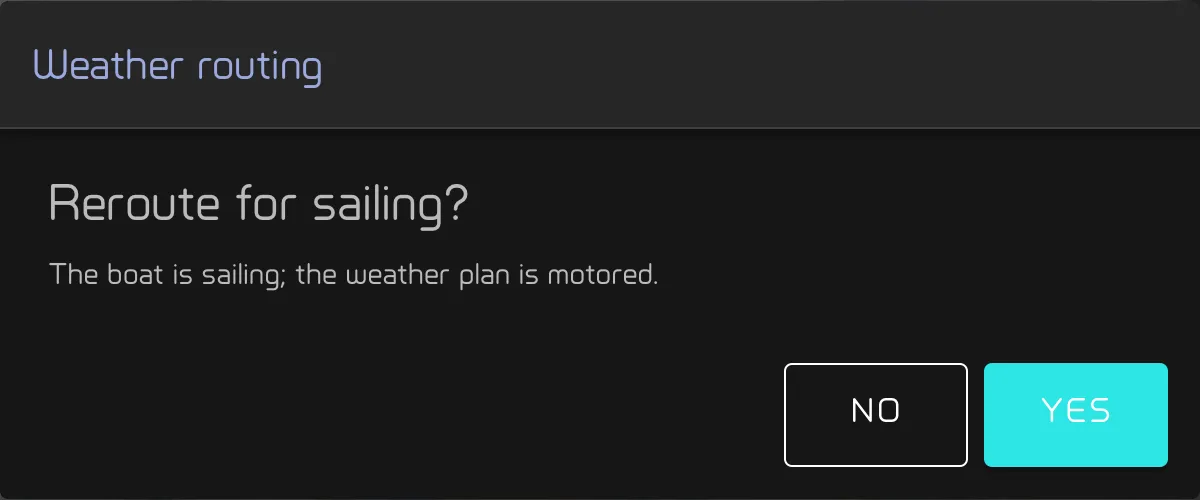
Once a route in Auto has a plan, Zora asks on every screen when the boat changes between sailing and motoring: Reroute for sailing? or Reroute for motoring? From sailing to motoring, it asks only once the engine has run for two minutes.
Zora asks because a plan made for sailing no longer fits once you motor, and the other way round.
- Yes plans again in the new mode, from the next point the boat steers to.
- No keeps the plan, and Zora does not ask again until the next change.
If the boat changes back before you answer, the question goes away.
Reroute on another forecast? New in 3.36.6
While you sail a route, Zora compares each forecast on board with the wind the boat measures. When another forecast has been at least a knot closer to it than the route's forecast for two hours, Zora asks on every screen, for example Reroute on ECMWF IFS?, and shows how far off each forecast has been over the last day.
- Yes plans again on that forecast, from the next point the boat steers to, and keeps it for the route.
- No keeps the route's forecast. Zora asks about that forecast again only once it has lost its lead and then held a new one for two hours.
If the other forecast loses its lead before you answer, the question goes away.
A regatta route
A race is planned in Sail, every leg sailed, to the middle of its finish line. On a course of the active regatta plan, the date dialog opens on the race's start time. A race started on its plan takes that plan. While you race the route, tapping Auto or Motor first asks Auto in a race? or Motor in a race?. Planning a regatta route's preview in Auto or Motor from an empty chip asks the same. On the chart, a tack or gybe badge on a mark with a rounding side sits where the boat passes the mark, and the rounding badge moves to the other side.
Weather routing settings
These settings decide how Zora plans every route. They belong to the boat, so every screen plans the same way. To open them, tap the settings button on the Routing sheet: under New before you leave, beside the modes while you sail the route.
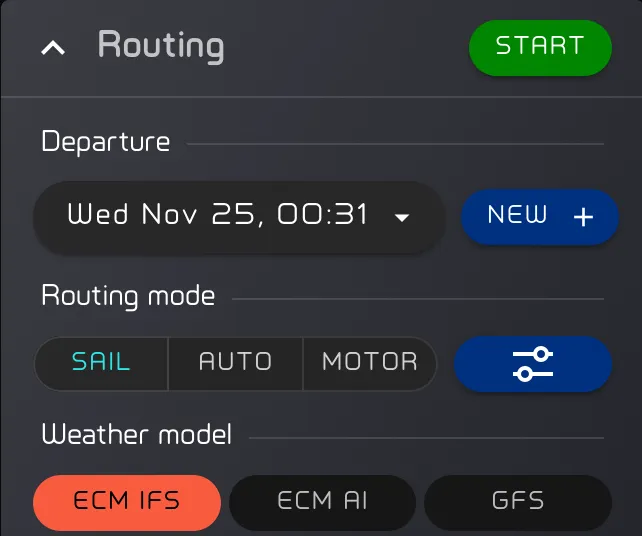
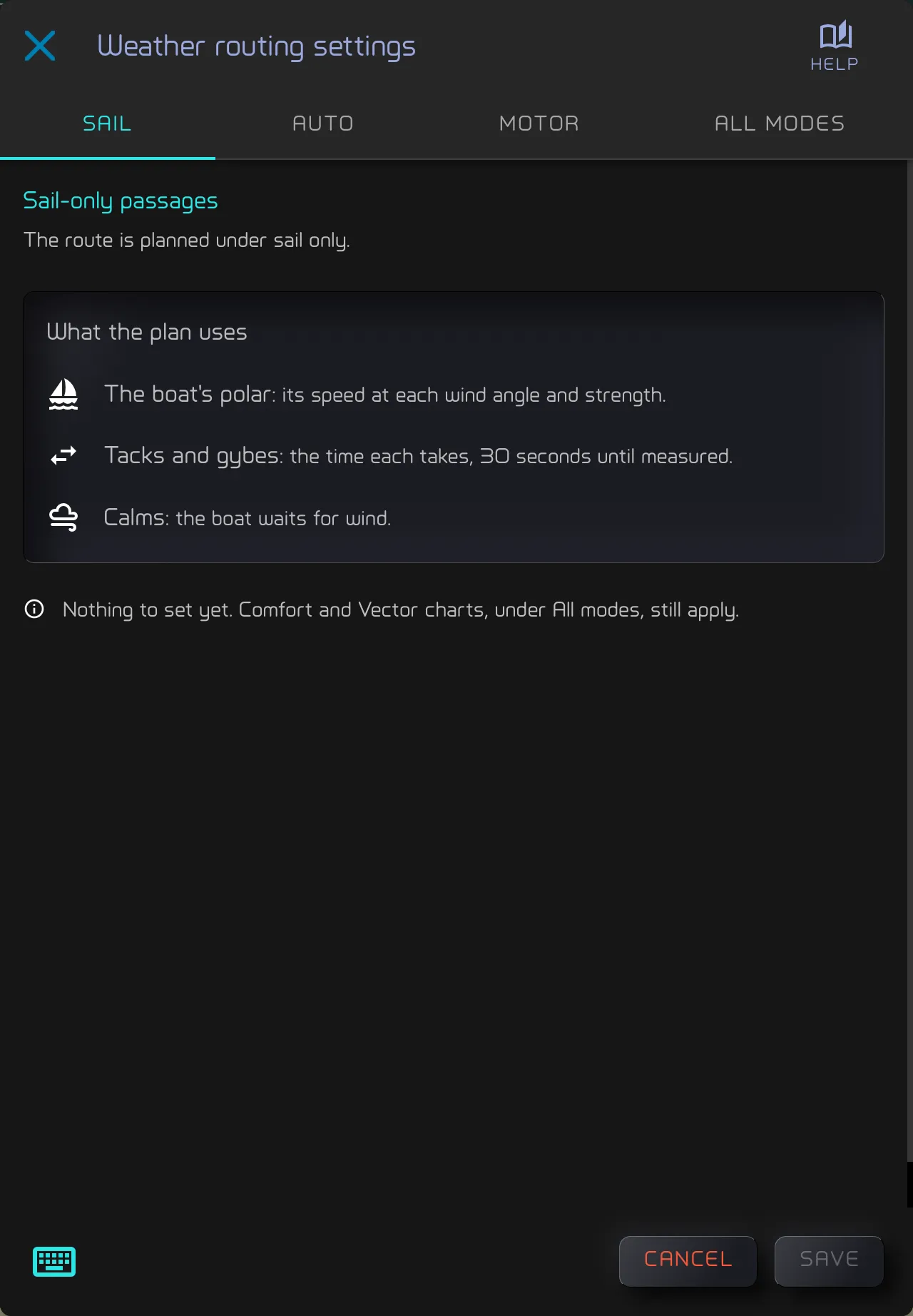
The dialog has four tabs: Sail, Auto, Motor and All modes. A powerboat has Motor and All modes only. Each tab says what it plans, and a box below explains its settings. Save keeps every change and closes the dialog. Cancel leaves everything as it was.
Sail
Sail-only passages. Zora plans under sail only, using your boat's polar. Each tack and gybe costs time: 30 seconds until Zora has measured your boat's own. In a calm, the plan waits for wind. There is nothing to set here.
Auto
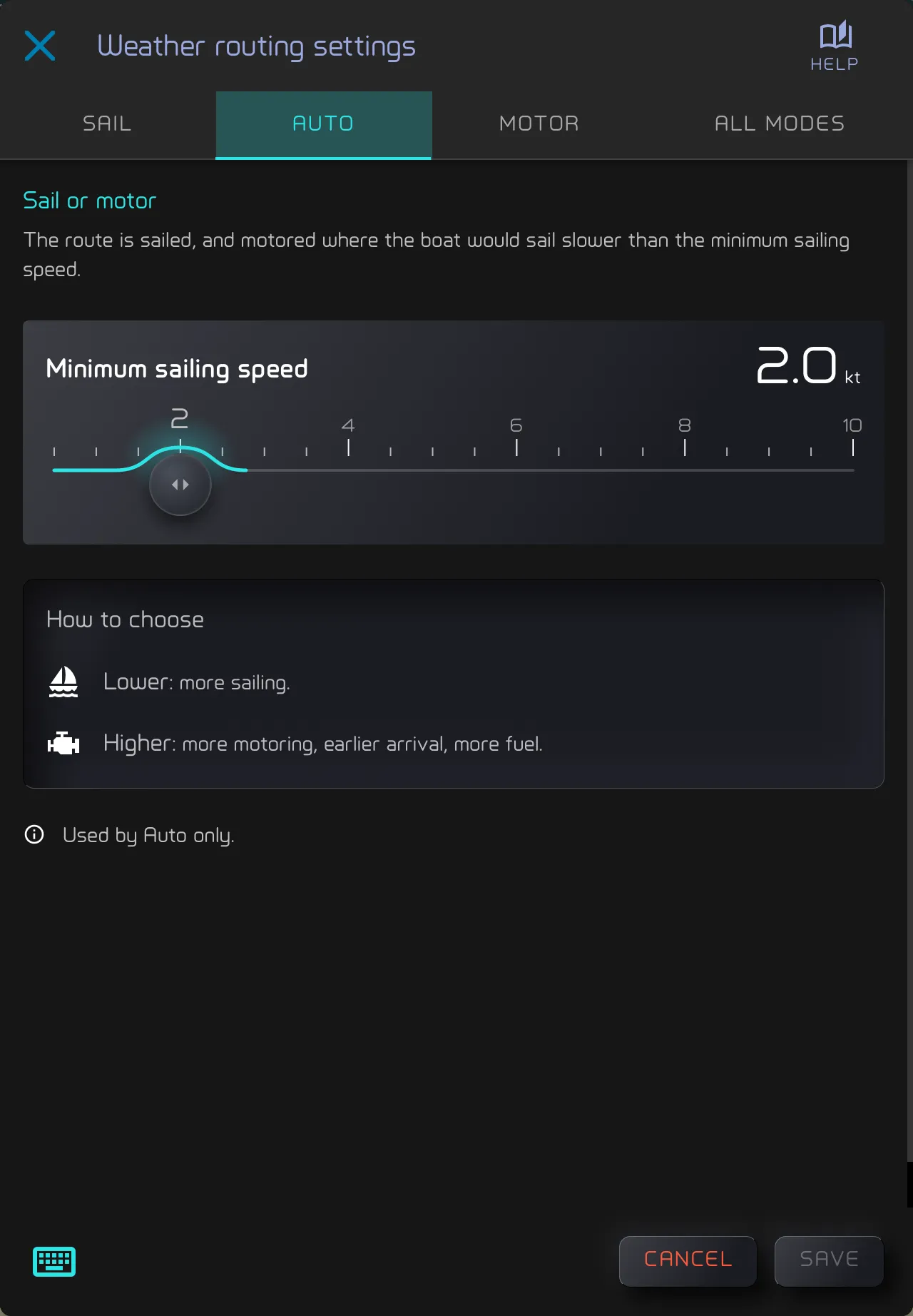
Sail or motor. Zora sails the route and starts the engine wherever the boat would sail slower than the Minimum sailing speed, from 0.5 to 10 knots, 2 to begin with. Set it lower to sail more. Set it higher to motor more, arrive earlier and burn more fuel. Only Auto uses it.
Motor
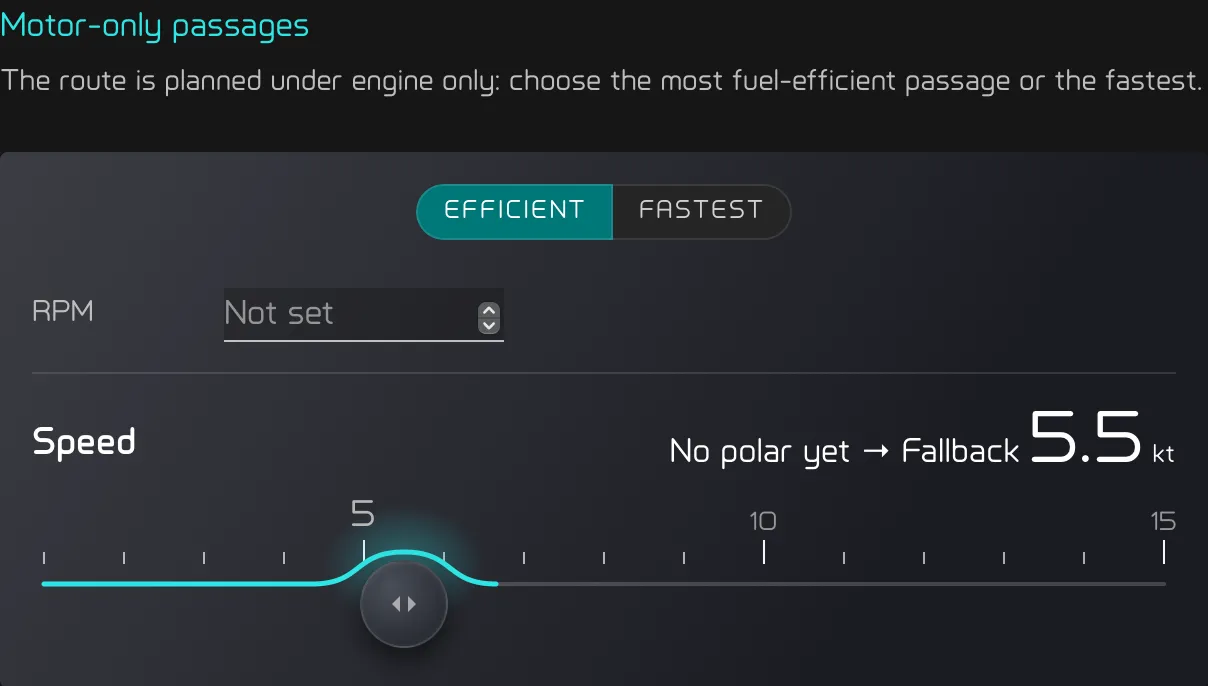
Motor-only passages. Zora plans under engine only. Pick Efficient (1) to use the least fuel, or Fastest (2) to arrive soonest. Each has its own settings below:
- RPM: the engine speed, from 500 to 7000, rounded to the nearest 100. It reads Not set until you type one.
- Engines: One or Both, on a boat with two engines. Both to begin with.
- Speed: Polar once Zora has learned how fast your boat motors at that RPM. Until then it reads, for example, No polar yet → Fallback 5.5 kt, and a slider from 1 to 15 knots, in steps of 0.5, sets the speed to plan with. Each setting keeps its own speed, 5.5 knots to begin with. On a boat updated from an older Zora, both start at the motoring speed it had before.
Clear motoring polar asks first, then forgets everything Zora has learned about your boat under engine. Plans then use the set speed until it learns again (see How the boat learns under engine). Your sailing polar is kept, and the clears in Vessel Assets keep the motoring polar. Zora keeps a dated copy before the clear.
All modes
This tab holds two settings every mode uses: Comfort and Vector charts.
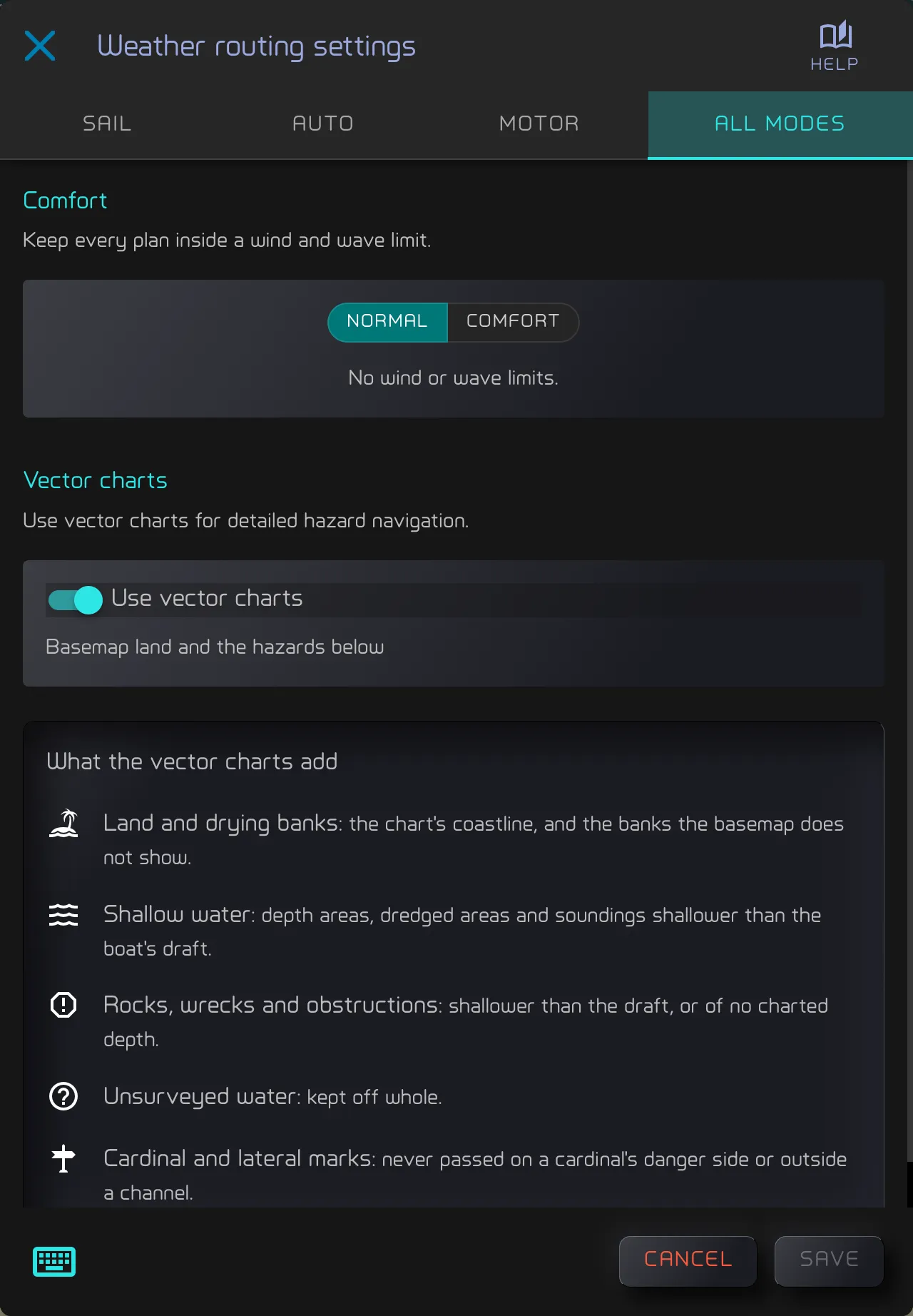
Comfort
Comfort keeps the plan out of wind and waves stronger than you want to face. Set the limits for the least experienced person aboard, not the most. Normal plans with no limit. Comfort sets a Max true wind, from 10 to 45 knots, and a Max wave height, from 0.5 to 6 m, 25 knots and 2.5 m to begin with. They show in your own units.
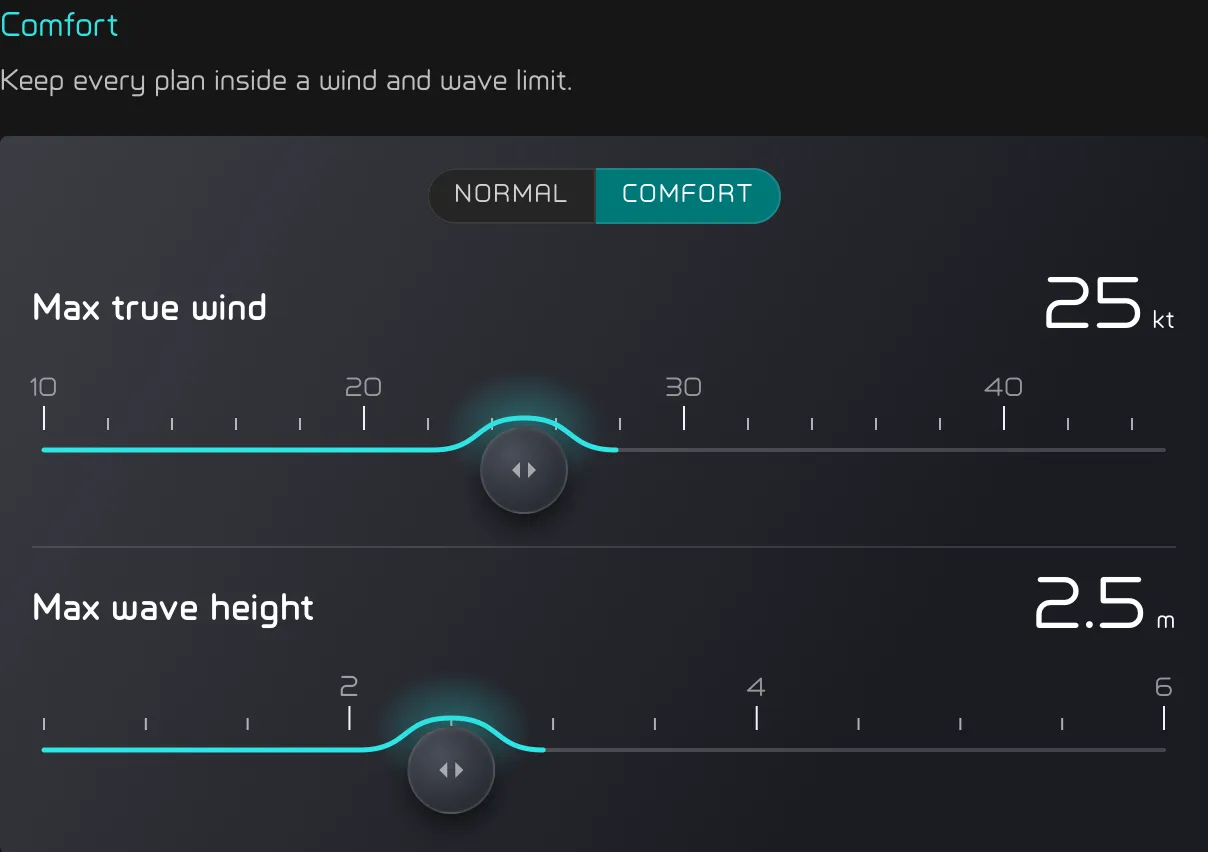
With Comfort on, the plan never takes you where the forecast wind or waves are over your limits when you get there, under sail or under engine. The waves come from the wave forecast, whichever forecast the plan follows. Where there is no wave forecast, close inshore or past its end, Zora keeps to the wind limit only. The plan then says Waves not checked where the wave forecast has none: held to the wind limit there., and the chart labels those stretches waves not checked.
When no route stays inside your limits:
- Before you leave, Zora makes no plan and says what broke, where and when, for example No route within Comfort limits: wind 31 kt over 25 kt at 50°03.4′N 005°12.0′W, Mon 6 Oct 14:30. With several forecasts selected, each one that found no route says so on its own line, under its name. Move the departure or the limits.
- On the route you are sailing, Zora plans again without the limits, so you always have a plan to follow. Its Routing sheet gives the first stretch over them, for example Plan breaks Comfort limits: wind 31 kt over 25 kt from Mon 5 Oct 14:30 for 3 h at 50°03.4′N 005°12.0′W. 1 more stretch over. That is your warning, early enough to change your plans, slow down or look for shelter. Every screen gets one notification, Plan breaks Comfort limits, with when that stretch starts (in UTC), its strongest wind or highest waves, and how long it lasts. It is not an alarm. Later plans that still break the limits raise no new one, and each new plan tries the limits again. The notification goes once a plan is back inside them, Comfort is set to Normal, or the route stops.
Vector charts
With Use vector charts on, as it is to begin with, the plan keeps clear of the dangers marked on the charts on board, under sail and under engine. The box under the switch lists them:
- land and drying banks, along the chart's coastline;
- shallow water: areas and soundings shallower than your boat's draft, how deep it sits in the water;
- rocks, wrecks and obstructions shallower than your draft, or of unknown depth;
- unsurveyed water;
- the dangerous side of a cardinal mark, out over the shoal it marks, and the water outside a channel's marks.
Where the chart draws a recommended track through a channel, the plan can follow that track through an area charted shallower than your draft. A sounding, rock or wreck on the track still keeps it off.
Leave it on. With the switch off, the plan keeps off land only, from the base map: it no longer avoids rocks or shallow water, and your draft plays no part. Geofences and the tidal current shape the plan either way. On a boat with no vector charts on board, the switch is grey and reads No vector charts on board.
Wherever the plan crosses water no chart on board covers, or all the way with Use vector charts off, it says Planned without charts, before you leave and on the route you are sailing. There, the plan does not know about rocks or shallow water: check the chart yourself and keep a good lookout. Before you leave, those stretches are marked on the chart with a broad amber band under the route.
Read the plan on the chart
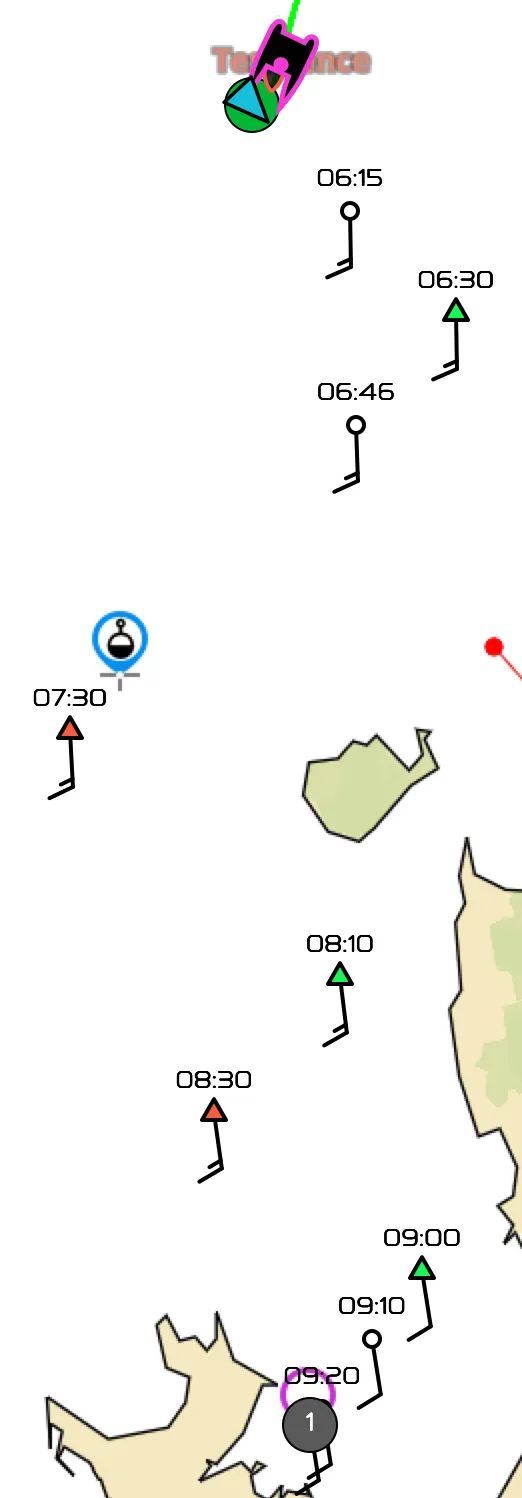
A plan draws along your route on the chart. Each stretch shows whether the boat sails or motors and the wind it meets. Each point is labelled with the time the boat should be there, and marked where the boat tacks or gybes. Follow it from start to finish before you leave: you see at a glance where the wind picks up, where you will be tacking, and when you should pass each point.
- Stretches under sail are dashed, and stretches under engine are solid.
- Each stretch takes the colour of the strongest forecast wind at its two ends, in the colours of the wind map.
- Each weatherpoint, a point Zora adds between your routepoints, shows the planned wind as a wind barb, with the time the boat should be there. It is a circle, or a larger triangle where the plan tacks and a square where it gybes. A triangle or square is red where the boat turns to port (left) and green where it turns to starboard (right). The circle the boat is steering to is filled. A dashed outline marks a point under engine.
- A routepoint the plan reaches shows a wind barb too, with the wind forecast for when the boat gets there. The routepoint the plan starts from has none.
- A routepoint where the plan tacks or gybes has the same triangle or square, in the same colours, on a small black badge at its edge (on a regatta mark, see A regatta route).
Tap a weatherpoint to see what the boat meets there. The top line gives its number, Tack or Gybe where the plan makes one there, and the day and time. Each tile below has a reading on the left and a direction or angle on the right. The first gives the wind speed (TWS) and the wind angle with its side (TWA). The next gives the waves: their height, period and the direction they come from. The last gives the tidal current, its strength and where it runs to, or No tidal data. The waves take a moment to appear, and where the forecast has none, close inshore for example, that tile is left out. Where a tidal station gives the current, the tide tile names it.
A routepoint the plan reaches opens the same popup when you tap it. It shows the routepoint's number after an R, for example R3, and the time the plan gets there, then the wind, the waves and the tide. Its wind angle is the one for the leg leaving the routepoint, so the last routepoint shows the wind speed alone.
In short
- Draw the route and save it: Routes.
- Open its Routing sheet: Plan a route before you leave, step 1.
- Check the direction, then set the departure, the mode and the forecast: steps 2 to 5.
- Compare and choose: Pick a forecast, Compare departures and Find the best departure.
- Start the route on the plan you chose: Start the route on its preview. Sailing it is in Routes.
- Under way, follow the plan and reroute when it asks: While you sail the route.
If it does not work
Weather routing under sail needs an uploaded polar.
Your boat has no polar yet, and Zora does not plan under sail without one. You see this in an alert when you plan a route under sail, and in the Routing sheet of the route you are sailing. Upload a polar in the Setup app under Vessel Assets, Boat Polar; see Upload the polar. Plans under engine work without one.
No forecast on board yet.
A plan under sail needs a forecast, and the boat has none for this route. Setting a departure downloads it, so this message means the download failed, usually because the boat is offline. Once back online, set the date again. How the forecast reaches the boat is in Keep the forecast aboard. A plan under engine works without one: Zora plans it at once and adds the wind when it arrives.
Another route is active.
Planning ahead is for a route you are not sailing. Stop the active route first, or use the Routing sheet of the active route.
Geofences could not be read.
Zora could not read the geofences this route arms. A plan has to keep out of them, so Zora makes no plan and tells you in an alert. Try again in a moment.
The plan sails in still water
When Zora gets no tidal current for the plan, a line with the plan's summary says Tidal streams could not be read, No tidal stream for this passage or Tidal streams are not set up on this boat, then so the plan sails in still water. The times and the track then ignore the tide. The line shows before you leave and on the route you are sailing.
Behind the scenes
How Zora plans the passage
From each point Zora tries every heading within 90° of the next mark, and keeps the track that arrives first. It reads the wind 10 m above the sea and the tidal stream at each point, at the time the boat gets there.
Every tack and gybe costs time. Zora counts what your boat loses in each one, from its own tacks and gybes once it has sailed some, and from its length until then. The slower the boat moves through the water, the longer a tack takes, because the rudder only turns the boat while water flows past it. At a knot of boat speed a tack can take a minute or more, so in light air the plan tacks only where the tack pays for itself. When Zora plans again from where the boat is, the plan starts on the tack you are on. Each leg leaves its routepoint on the tack the leg before arrived on, so a tack there costs time too.
Once Zora has found a leg under sail that reaches its mark, it straightens the track. Where the plan tacks and then tacks back within half an hour, Zora sails that stretch with fewer tacks, as long as the boat gets there no later and stays as far from hazards.
The tidal stream comes from two kinds of source. Near the coast, where a local source covers the water, such as a current station or published tidal stream tables, Zora takes the stream from it. Offshore, and at any hour a local source has no figure for, it comes from a tidal model.
The plan keeps off land and out of any geofence you have armed. Before you start a route, its plan also keeps out of the geofences listed on it, since they arm the moment the route starts. Where the charts aboard cover the water, it also keeps off charted water shallower than your boat's maximum draft. If Zora has no draft for your boat, it uses 2.5 m. With Use vector charts off it keeps off the basemap's land alone (see Vector charts). With Comfort on, it also keeps out of wind and seas over your limits (see Comfort).
How departures are ranked
Zora ranks only the plans the forecast covers from departure to arrival, across every departure and forecast kept for the route in that mode. Time rank 1 is the shortest passage. Comfort rank 1 spends the least time in a rough sea, then in a moderate one. Plans that tie share a rank.
Zora grades the sea on each stretch of the plan from the wave height and period there, so a short, steep sea counts as rougher than a long swell of the same height:
| Wave height | Period under 6 s | 6 to 9 s | Over 9 s |
|---|---|---|---|
| Under 1 m | easy | easy | easy |
| 1 to 2 m | moderate | easy | easy |
| 2 to 3 m | rough | moderate | moderate |
| 3 m or more | rough | rough | moderate |
With Comfort on, its Max wave height takes the place of 3 m. A stretch with no wave forecast is left out of the shares, and the wind plays no part in them. Upwind share is the share of the passage with the true wind within 60° of the course over the ground, under sail or under engine. It is shown but never ranked.
How the plan keeps up while you sail
On the route you are sailing, the plan starts from the next routepoint, and Zora steers straight to that point, however far the boat is from the route. The first plan times the run to that point as a straight line at the motoring speed.
When the set speed under engine moves by 1 knot or more, Zora re-times a plan timed on it and keeps the same track. A plan timed from the motoring polar is not re-timed. Zora also plans the route again in the background, in every mode, once changes to the boat's arrival time and to the motoring speed have moved the plan an hour in all, early or late. If a plan is already being worked out, Zora lets it finish and checks again.
Moored, anchored or drifting, the plan's times follow the clock. Once the plan falls 5 minutes behind, every time from the next point on moves later. The times never move earlier, so the arrival shown is the one you get by leaving now. These moves count toward that hour too.
Each new plan after the first starts at the next point the boat steers to, so the leg you are sailing stays as it is. A weatherpoint keeps its planned time, and the plan leaves a routepoint at the time the boat should reach it. Once the boat is more than a mile off its leg, the new plan starts from where the boat is instead. On the last leg it always starts from where the boat is. The weatherpoint the boat steers to can change when the new plan comes in.
Compute in the Reroute dialog plans in the route's mode. In Auto that is the mode the boat is in while it sails or motors. Moored, anchored or drifting, it keeps the plan's own mode, or plans in Auto if the route has no plan yet. Like every new plan, it starts at the next point, or from where the boat is once it is more than a mile off its leg.
Your boat's polar
Under sail, the boat's speed on each heading comes from its polar:
- The uploaded polar gives the shape from its closest angle to the wind out to 180°. Zora never routes closer to the wind than the file goes unless the boat has sailed closer. Where the file stops short downwind, Zora carries it on to a dead run, never faster than at the file's last angle.
- The more the boat sails, the closer the polar comes to the boat's own speeds. A few minutes at one angle moves it a little, near that angle. A season of sailing moves it most of the way. Where the boat has not sailed, the polar follows the boat's average with those sails, or across all its sails for sails not used yet.
- Zora updates the polar after every ten minutes of recorded sailing, or half an hour after the first new recording if that comes sooner. A plan already being worked out keeps the polar it started with.
- In winds lighter than the lightest the file gives, the boat makes no way unless it has sailed there. In winds stronger than the file gives, Zora uses its figures for the strongest.
How Zora learns the boat's own figures, and how to upload a polar, is in Vessel Assets.
In Auto, a heading on which the polar gives less than the minimum sailing speed counts as making no way. Zora then motors a leg when no heading makes way. It also motors a leg when the boat cannot reach the next mark without tacking and motoring gets there sooner. Near the coast, where the charts aboard cover both ends of a leg, Zora also looks at the route the chart lays. If sailing the leg would take one and a half times as long as motoring straight to the mark, Zora follows that route instead: under sail where every stretch of it can be sailed, under motor where that gets there sooner. When a leg would be motored all the way, Zora motors only among the islands at either end and sails between, if that arrives sooner. The sheet then says Motored: in the islands on leg …
Sail sails every leg and every heading, however slowly, and never motors. A route started as a regatta is planned the way a race is sailed. Any other route in Sail keeps as clear of hazards as Auto does. In winds lighter than the lightest the polar gives, the boat still makes way: Zora takes the polar's speeds for that lightest wind and scales them down to nothing at 0.5 knots of wind. In a calm the plan keeps the boat where it is until the wind fills in.
Motored legs, in Auto, in Motor and on a powerboat, are timed from the boat's motoring polar at the RPM in use, at the wind each step of the leg meets, so motoring into a headwind takes longer than motoring downwind. Until the boat has learned that RPM, they run at its fallback speed. Both are set in Motor.
In Auto, and in Sail on a route not started as a regatta, Zora counts water crowded with rocks and islets as longer than it is, up to twice as long in a dense field. The plan stands out into open water unless the way round takes longer. A lone rock, a shoal or a straight shore costs nothing extra.
A sailed leg keeps at least 50 m off charted hazards, or 25 m in a regatta. In Sail, if Zora finds no way through to the next mark, it searches that leg again in shorter and shorter steps. In a regatta, a track that starts too close to a hazard can work its way clear on the last search. If there is still no way through, the plan stops where the boat waits. With less than 1 knot of wind there, the sheet says Becalmed until and the time the wind is forecast to reach 1 knot, or the end of the forecast if it never does. With more wind it says No route found: the destination cannot be reached., and the chart shows the plan as far as the boat gets. If the boat would sail for a day without getting closer to the mark, the sheet says the same, and that leg and the ones after it have no plan.
Where the forecast ends
The forecast aboard reaches up to five days ahead. Under sail, the plan stops where the forecast ends, and from there Zora steers straight to each mark. Under motor, the plan goes on to the last routepoint, and the chart draws the part past the forecast dotted, labelled beyond forecast.
How the boat learns under engine
Zora learns the boat's speed under engine by itself, whenever the boat is Motoring. Only steady motoring counts: one-minute stretches with the same engines running, all in the same 100 RPM band. Zora leaves out the time the boat turns, slows to a stop or runs an engine astern. With two engines running more than 100 RPM apart, it leaves that out too. Port alone and starboard alone both count as one engine. An engine Zora only knows as on or off, with no RPM, teaches it nothing, and that boat plans at the fallback speed.
The speed is through the water. It comes from the log, or without one from the speed over ground less the tidal stream Zora predicts, or from the speed over ground alone. Zora keeps a figure for each 100 RPM, for one engine and for both, by wind angle in 30° steps and by wind speed. Winds under 4 knots count as calm. Fuel comes from the engines' fuel rate where the boat measures it.
A figure counts once the boat has three stretches behind it. Zora plans on an RPM once the boat has learned it in a calm at every wind angle. Where a leg meets a wind the boat has not learned, Zora takes the boat's figure for a stronger wind, so the plan errs on the slow side. If the boat has learned no stronger wind at that angle, Zora works from its calm figure.