

Radar
Zora shows your radar on a screen of its own and over the chart. From the same panel you start and stop the radar, set its range and filters, and watch guard zones that alarm when a target comes close.
Which radars work with Zora, and what each one needs, is in Compatibility: Radar. Connecting one is a Setup job; see Radar in Setup.
Open the Radar screen
Tap SCREENS in the app bar, then Radar under Fullscreen on the Navigation tab.
Opening the screen leaves the radar as it was. If it is in standby, the scope says STANDBY. To start it, open the Radar panel and tap Transmit.
The middle of the scope tells you when there is no picture:
| On the scope | Means |
|---|---|
| STANDBY | The radar is not transmitting. |
| Starting… | The radar has been told to transmit and is warming up. This lasts up to 30 seconds. |
| No signal | The radar should be transmitting, but no picture has arrived for 5 seconds. |
| No radar | Zora has not found a radar. |
| OFF | You switched the picture off on this screen. |
Read the scope
The scope is head-up: the bow points to the top, and the compass ring turns as the boat turns. The dashed line from the boat to the rim is your heading. Four rings mark distance, each labelled in your distance unit, and the outer ring is the range the radar is set to.
Tracked targets are dots:
- Blue: a tracked target.
- Red: the radar judges it dangerous, on course to pass close to you soon.
- A dashed ring is a target the radar is still acquiring. A faded dot is one it has lost.
- The line from a moving target shows where it will be in 6 minutes.
Tap a target to see its range and bearing, its CPA and time to CPA, and its speed and course. Tap it again, or tap the background, to close the box.
Guard zones show as shaded sectors, in the colour of their alert level.
Buttons on the Radar screen
On the left:
- The radar button shows or hides the picture on this screen only. Hiding it does not stop the radar. Showing it again also starts the radar transmitting.
- The centre button puts the boat back in the middle. To look further one way, drag the scope to move the boat off centre. The screen remembers where you left it.
- The zoom buttons step the radar to its next shorter or longer range.
The radar and zoom buttons are greyed out while Zora has found no radar.
On the right, the tools button opens the Radar panel.
Radar on the chart
The Charts screen has a radar button too. It is greyed out when there is no radar.
- Tap it to lay the radar picture over the chart. This also starts the radar transmitting.
- Tap it again to hide the picture. The radar keeps transmitting, because other screens may still be showing it. To stop it, use Standby in the Radar panel.
- Long-press it to open the Radar panel.
The button is green while the picture is showing and the radar is transmitting.
On the chart you see the radar picture, the range rings, the guard zones turned to the boat's heading, and the tracked targets. Each target has a label with its distance, speed and course, and its CPA and time to CPA while it is closing.
You can also open the panel from Radar in the NAV tab of the Tools panel. It is listed only when Zora has found a radar.
The Radar panel
At the top is the radar's name and its status: Connected, Connecting..., Connection Error, Ready or Not Available.
Under it are the power buttons, such as Standby and Transmit. Power is one setting for the whole radar, whichever screen you set it from.
If Zora has more than one radar, Radar Source chooses which one the panel controls.
The ⋮ menu has two more, when your radar offers them:
- Settings opens Radar Settings: the values set once when the radar is installed, such as antenna height and bearing alignment.
- Info opens Radar Info: what the radar reports about itself, such as its hours of transmitting.
The rest of the panel is in sections. Each shows only the controls your radar has.
Range & Filters
The header shows the current range.
- Mode: the radar's own modes, on radars that have them.
- Range: slide through the ranges your radar offers.
- Gain: how sensitive the radar is.
- Sea clutter: filters out echoes from the waves around the boat.
- Rain clutter: filters out echoes from rain.
- Doppler: on radars that have it, picks out moving targets.
Gain and Sea clutter have an Auto button on radars that support it. While Auto is on, the radar sets the value and the slider is greyed out. Tap Auto again to set it yourself.
Appearance
- Opacity: how solid the radar picture is, from 10% to 100%.
- Color scheme: Single draws the picture in one colour: blue, green, amber or red. Tap a swatch to choose. Multi draws weak to strong echoes from blue to red.
Some radars add Color gain here, with its own Auto.
Opacity, colour, target labels and guard-zone shading are kept on this display. Another display keeps its own.
Targets
The header counts the targets the radar is tracking.
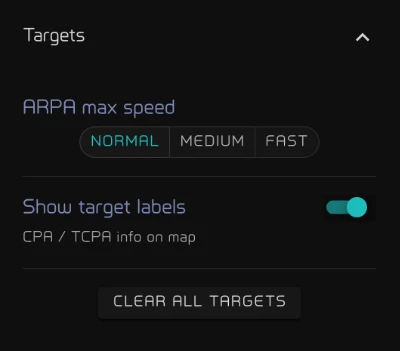
- ARPA max speed: the fastest target the radar will track. The choices come from your radar.
- Show target labels: the CPA and time to CPA labels on the chart.
- Clear all targets: drops every tracked target and starts again.
Guard Zones
A guard zone is an area around the boat that Zora watches for you. There is a Guard Zone section for each zone your radar offers. Its header shows On or Off, the number of targets inside, and the zone's name in the colour of its alert level.
To set one up:
- Switch on Enabled.
- Choose how loud it is: Alert, Warn, Alarm or Emergency. A new zone starts at Emergency.
- Set its shape:
- Sector: how wide it is, from 10° to a full 360°.
- Direction: where the middle of the sector points, from 180° to port to 180° to starboard. Ahead is dead ahead.
- Inner distance and Outer distance: the near and far edges, out to the radar's current range.
Each change is saved as you make it. Overlay opacity sets how strongly the zone is shaded, on this display only.
The zone turns with the boat. A sector of 60° with Ahead watches a 60° cone over the bow.
Zora watches the zones on the boat's server every 5 seconds, whether or not a screen shows the radar. When a target is inside a zone, a notification says which side it is on, its angle from the bow, its distance in your distance unit and the zone. Each new target raises its own notification, and it clears when the zone is empty again.
- A radar in standby guards nothing and raises nothing.
- If Zora loses the link to the radar for 30 seconds while a zone is on, it warns you: Radar link lost.
Emergency always sounds. Alert, Warn and Alarm sound unless the sound for that level is switched off in your notification settings; a new screen has all three on.
Trails and More
Trails and More are marked In progress. More holds extra controls that only some radars have.
Put the radar on another screen
Radar is also a widget. Add it to any screen in Edit Mode, and it works as the Radar screen does.