

Tracks
Zora keeps every passage and every stop the boat makes, with its track. The Tracks tool on the Charts screen puts any of them back on the chart. The same records, with their details, are in Trips & Stops in the Journal.
Find a passage or a stop
Tap Tracks on the right of the chart. See Tools panel.
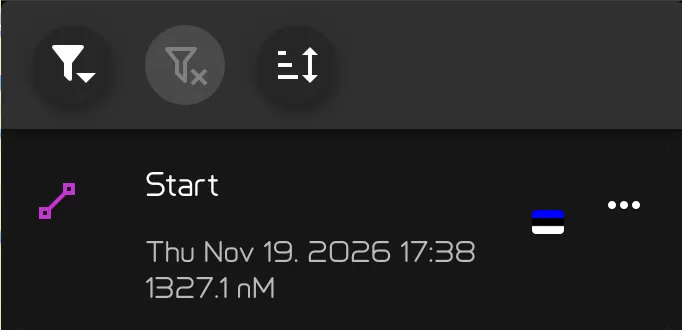
Each row is one passage or one stop. A passage has a line icon, and a stop has the icon of its kind: an anchor, a buoy or a pier. A row shows:
- where it went from and to, or a single place for a stop;
- its stars, if you rated it in the Journal, and the flags of the countries it touched;
- the date it started;
- the distance sailed for a passage, or how long the boat stayed for a stop;
- under a distance sort, how far away it is, in metres or kilometres.
Sort the list
The sort button orders the list by Distance to Boat, Distance to Map, Newest first, Oldest first, Longest distance, Longest duration or Highest rating. The list starts on Distance to Boat, and an orange dot on the button means another sort is chosen.
A distance sort measures from the boat, or from the middle of the chart, and re-ranks once that point has moved 500 m. Without a position it falls back to newest first and says so above the list.
Filter the list
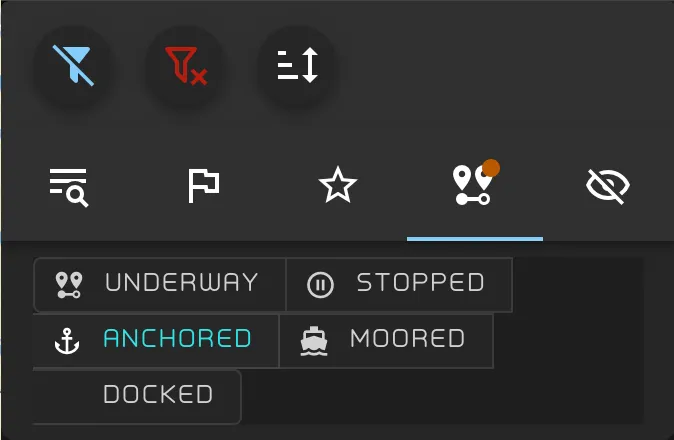
The filter button opens a row of five icon tabs. A dot on a tab, and on the filter button, means that tab is narrowing the list. From left to right:
- Search, for a name or a place.
- Countries, for one or more countries. The tab shows how many you chose.
- Rating: At least one to five stars. Tap the chosen star again to clear it.
- Kind: Underway, Stopped, Anchored, Moored or Docked, one at a time. Stopped lists all the stops together.
- Hidden: Show hidden tracks brings back the records you hid in the Journal.
The red button beside the filter button clears every filter and keeps the sort. It is greyed while no filter is set. When nothing matches, the list says No tracks match this filter.
Show a track on the chart
- Tap a row. Its track appears on the chart as a purple dashed line, the chart zooms to fit it, and a tick marks the row.
- Tap the row again to take the track off the chart. Closing the tool takes it off too. Open Tracks again and the track is back on the chart, still ticked, as long as the list still shows it.
One past track is shown at a time.
The menu on a row has:
- Create Route, on passages only. It turns the track into a route: see A route from a track.
- Export, then GPX or KML. It opens the same export as the Journal: see Export a track.
The Tracks tool has no delete. A record you do not want to see is hidden in the Journal.
The live track
The boat's own track is drawn behind it as it moves, coloured by what the boat is doing:
| Colour | Navigation state |
|---|---|
| Green | Sailing |
| Blue | Motor-sailing |
| Red | Motoring |
| Yellow | Drifting |
| Light grey | Any other state, such as anchored or moored |
It starts where the current passage or stop began. When the boat moves on to the next one, the line clears and starts again: the earlier ones are in the Tracks list. The states are explained in Vessel state.
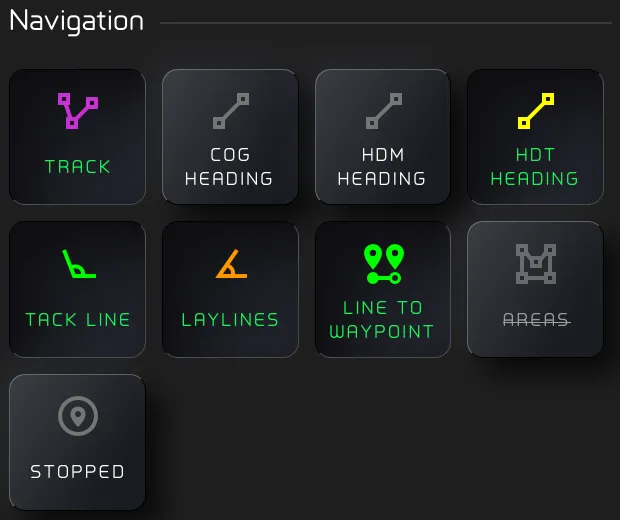
Track in the Overlays tab, under Navigation, shows or hides the live track. It has no line settings.
Trackers
A SPOT tracker follows something small that belongs to the boat, such as the dinghy, the outboard or a kayak. You add one in Setup: see SPOT Trackers.
Once the first tracker has reported, Trackers appears on the right of the chart. The list holds each tracker that is switched on and has a position, in name order. A row shows:
- the tracker's name, with the icon of its type;
- how long ago the tracker took its last fix, the kind of report and the battery level;
- its distance and bearing from the boat.
After an hour with no new fix, a row is marked stale and its icon turns grey. The age comes from the tracker's own fix time, so a tracker that has stopped reporting never looks recent.
Tap a row to move the chart to the tracker and open its TRACKER card: name, type, last fix, fix time, report, battery, and the SPOT device's name and model where SPOT sends them.
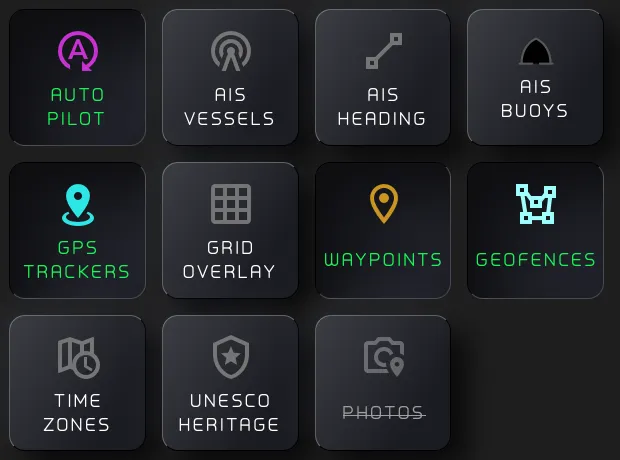
On the chart, each tracker is a pin. Tapping a pin opens the same card. All pins look alike; the type shows in the list and on the card. GPS Trackers in the Overlays tab shows or hides them. It is on to begin with.
If it does not work
Error loading trip track
Zora could not read the track for that row. The row stays ticked, so tap it twice: once to clear it and once to load the track again.
Track has too few points to create a route
The passage recorded fewer than two positions, so there is no line to make a route from. Draw the route by hand: see Draw a route.
No asset trackers reporting
No tracker has sent a position yet, or every tracker is switched off. Check the tracker in Setup: Test there says whether Zora can read it. See SPOT Trackers.