Garmin Mast Displays
Zora fills the custom data fields of Garmin GNX displays on the mast over NMEA 2000. What each field shows follows the boat's state, as the tools button shows it: the mast can carry one set of values while sailing and another in the prestart. It can also follow Zora's day and night.
You do this in the Zora Setup app. See Open the Setup app.
Before you start
- The GNX displays are on the same NMEA 2000 network as Zora. At the top of the add-on, NMEA 2000 reads online when Zora can send on it.
- On each GNX, every data field you want Zora to fill is set to a custom data channel, 0 to 9. Note the channel numbers. Every GNX with a field on a channel shows that channel's value.
Open the add-on
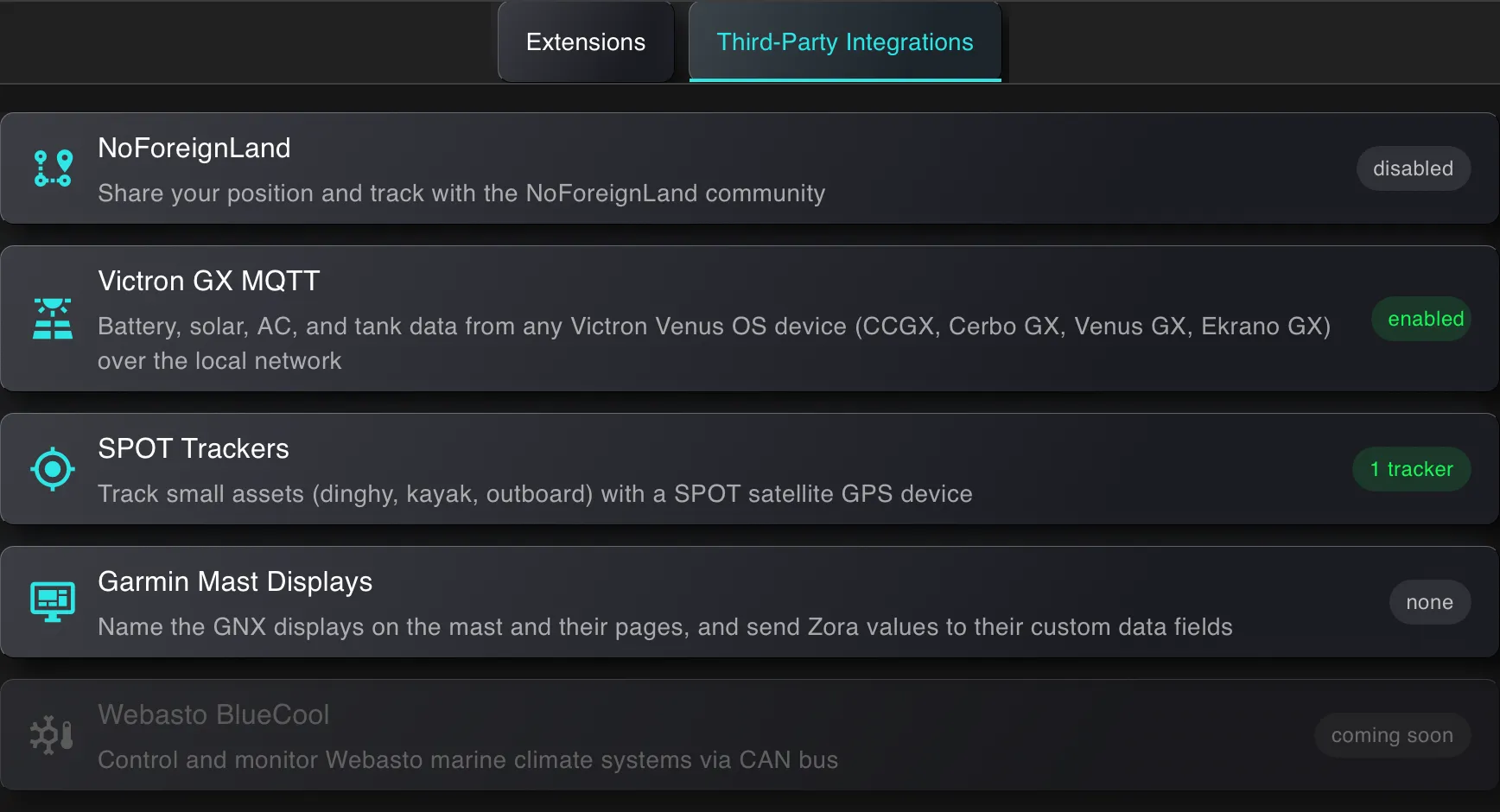
On the Setup app's home screen, tap Add-ons & Third-Party, then the Third-Party Integrations tab, then Garmin Mast Displays. The card shows how many displays are listed, or none.

List the displays
Zora sends nothing to the mast until at least one display is listed and saved.
- Under Displays on the mast, tap + once for each GNX, up to eight.
- Give each one a name, such as Mast port. The crew sees these names on the Zora widgets. Every display needs a name before you can save.
- Use the arrows to put the displays in the order the GNX displays are set up on the network.
Add a channel
The Custom data table has a row for each of the thirteen states the mast can be in, DRIFTING to POB, and a Default column. Above it is a row of buttons: Default, then 0 to 9, one for each GNX custom data channel.
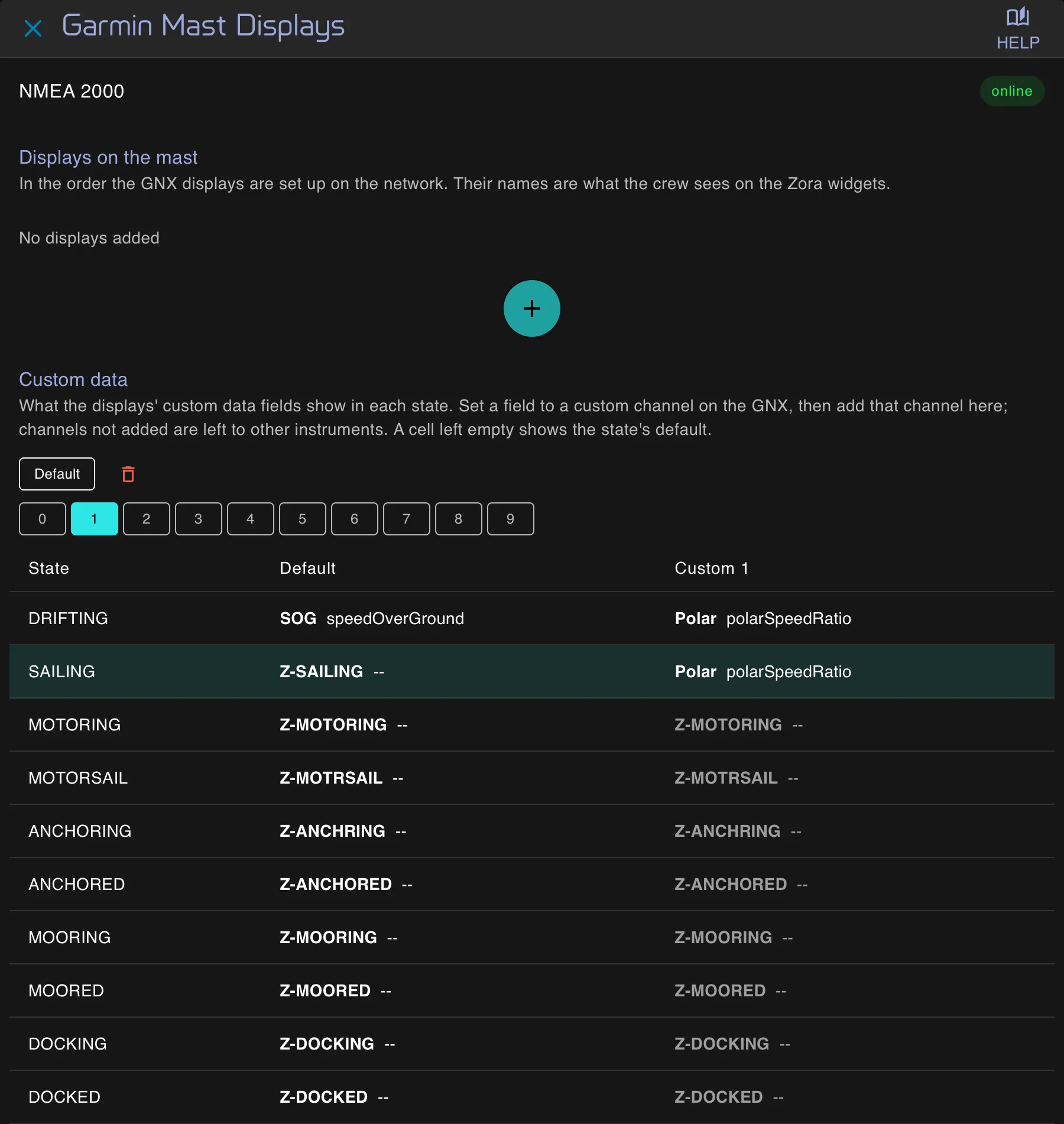
- Tap the number of the channel you set on the GNX. Zora adds the channel and shows its column, such as Custom 3, beside Default.
- Do the same for each channel you use. An added channel's button is filled in, and tapping it brings its column back. Default shows the Default column alone.
Zora sends only on the channels you add, so any channel you leave out stays free for another instrument. To remove a channel, show its column and tap the bin beside Default.
A new channel starts with every cell empty. An empty cell sends the state's Default cell instead and shows it greyed in the table. A Default cell you have not changed is Z- and the state's name with no value, such as Z-SAILING. A name too long for the field is shortened, as in Z-MOTRSAIL and Z-ANCHRING. Until you fill something in, a channel shows the state the boat is in, and the Z- tells the crew that Zora feeds it. See What the mast shows.
Fill a cell
Tap a cell to open its dialog. Every cell has the same dialog, Default cells included.
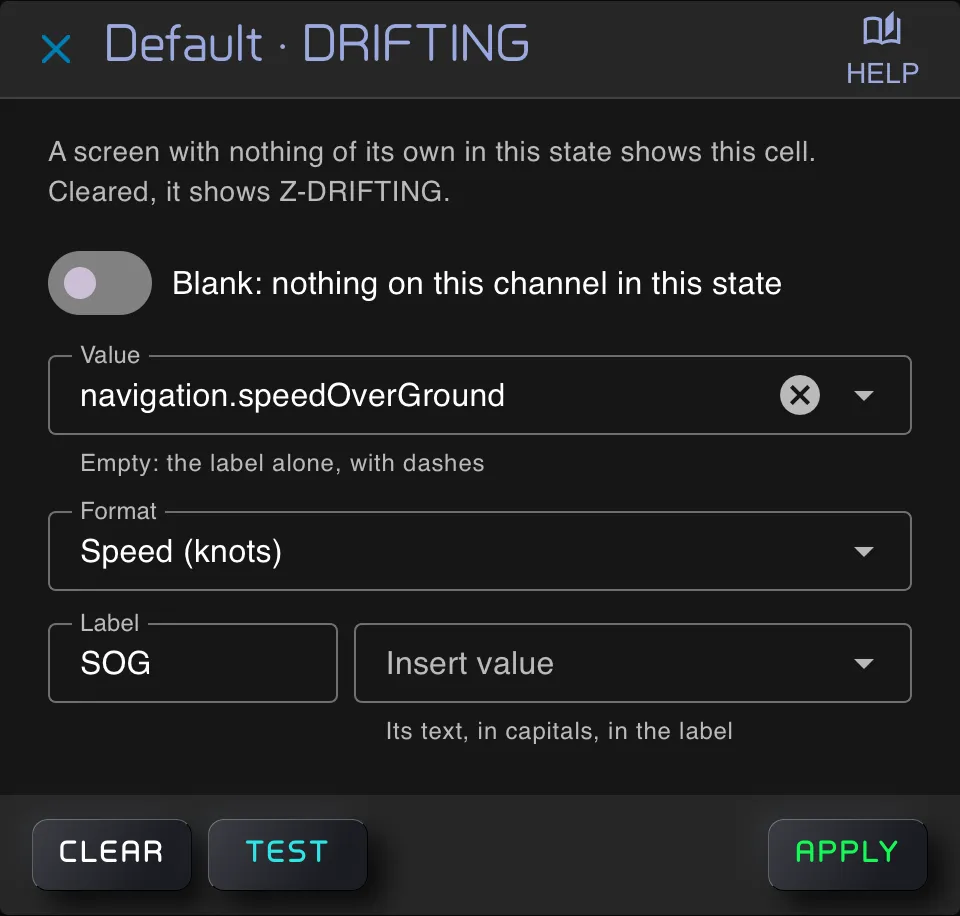
- Value: what the field shows. The list starts with Timer and Time to burn, followed by every number live on this boat. Leave it empty to send the label alone.
- Format: how the value is shown: Speed (knots), Angle (degrees), Heading (degrees), Percent, Number, Duration (m.ss) or Distance (metres). A value needs a format. Timer and Time to burn start on Duration.
- Label: the text beside the value, up to 10 plain characters. Insert value adds one text value from the boat, such as the start-line call, in capitals. The counter counts only your own text, and Zora cuts the finished label to 10 characters.
- Blank: nothing on this channel in this state. Without it, an empty cell sends the Default.
Timer is the time to timer zero, and before the timer is armed, the time to the active Regatta plan's start. Time to burn is timer zero minus the predicted crossing. Timer sends nothing with neither, and Time to burn sends nothing until the timer is armed or without a fresh predicted crossing.
Apply stays greyed while the dialog shows a problem. The buttons at the bottom:
- Test puts the label beside the number 42 on the channel for 15 seconds, whatever state the boat is in. Use it to find the field on each GNX and to check that the label fits. It tries the label as it stands in the dialog, and afterwards the channel goes back to what it was sending. Test needs a saved display and NMEA 2000 online.
- Copy to all states fills the channel's whole column with this cell. A Default cell does not have it.
- Clear empties the dialog. Applied empty, the cell falls back again.
- Apply puts the cell in the table. Save sends it.
A Default cell is tested on the channel whose column is showing. With no channel column showing, Test reads Pick a custom screen to test on.
Save
Tap Save. Garmin mast display settings saved confirms it.
Nothing you change in this dialog reaches the mast until you save. Closing without saving undoes every change, including a removed channel. While something cannot be saved, Save stays greyed and a line above it says what to fix.
Check the mast
The row of the state the mast is in now is highlighted. In that row, the channel's cell shows what is on the mast: the label and the value, with a duration as minutes:seconds.
Under the table, while a channel's column is showing, Advanced sets how many times a second that channel is sent, from 0.2 to 2. It starts at 1.
Day and night
These settings are shared by every make of mast display.
- Follow Zora day and night is on to start. The mast switches with sunset and sunrise at the boat's position.
- Day backlight starts at 100% and Night backlight at 30%, in 5% steps.
- GNX day colour starts on White and GNX night colour on Red. White, Red, Green and Blue have been sent from Zora and seen on a GNX. Orange, Yellow and Purple have not.
The displays follow Zora's day and night only with their own network sharing switched on. Setting day or night by hand on the Zora widget stops the mast following Zora until Auto is chosen again.
If it does not work
A GNX field shows nothing from Zora
Check these in order. The field's channel is added in the table, and saved. At least one display is listed, and saved. NMEA 2000 reads online. The cell for the state the boat is in is not Blank. Then tap Test on that cell: 42 on the field shows the field is on the channel you think. If Test works and the value still does not show, see When a channel goes quiet.
Test is greyed
Its tooltip says why. Pick a custom screen to test on: you are on a Default cell with no channel column showing, so tap a channel number first. Fix the cell first: the dialog shows what is wrong with the cell.