

Engine
Each engine goes on the boat's equipment list once. With the engine on the list, Zora shows it in the Tools panel and counts its running hours.
This is done in the Zora app. An engine that sends its data on NMEA 2000 can be found by Zora. An engine without a sensor is added by hand, and you start and stop it in the Tools panel.
Open Propulsion
Press SCREENS, open the Equipment tab and choose Assets.
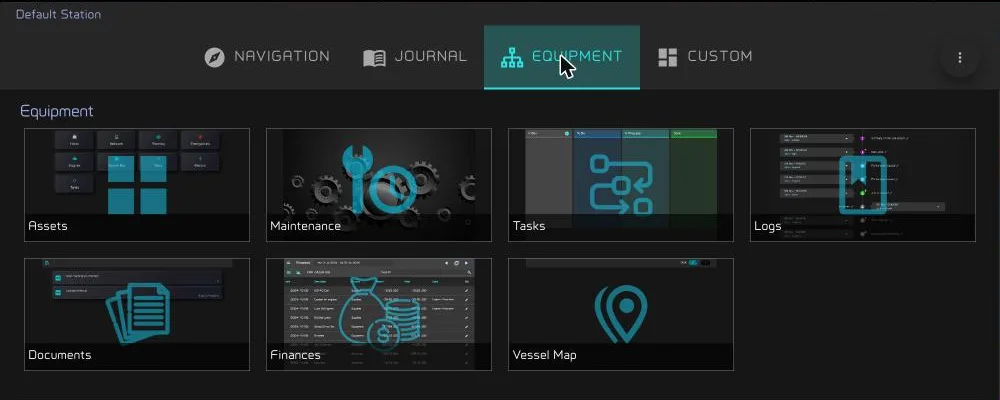
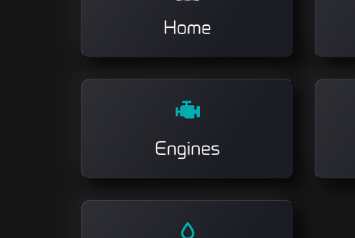
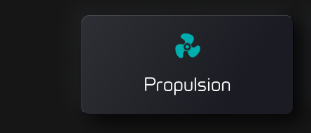
Open Engines, then Propulsion.
Let Zora find the engine
For an engine that sends its revolutions on NMEA 2000.
- Start the engine. Zora only finds an engine it has seen running.
- In Propulsion, tap the round scan button under the plus.
Zora answers with how many new items it added, that the engine is already on your list, or No devices found. Nothing joins the list until you scan.
A found engine is called Engine followed by its name on the network. Its data link is set for you, and the manufacturer is filled in when the engine reports it. Rename it on the Label tab, then set it up on the Interface tab.
If you had already made the engine by hand, the scan takes over that item instead of adding a second one. That happens when the item is linked to this engine's data, or when this is the only engine Zora has seen running and the only engine you made by hand. The item keeps the name you gave it.
A found engine cannot be deleted. When it leaves the boat, decommission it; see Assets.
Add an engine by hand
In Propulsion, tap the plus. The new engine's editor opens on the Label tab.

Type a Label, check the Installation date (it starts at today) and tap save at the bottom. The other tabs open once the engine has a label.
On Info, fill in what you know. Kind offers electric, hybrid, diesel and gasoline.
On Data link, connect the engine's data if it has any. See Data link.
On Interface, name the engine and set its propeller position, then tap update. See Interface.
Each tab saves on its own. The editor's other tabs are described in Assets.
Data link
The tab lists the engine data on the network. Tap the one that belongs to this engine. Zora saves your choice straight away. A source another item already uses shows that item's name under already used by.
With no engine data on the network, the tab reads no sensor data available for this item and no data sources. Leave it like that for an engine without a sensor.
The first choice, not connected or disconnect, removes the link.
Interface
- Name for Engine Tools is the name the Engines list in the Tools panel shows. It is required and should be unique. The field starts at noName, so type the engine's name.
- Propeller position for this engine: tap one of the five propellers, from port on the left to starboard on the right. The middle one is the centre, and it is where the field starts. The PND draws the engine's propeller at that place on the boat.
Tap update. The engine now shows in the Engines list of the Tools panel.
Engines without a sensor
An engine with no data link sends Zora nothing, so Zora cannot tell when it runs. Tap it in the Tools panel to start it and again to stop it, and the vessel state follows. See Engines.
Tapping an engine that has a data link does nothing: Zora reads it from the network.
If the engine gets a sensor later, open its Data link tab and pick it. The item stays the same.
Change an engine later
Long-press the engine's card in Propulsion, or tap its dots and choose Edit, to open the editor again.
Related
- Zora: Assets: the equipment list, the editor's tabs, and decommissioning.
- Zora: Vessel state: the engines in the Tools panel.
- Sail: add the sails the same way.