

Sail
Each sail goes on the boat's equipment list once, with its area and the wind limit of each reef. Zora then lists it under Sails in the Tools panel, where you set and reef it; see Sails.
This is done in the Zora app.
Open Sails
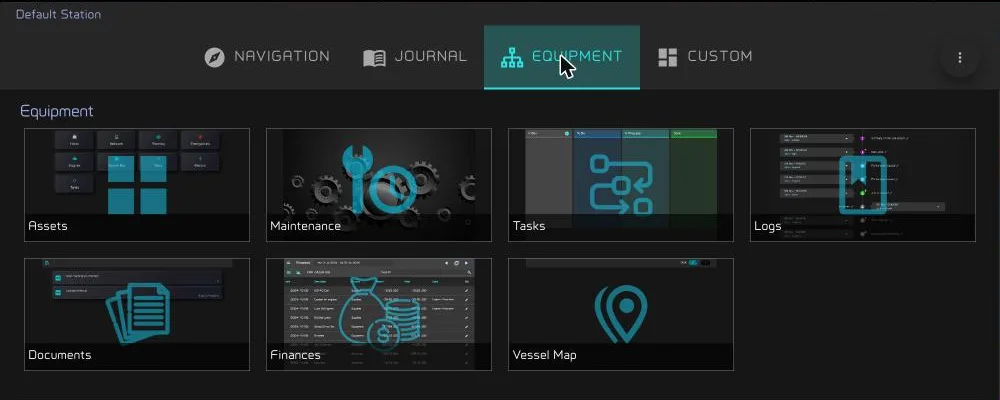
Press SCREENS, open the Equipment tab and choose Assets.
Open Sails & Rig, then Sails.


Add a sail
- In Sails, tap the plus. The new sail's editor opens on the Label tab.
- Type a Label, check the Installation date (it starts at today) and tap save at the bottom. The other tabs open once the sail has a label.
- On Info, fill in what you know. Kind lists the sail types, from Code 0 to Mizzen, and there are fields for Material and Color.
- On Interface, name the sail and enter its reefs, then tap update. See Interface.
Each tab saves on its own. The editor's other tabs are described in Assets.
The sail joins the Tools panel only once its Interface tab is saved. Zora confirms with Sail settings updated. A new sail starts down.
Interface
- Name for saillist: the name the Sails sheet, the reef menu, the reef notifications and the logbook use for this sail. It is required, cannot contain #, and should be unique.
- Logbook label: optional. Up to five characters, one word, starting with a letter.
Reefs
Under Reef settings - please use apparent wind speed AWS, each row is one setting of the sail:
- The first row is the full sail: its sail area and its max wind Speed, the highest apparent wind you carry it in.
- add reef adds the next reef, with its reef 1 area, reef 2 area and so on, and its own max wind Speed.
Each reef needs a smaller area and a higher wind limit than the one before. The bin at the end of a row removes that reef. The area is in square metres or square feet, following your units.
While the sail is up, Zora compares the averaged apparent wind with the limit of the reef you carry. Above it, Zora suggests a reef. Below the limit of the reef before, it suggests shaking one out. See Reef notifications.
Night sailing
Under Notifications for night sailing, choose what Zora should suggest for this sail after dark:
- none: nothing.
- take a reef: from the start of sunset, Zora warns while the sail is up at full sail. A sail with no reef to take gets no warning.
- take down: from the start of sunset, Zora warns while the sail is up at all.
See Night sailing for what the warning looks like.
Change a sail later
Long-press the sail's card in Sails, or tap its dots and choose Edit. Change the Interface tab and tap update. The reef notifications follow the new name and limits.