

How Zora is laid out
Every Zora screen has the same layout, whatever equipment the boat carries and whichever display you are standing at. Learn it once and it holds everywhere on board.
The three parts of the screen
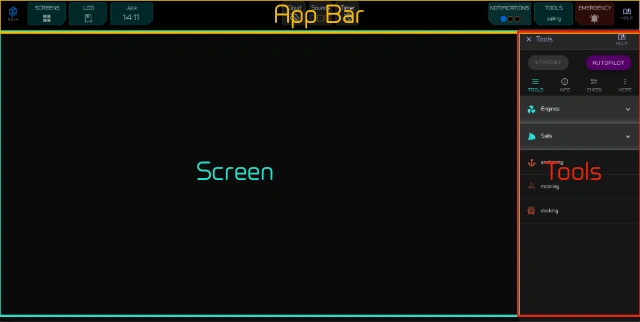
- The app bar, along the top, holds the buttons you need from anywhere: screens, the log, notifications, tools, emergency and help. Each button is described in The app bar.
- The screen, in the middle, is where the widgets are: the chart, the instruments, the logbook, whatever that screen shows.
- The Tools panel, on the right, holds the controls for what you are doing. It changes with the screen and the widget you are using.
Zora fits itself to any display size or orientation. Screen layouts belong to a station, a size and an orientation. Logging in takes a display to your own station, so the layouts you make there follow you to every display of that size. A display with a station of its own stays on that station, whoever logs in.
Screen groups
Press SCREENS in the app bar to choose a screen. The screens come in four groups, one tab each.
- Navigation is where you spend your time underway. The Dynamic Navigation Screen changes with what the boat is doing, whether sailing, at anchor or docking, and Charts is the full chart with routes, waypoints and AIS. The Fullscreen screens in this tab give the whole display to one thing: the PND compass, AIS, radar or weather.
- Journal holds the trips Zora records as you sail, each with its track and log entries, your sailing history on the world map, and the voyages you plan.
- Equipment is the boat itself: its equipment, maintenance, tasks, logs, documents, finances and the vessel map.
- Custom holds the screens you build yourself, from whatever widgets you like. A screen of your own can also be placed in any of the other tabs.
The logbook is always one tap away from the LOGBOOK button in the app bar, whichever group you are in.
The Tools panel
Every widget with tools of its own has a tool menu icon on its right.
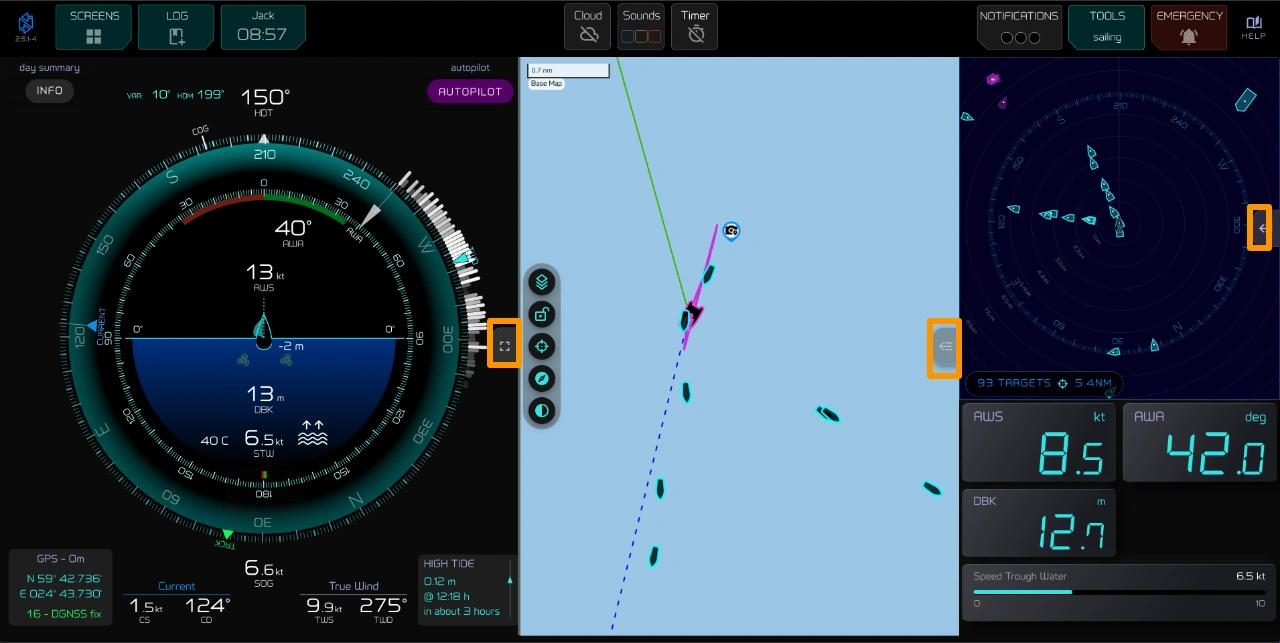
Tap it to open that widget's tools. Tap it again to close them.


Tap it while the panel shows something else, such as another widget's tools or Notifications from the app bar, and the panel switches to this widget.
Long-press it to widen the widget to the full screen. The app bar stays; the panel slides away. Long-press again to go back.

Widget at full screen width
Touch, mouse and keyboard
Zora works with a touchscreen or a mouse. Almost anything can be tapped or long-pressed:
- Tap to select or start something.
- Long-press for more options.
- Swipe to move a chart or the AIS view.
- Pinch to zoom a chart or map.
Zora and the Setup app
Zora is the app you use every day, on every screen on board. The boat is set up in a second app, Zora Setup: connecting equipment, adding stations and screens, the settings you make once. You will not need it underway. Setup covers it.
Help
Tap help in the app bar to open these guides at the page for the screen you are on. They are also online at inav4u.com/guides. To reach support, use Get support... in the Zora logo menu; see Get help.